
Customer Support
VPS – How can I reinstall the Operating System (OS) on my VPS at Papaki?
If you want to install a new operating system (OS) on your VPS hosting package, you can easily do so through the Papaki control panel by following the steps below.
What You Need to Know Before You Begin
Reinstalling the operating system may be necessary in cases such as:
- Switching to a different Linux distribution
- Resolving critical system errors
- Performing a complete format of your server
Please note:
- Reinstalling the OS results in a full format of the server
- All existing files and configurations will be permanently deleted
- The new OS will be installed from scratch, replacing the previous one
Creating a backup is highly recommended before you begin
Step-by-Step: Reinstalling Your Server’s Operating System
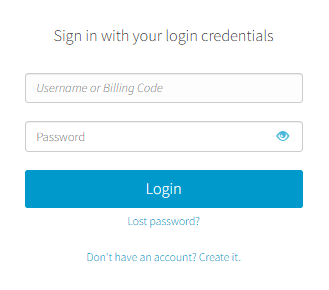
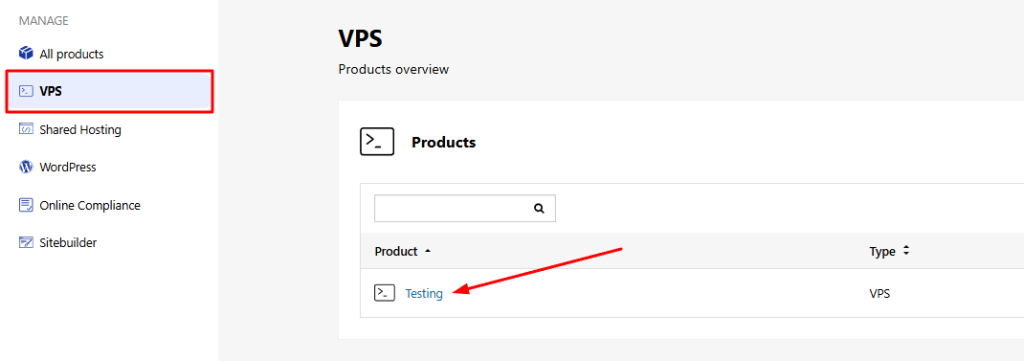
- Locate the VPS hosting package you want to manage from the side menu in your control panel

- Click on the desired plan
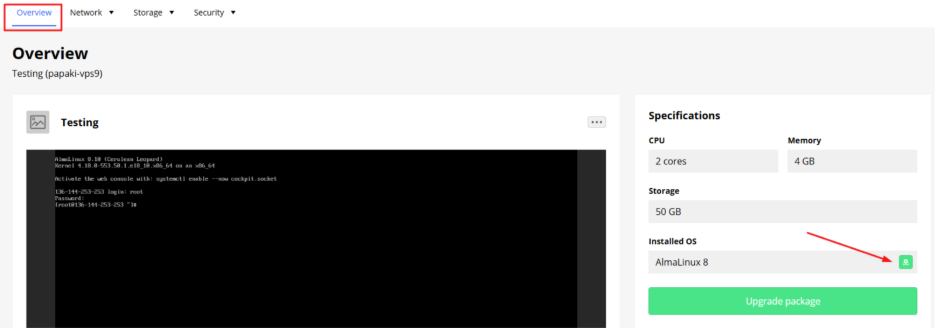
- From the Overview tab, click on Installed OS
Select the operating system you wish to install from the list of available options (e.g., Ubuntu, Debian, AlmaLinux, etc.)
- If you choose an operating system with a control panel (Plesk/cPanel):
From the terminal interface that appears:
- Configure the network settings.
- Create a new user and password.
- Optionally, select preconfigured templates for applications such as:
- Nginx
- Monitoring tools
- File servers
- If you choose an operating system without a control panel:
You will need to configure SSH keys and add your public key. For more detailed information, see the full guide here.
- Once the installation is complete, perform a server reboot to finalize the process. After the reboot, your new OS will be ready for use.
Important Reminder
The reinstallation process will erase all existing server files and settings. Restoration is not possible unless you’ve created a backup beforehand.
How do I create SSH Keys?
Depending on the operating system you have installed, you will need to generate SSH Keys in order to connect to your hosting via SSH.
- If you are using Linux, run the following command in the terminal.
- If you are using Windows, run the same command in the Command Prompt:
ssh-keygen -t rsa -b 4096 -C "my_email@example.com"You will then be prompted to choose where to save the key. Press Enter to confirm the default path (~/.ssh/id_rsa).
For additional security, at the next step, you can enter a passphrase. If you prefer not to, simply leave it blank.
- When reinstalling the operating system on your VPS, you will need to provide the public key (
id_rsa.pub). - When connecting via SSH, you will be asked for the private key (
id_rsa).
Read more here.
You haven't found what you are looking for?
Contact our experts, they will be happy to help!
Contact us