
Customer Support
How can I install an SSL certificate and fix Mixed Content issues on my WordPress website?
After installing an SSL certificate, your WordPress website may still display security warnings or fail to show the secure padlock icon in the browser. This usually happens when part of the website is still being loaded via HTTP instead of HTTPS, resulting in what is known as mixed content.
This guide explains the steps required to fully migrate your WordPress website to HTTPS.
Before you begin
Make sure that:
- Your SSL certificate has been successfully issued and installed.
- Your website is already accessible via HTTPS.
- The SSL certificate is displayed as valid in your browser.
- You have created a backup of your database before making any changes.
1. Change your WordPress URLs to HTTPS
You can update your WordPress URLs using one of the following methods.
Method A: Through the WordPress Dashboard
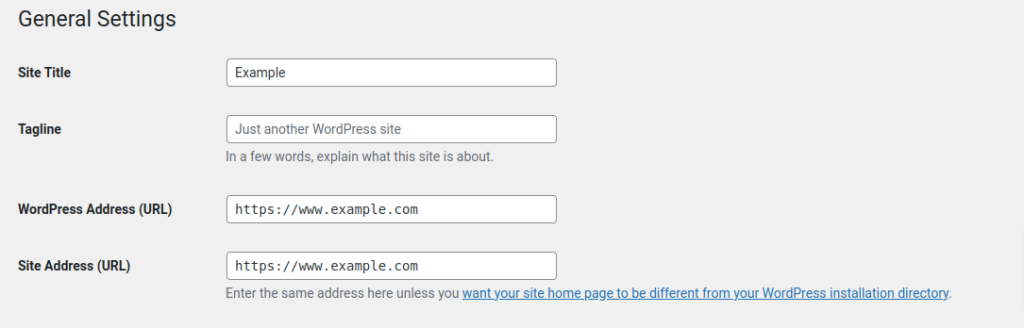
- Navigate to Settings → General.
- Change the following URLs:
http://example.com to: https://example.com
for both:
- WordPress Address (URL)
- Site Address (URL)
Method B: Through the wp-config.php file
If the URLs are defined through code, add the following lines to your wp-config.php file:
PHP
define('WP_HOME','https://example.com');
define('WP_SITEURL','https://example.com');
2. Redirect all HTTP traffic to HTTPS
This ensures that all visitors are automatically redirected to the secure HTTPS version of your website.
Method A: Through Plesk
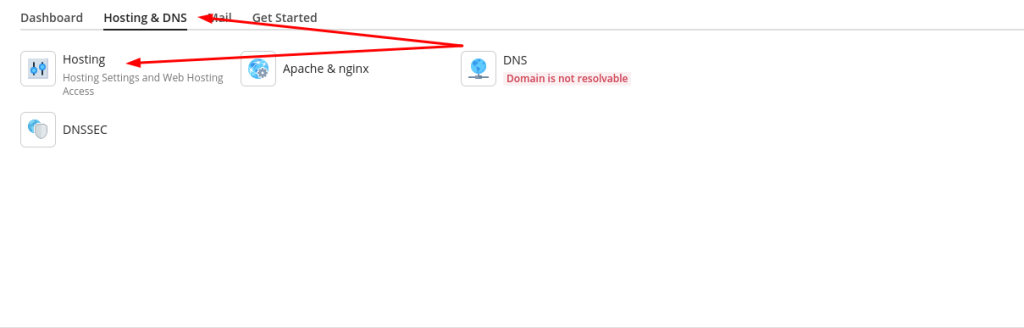
- Log in to Plesk.
- Open Hosting Settings.
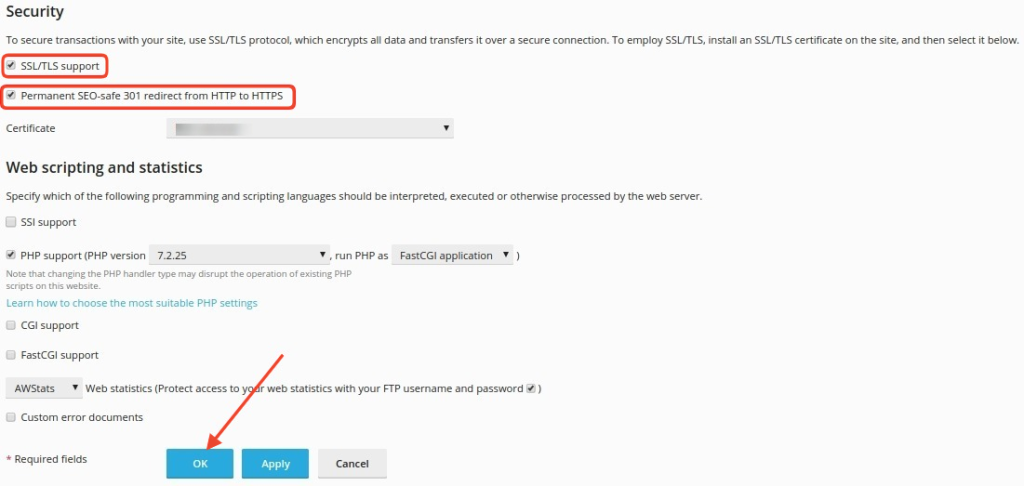
- Enable: Permanent SEO-safe 301 redirect from HTTP to HTTPS
- Click OK to save your changes.
Method B: Through .htaccess
Alternatively, add the following rules to your .htaccess file:
Apache Config
RewriteEngine On
RewriteCond %{HTTPS} off
RewriteRule ^(.*)$ https://%{HTTP_HOST}%{REQUEST_URI} [R=301,L]
3. Fix Mixed Content
After performing the previous steps, you will need to replace any old HTTP URLs stored in your WordPress database.
It is highly recommended to create a backup before proceeding.
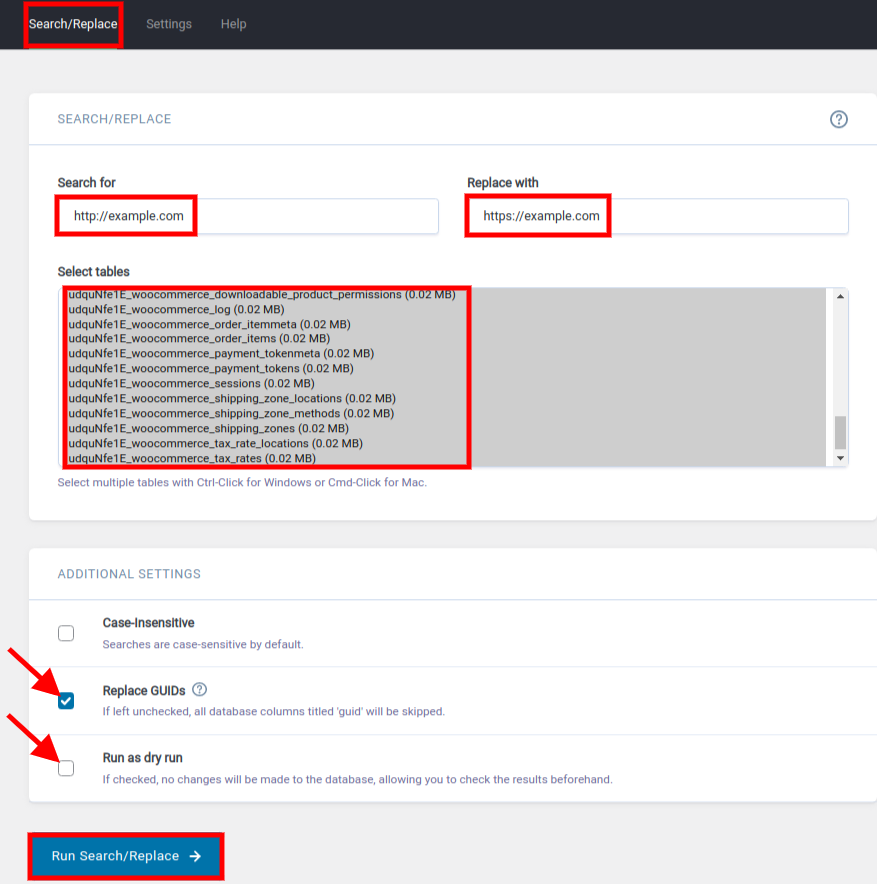
Method A: Better Search Replace
- Install and activate the Better Search Replace plugin.
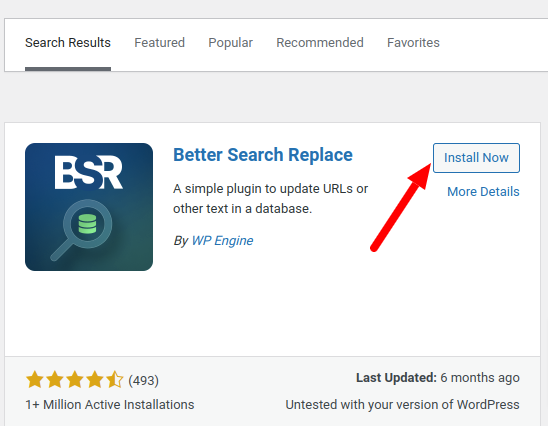
- Navigate to: Tools → Better Search Replace
- Enter the following values:
Search for: http://example.com
Replace with: https://example.com
- Select all database tables.
- Initially enable: Run as dry run
to perform a test search.
- If the results look correct, disable the option and click: Run Search/Replace
Note regarding GUIDs
The Replace GUIDs option is not required in most HTTP-to-HTTPS migration scenarios. Only use it if you specifically know it is required for your WordPress installation.
Method B: Using WP-CLI
If you have SSH access and are familiar with command-line tools, you can use WP-CLI.
For a test run:
wp search-replace 'http://example.com' 'https://example.com' --dry-run
For the actual replacement:
wp search-replace 'http://example.com' 'https://example.com'
4. Check for Mixed Content
After completing the previous steps:
- Clear your WordPress cache.
- Clear the cache of any caching plugin you use.
- If you use Cloudflare or another CDN, clear its cache as well.
- Clear your browser cache.
You can then check your website using mixed content testing tools such as Why No Padlock.
Still seeing Mixed Content warnings?
If the problem persists:
- Check the Console tab in your browser's Developer Tools.
- Look for images, CSS files, JavaScript files, or fonts that are still being loaded through HTTP.
- Check whether a plugin or theme is generating HTTP URLs dynamically.
- Verify whether there are any hardcoded HTTP links in your code.
- Check whether external resources are being loaded from websites that do not support HTTPS.
If an external source does not support HTTPS, you will need to replace it with a secure alternative or remove the affected resource from your website.
Helpful Tip
Once your HTTPS migration is complete, monitor your website for a few days to ensure that there are no remaining security warnings, loading issues, or HTTP links stored in content, widgets, themes, or plugins.
You haven't found what you are looking for?
Contact our experts, they will be happy to help!
Contact us