
Customer Support
How can I manage an existing database in my hosting?
If you want to manage an existing database through your hosting package’s control panel at Papaki, just follow the steps below.
Attention!
If you have an email hosting package hosted on a Plesk infrastructure, please refer to the guide available here.
Steps to Manage Databases:
Steps:
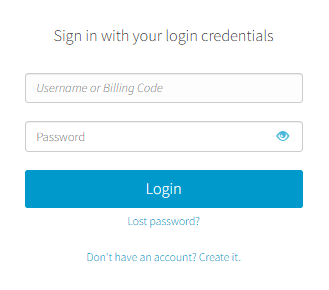
- From the dashboard, locate the product you want to manage. Click the name of the plan.

You will be redirected to the hosting management area. Here you can view, by category, all services linked to your Papaki account.
- Click the hosting plan name you want to manage.
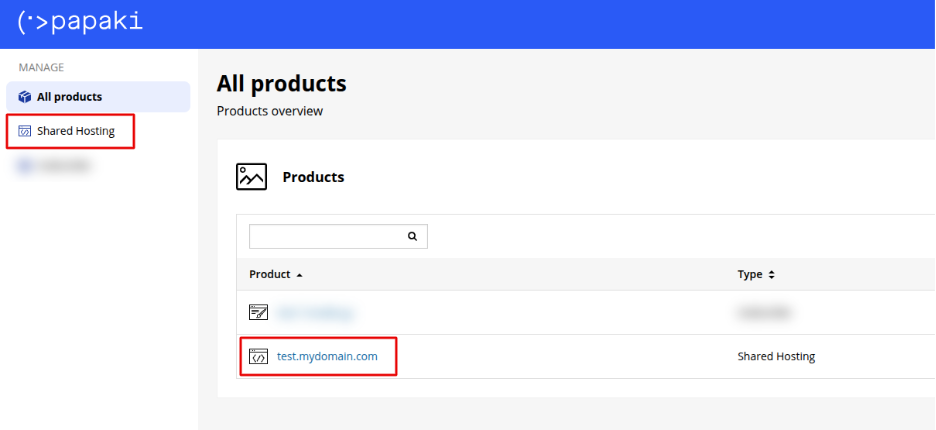
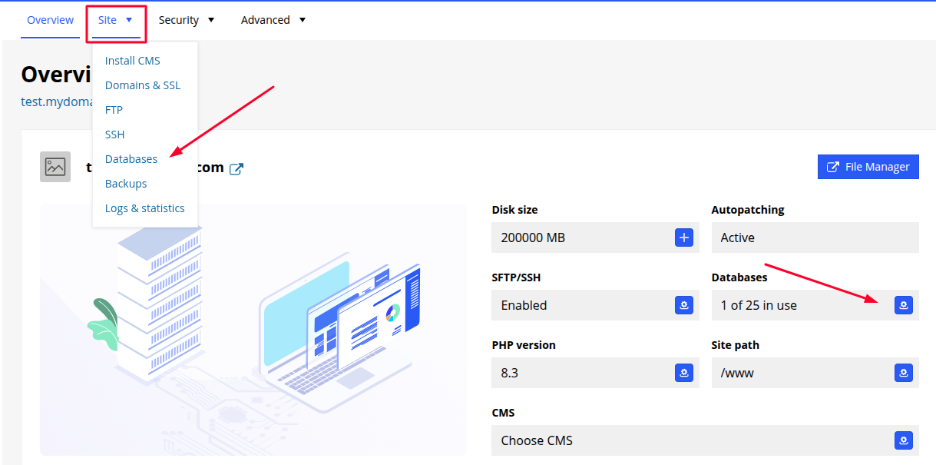
- You can access your database management interface in two ways:
- From the main hosting dashboard, by selecting “Databases”, or
- through the “Website” tab → “Databases”.
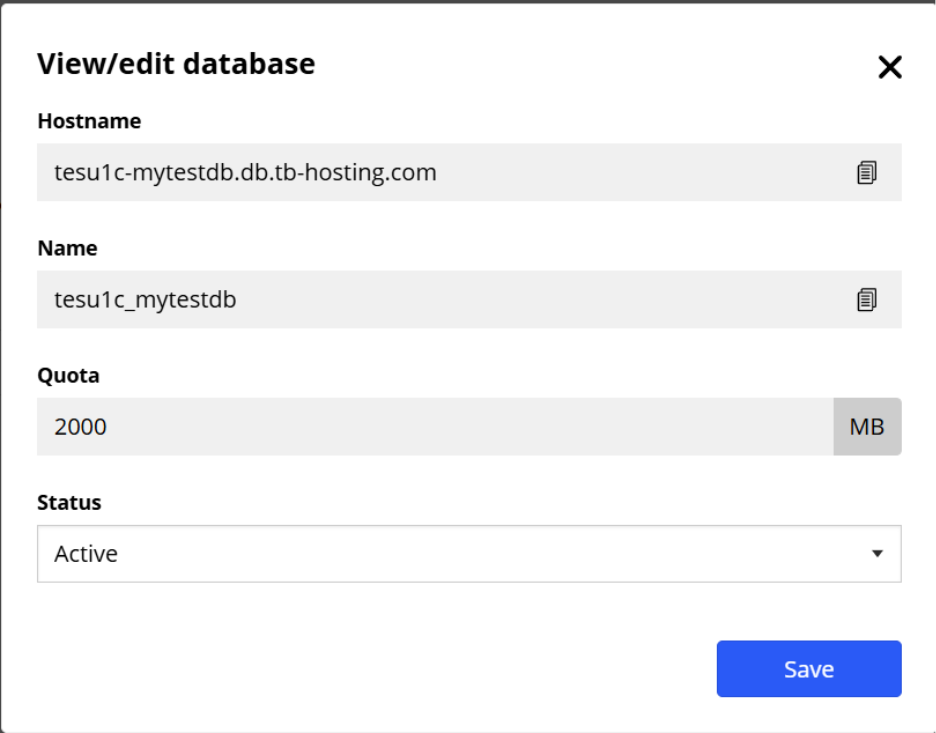
- Click on the name of the database you want to manage. A pop-up window will appear where you can:
- Copy the database name and host.
- View the maximum file size allowed for the database.
- Change the database status (active/inactive).
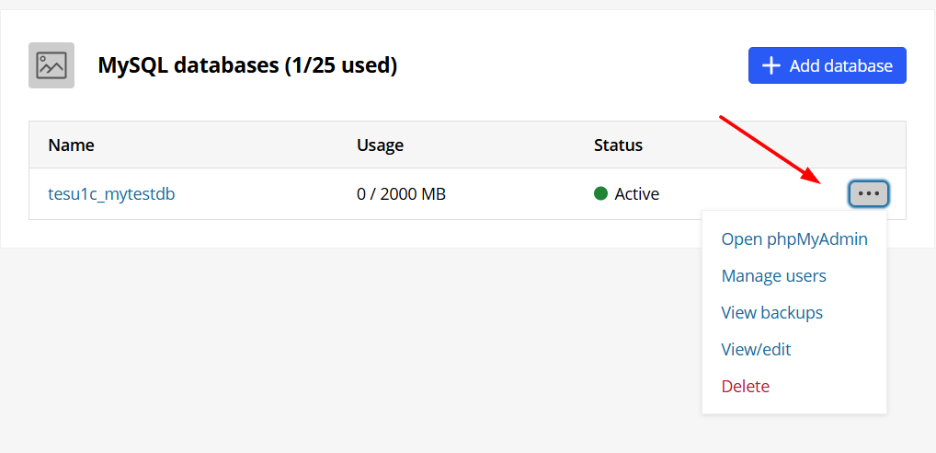
Click on the three-dot menu to access more management options:
- Open phpMyAdmin to view and edit database content.
- Create or edit database users.
- View available backups.
- Display detailed database info.
- Delete the database, if needed.
You haven't found what you are looking for?
Contact our experts, they will be happy to help!
Contact us