
Customer Support
Acronis Backup installation guide on VPS with Plesk
Installing and configuring Acronis Cloud Backup on your VPS hosting is simple and fast, thanks to the official plugin/extension for Plesk. The extension automates many steps, making the process much easier compared to a manual SSH installation.
What the Acronis Backup Extension for Plesk Offers
- Automatic agent installation: Once you install the extension, the Acronis agent is automatically installed on your server.
- Registration: The extension guides you through registering your VPS with your Acronis account.
- Centralized control: Directly from Plesk, you can view, manage, and launch backups without accessing the Acronis Cloud Console.
Features Inside Plesk
- Full server backup: Back up the entire VPS (operating system and Plesk configurations).
- Per-subscription backup: Backup specific Plesk accounts/domains.
- File-level restore: Restore individual files.
- Database restore: Restore MySQL/MariaDB or MSSQL databases.
- Mail restore: Restore mailboxes.
All of these tasks can be performed directly within Plesk, without requiring SSH.
Requirements
Before starting the installation, make sure you have:
- An active VPS with Plesk installed (Linux).
- Administrator access to the Plesk panel.
- An Acronis Cyber Protect account with an active license.
Activation
- From the right-hand menu, under Servers, click on the Acronis Cyber Backup you want to activate.

- Enter an email address, accept the terms of use, and click Set Up Parameters.
- Once the activation is complete and you receive your Acronis login details, proceed with the installation.
Installation Steps
- Log in to Plesk as an administrator.
- From the left-hand menu, go to:
Extensions > Extensions Catalog > Select Category > Backup > Acronis Backup
Alternatively, type Acronis Backup in the search bar.
- Click Install on the Acronis Backup extension.
Alternatively, download the extension from the Acronis website and manually upload it to Plesk.
- After installation, the Acronis Backup tab will appear in Plesk.
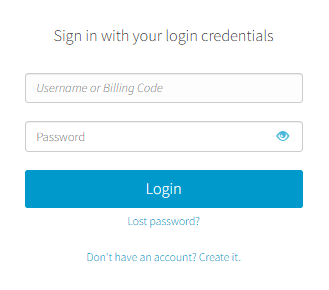
- Sign in with your Acronis account.
- The system will automatically install the Acronis Backup Agent on your server.
Once the installation is complete, the agent is ready, and you can start configuring and running backups.
FAQs
Do I need SSH access to install Acronis Backup?
No, installation is done directly via the Plesk Extensions menu.
Do I need to configure the firewall?
If you have enabled the firewall on your VPS, you will need to make the necessary configurations.
Is the extension free?
Yes, the extension is free to install, but you need an active Acronis license.
What if the agent installation fails?
You can reinstall it manually from within Plesk or download the installer directly from the Acronis website.
You haven't found what you are looking for?
Contact our experts, they will be happy to help!
Contact us