
Customer Support
Hosting for WordPress (Managed & Unmanaged) – How can I restore my WordPress from a backup?
Your Hosting for WordPress includes an automated backup service. If you want to restore your website to a previous state, you can do it easily through your Papaki account.
Attention!
If you have an email hosting package hosted on a Plesk infrastructure, please refer to the guide available here.
Step-by-step: How to Restore WordPress Hosting from Backup
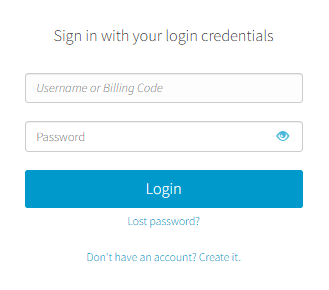
- From the dashboard, locate the product you want to manage. Click the name of the plan.
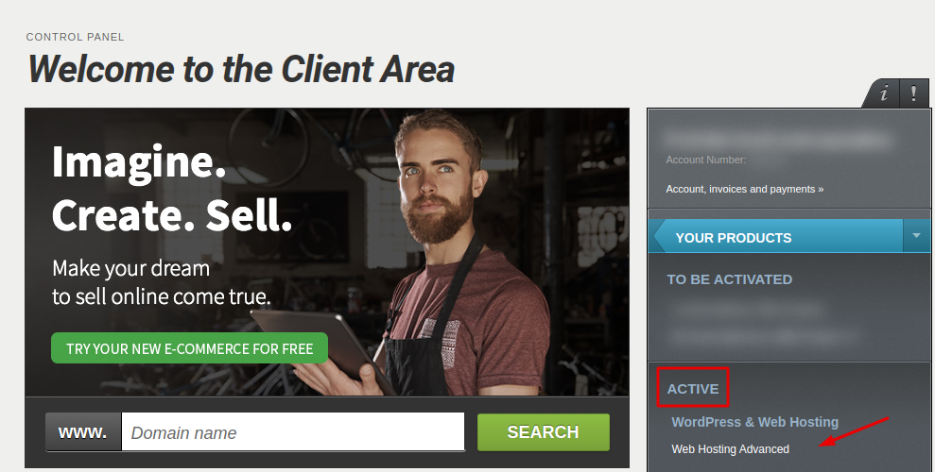
You will be redirected to the hosting management area. Here you can view, by category, all services linked to your Papaki account.
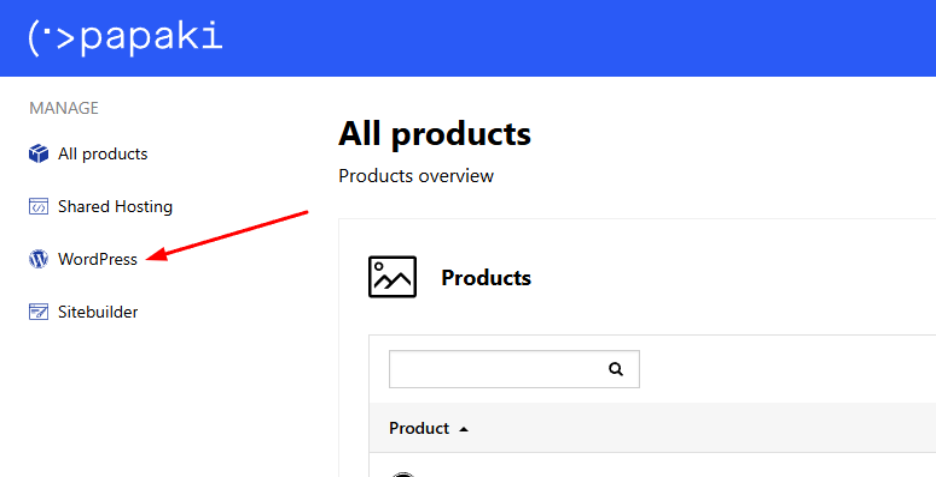
- From the left-hand menu, go to Hosting Packages and click on WordPress. Then, choose the hosting pack.
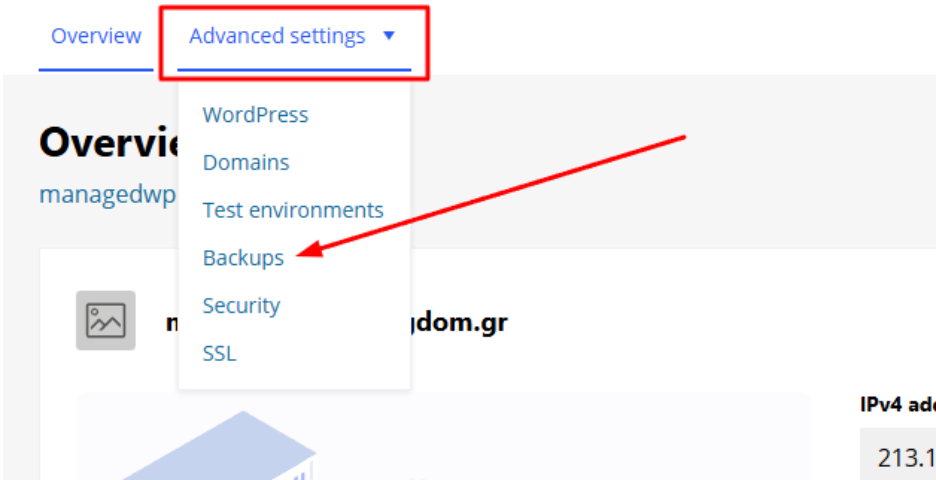
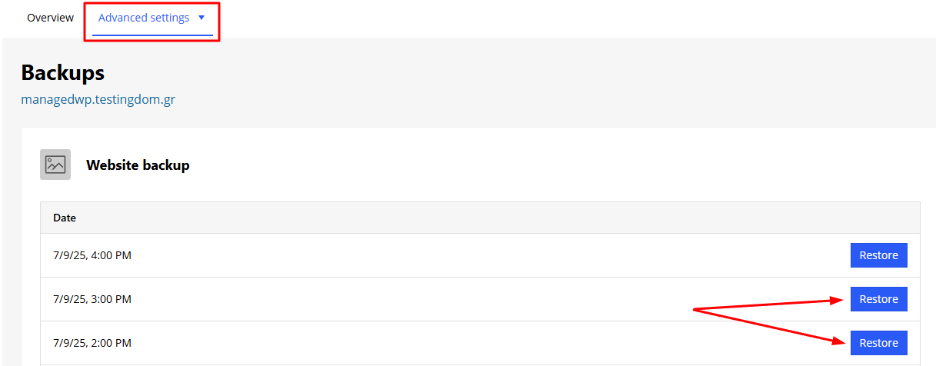
- Click on the Advanced settings tab and then select Backups.
Managed Hosting for WordPress
- Find the date and time of the backup you want to restore your site to and click Restore.
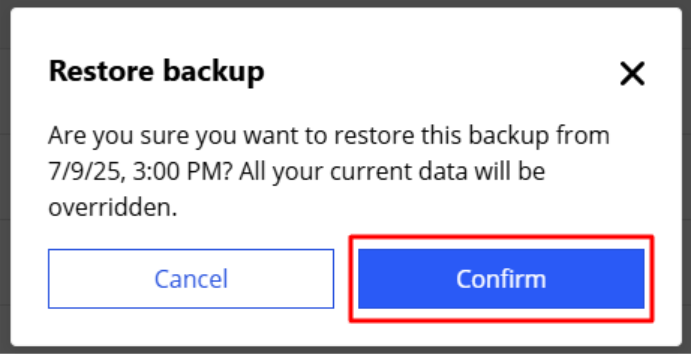
- A confirmation message will appear. Click Confirm to proceed. The restoration process will start automatically.
Note: The restoration includes the entire installation (files and database) and cannot be done selectively.
Unmanaged Hosting for WordPress
Database Restoration
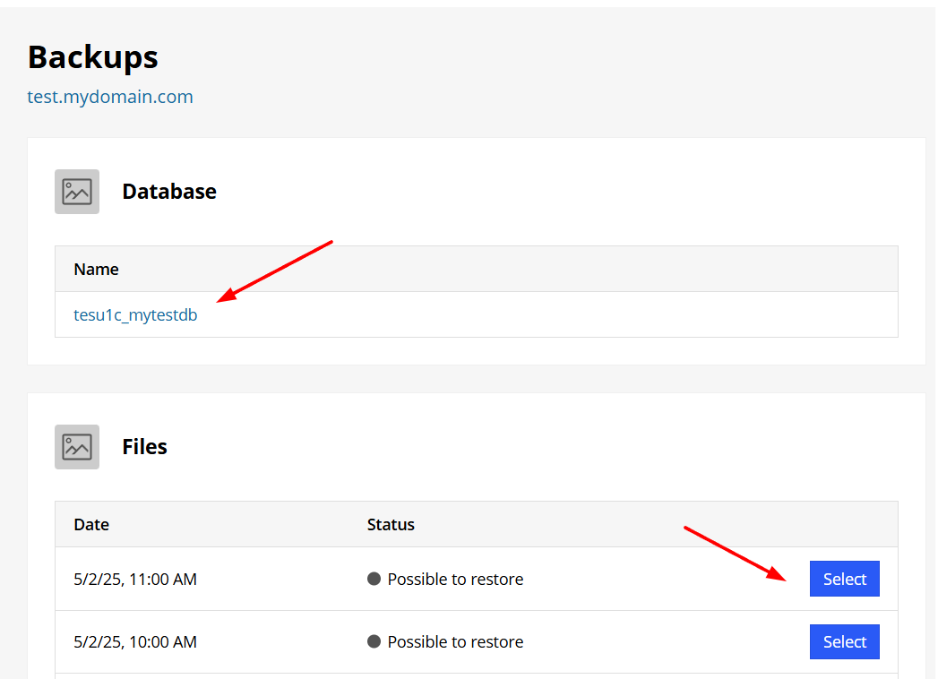
- Locate the database you want to restore and click on its name.
- From the list of available backups, click Download for the desired file.
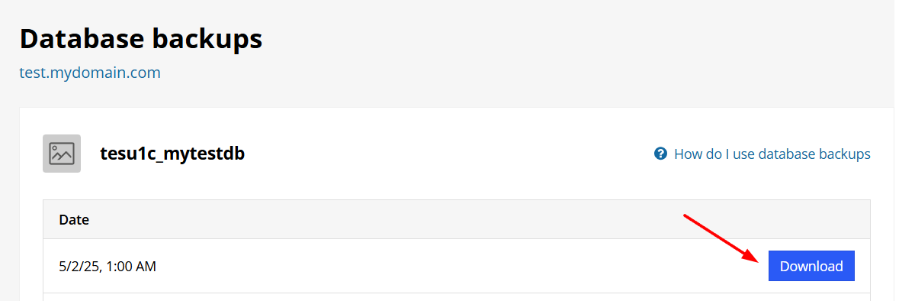
- You will download a compressed .SQL file locally to your computer.
- Import the file into your existing database via phpMyAdmin.
File Restoration
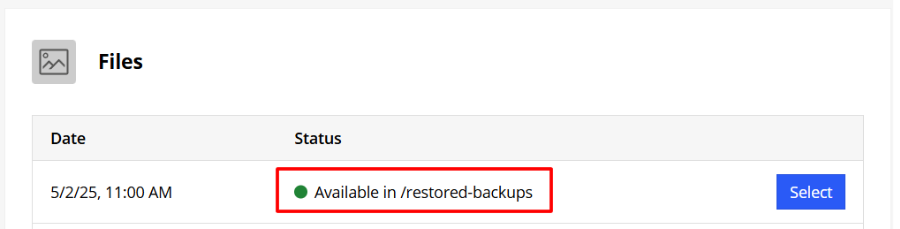
- In the file section, select the desired restore date.
- A new folder will automatically be created inside /restored-backups, named with the backup date, containing all the files from that backup.
This way, you can choose which files or folders you want to manually restore to your site.
Important!
After completing the restoration:
- Don’t forget to delete the contents of the /restored-backups folder if you no longer need them.
- Its contents consume space from your available hosting storage.
Frequently Asked Questions (FAQs)
Can I download the backup locally to my computer?
- Managed Hosting for WordPress: No. The service only offers automatic restoration through the management environment. Local export of backups is not supported.
- Unmanaged Hosting for WordPress: Yes. You can locally download your files from the /restored-backups folder.
Can I restore only specific files or only the database?
- Managed Hosting for WordPress: No. The restoration includes the entire file system and the database. Selective restoration is not possible.
- Unmanaged Hosting for WordPress: Yes. Restoration is done in parts, and you can restore only what you need.
Will the restoration affect my emails?
No. The restoration applies exclusively to your WordPress installation and does not affect your email settings or content.
You haven't found what you are looking for?
Contact our experts, they will be happy to help!
Contact us