
Customer Support
Download your website’s databases Backups
This guide applies to databases managed through Plesk from the old Papaki Control Panel. If your database is hosted on the new hosting packages of the new Papaki Control Panel, please read more here.
With this service, you can download your databases backups locally to your pc.
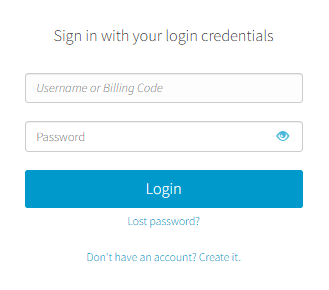
- Log in to your Papaki account.
Forgot your password? See here how to recover it. If it's your first login attempt to the new Papaki panel, please read more here.
- Click the red button Your old products » on the right side of the control panel to access the old Papaki panel.

3. In the "Hosting Plans” area of your control panel, click on the hosting plan you wish to restore.
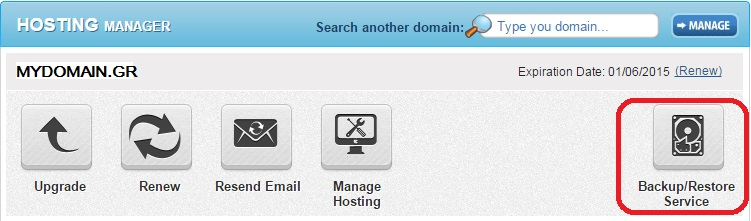
4. Find the Backup/Restore service and click on the icon as seen below.
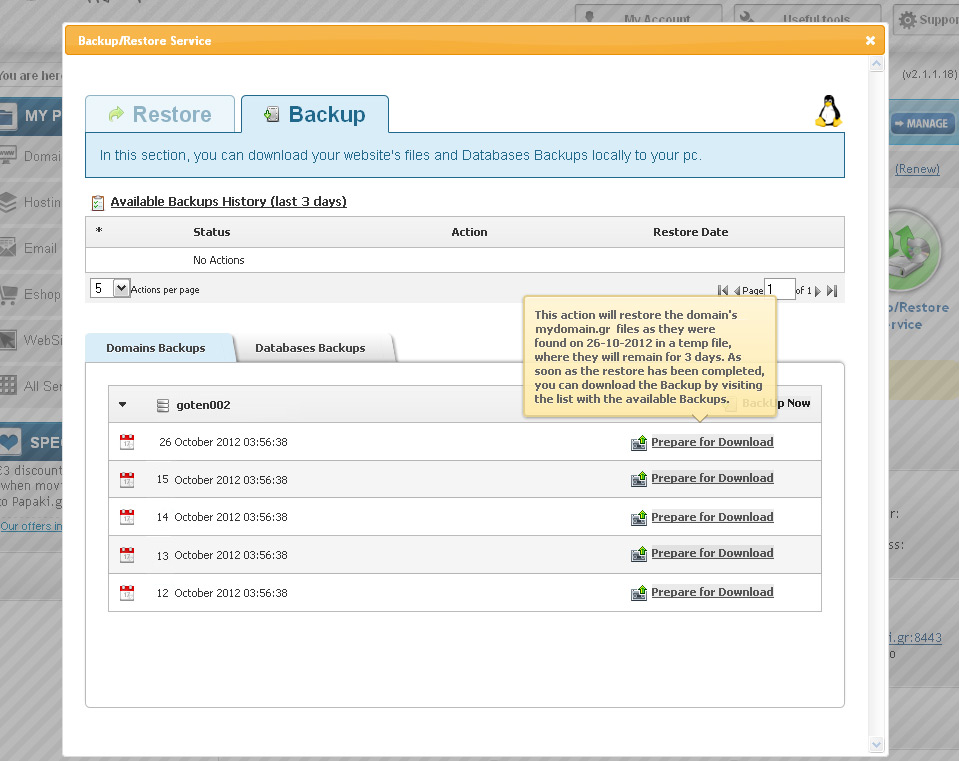
5. Go to "Backup Tab” → "Databases Backups” tab → click on the domain you wish to restore.
6. You now see a list with the daily Backups of your database. Find the date of the Backup you wish to download and click "Prepare for download”.
7. The service is preparing for the Back up.
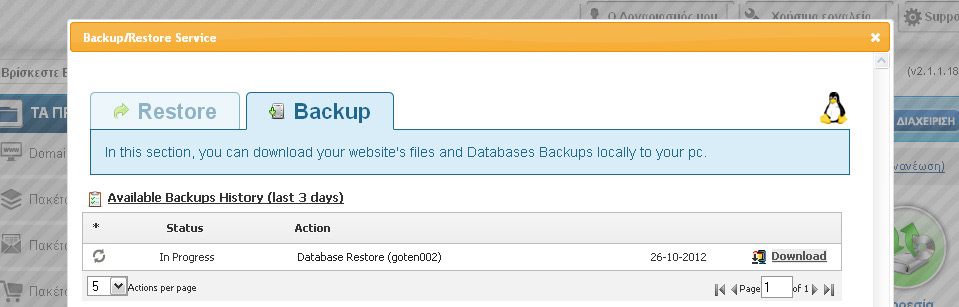
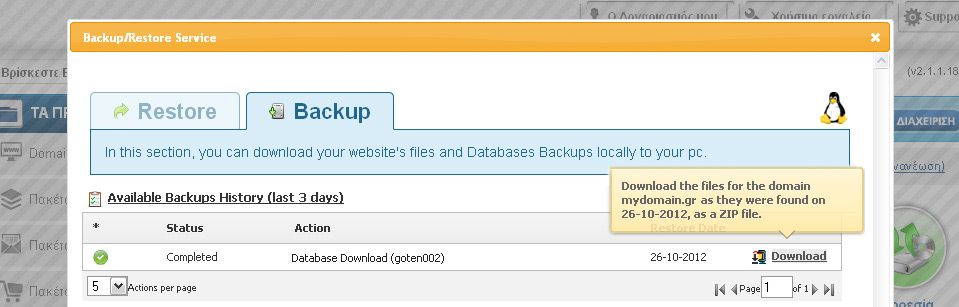
8. You will see ready to Download, in the list of Backups. Click on "Download” to download the file on your pc.
You haven't found what you are looking for?
Contact our experts, they will be happy to help!
Contact us