
Customer Support
Acronis Backup installation guide on VPS with cPanel
Installing and configuring Acronis Cyber Protect Backup on your VPS hosting with cPanel is a straightforward process, thanks to the official Acronis plugin for cPanel/WHM. With this plugin, installation is automatic, and backup management can be performed directly within WHM, without requiring manual setup via SSH.
What the Acronis Backup Plugin for cPanel Offers
- Automatic agent installation: When you install the plugin in WHM, the Acronis Backup Agent is automatically installed on the server.
- Registration: The plugin guides you through connecting your VPS server with your Acronis account.
- Centralized management: You can view, create, and restore backups directly from WHM, without needing to access the Acronis cloud console.
Features in cPanel/WHM
- Full server backup: Create a full image backup of your VPS (OS, cPanel configs, and settings).
- Account-level backup: Back up at the cPanel account level (for specific customers).
- File-level restore: Restore individual files or folders.
- Database restore: Restore MySQL/MariaDB databases.
- Mail restore: Restore email account contents.
All of the above can be performed directly from the WHM interface.
Prerequisites
Before starting, make sure you have:
- An active VPS with cPanel/WHM (Linux OS).
- Root access to WHM.
- An active Acronis Cyber Protect account with a valid license.
Activation
- From the right-hand menu, under Servers, click on the Acronis Cyber Backup you want to activate.

- Enter an email, accept the terms of use, and click Configure Settings.
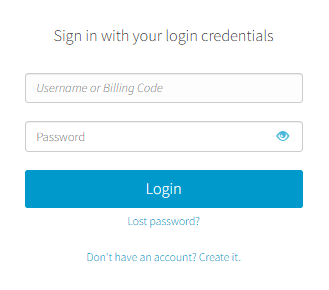
- Once activation is complete and you receive your Acronis login details, proceed with the installation.
Installation Steps
- Log in to WHM with root credentials.
- From WHM, open the Terminal (or SSH).
- Run the official installation command provided by Acronis:
curl -sSL https://dl.acronis.com/u/software/backup/plugin/cpanel/install.sh | bash - The script installs the plugin in WHM and downloads the Acronis Backup Agent onto the server.
- After installation, you will see Acronis Backup in the left-hand WHM menu.
- Click on it and connect your server with your Acronis account.
- The system will automatically install the Acronis Backup Agent on the server.
Once installation is complete, the agent is ready, and you can begin configuring backup plans and running backups.
Frequently Asked Questions (FAQ)
Can I choose which cPanel accounts are included in the backup?
Yes. You can perform a full backup of the entire server or select specific accounts.
Do I need to run manual commands?
No, except for the initial plugin installation. After that, everything is managed within WHM.
Is there downtime during installation?
No, installation is quick and does not affect your websites.
Can I restore individual files or mailboxes?
Yes, file-level restore and mail restore functionality is available directly within WHM.
You haven't found what you are looking for?
Contact our experts, they will be happy to help!
Contact us