
Customer Support
Frequently Asked Questions about the New Papaki Control Panel
New Papaki Platform
As of May 25, 2026, the new Papaki platform is available.
With it, you gain access to a new Papaki Control Panel, through which you can:
- purchase new services
- renew existing ones
- manage all your services easily, from a single place
The migration of your services to the new environment is carried out gradually.
What this means for you
- Gradually, all your services will become available exclusively through the new Papaki Control Panel
- Some services may temporarily remain in the old environment until the migration is fully completed
- During the transition period, you may need to use both the new and the old environments to manage your services
Find answers to the most frequently asked questions below.
Where can I find my old services?
When you log in to the new platform for the first time after May 25, 2026, you will need to follow a short initial setup process.
1. First login
Log in using the credentials you used in the old control panel
You will then be prompted to set a new password
Once the process is completed:
- your new account will be created automatically
- you will receive your account details, including your Billing Code (format: XXXX‑PK)
2. Access to the old Papaki Control Panel (SSO)
Your new account includes Single Sign-On (SSO) functionality, allowing you to:
- access the old Papaki Control Panel instantly and automatically
- manage services that have not yet been migrated to the new environment
3. Where to find your old products
To access the old Papaki Control Panel from your account dashboard:
- locate the button on the right-hand side
- click the red “My Old Products” button
Important note
SSO access allows you to switch between the new and old environments without needing to re-enter your login credentials.
1. First login
Log in using the credentials you used in the old control panel
You will then be prompted to set a new password
Once the process is completed:
- your new account will be created automatically
- you will receive your account details, including your Billing Code (format: XXXX‑PK)
2. Access to the old Papaki Control Panel (SSO)
Your new account includes Single Sign-On (SSO) functionality, allowing you to:
- access the old Papaki Control Panel instantly and automatically
- manage services that have not yet been migrated to the new environment
3. Where to find your old products
To access the old Papaki Control Panel from your account dashboard:
- locate the button on the right-hand side
- click the red “My Old Products” button
Important note
SSO access allows you to switch between the new and old environments without needing to re-enter your login credentials.
Why does the “Incorrect current password” error appear during login, and how can I fix it?
If you see the message “Incorrect current password” when logging in to Papaki—even when entering the correct password—the issue is usually related to the transition to the new platform.
Possible causes
1. You are using an old password that is no longer valid in the new Control Panel
2. The initial account activation process has not been completed successfully
3. There is a temporary issue during the password reset flow or redirection
How to resolve it
1. Reset your password
Select “Forgot password”
Follow the password reset process from here
2. Check your email
You will receive an email containing a link to set a new password
Follow the link and complete the process
3. Complete the login
Log in again using the new password you just created
If the issue persists
If you continue to see the same message:
- make sure you are entering your password correctly (no extra spaces or autofill errors)
- try using a different browser or an incognito/private window
If the issue persists, please contact support.
Important note
During your first login to the new Papaki platform:
- you are required to set a new password
- your old password cannot be used directly
Read more here.
Possible causes
1. You are using an old password that is no longer valid in the new Control Panel
2. The initial account activation process has not been completed successfully
3. There is a temporary issue during the password reset flow or redirection
How to resolve it
1. Reset your password
Select “Forgot password”
Follow the password reset process from here
2. Check your email
You will receive an email containing a link to set a new password
Follow the link and complete the process
3. Complete the login
Log in again using the new password you just created
If the issue persists
If you continue to see the same message:
- make sure you are entering your password correctly (no extra spaces or autofill errors)
- try using a different browser or an incognito/private window
If the issue persists, please contact support.
Important note
During your first login to the new Papaki platform:
- you are required to set a new password
- your old password cannot be used directly
Read more here.
Can I use the same email address for multiple accounts?
If you want to use your email address for a new account, you will first need to check and, if necessary, update the username on your existing account.
Steps
From the right-hand menu of your account, click “Account, Billing & Payments”
Check the “Username” field
If your username is the same as your email address:
- select “Change Username”
- set a different username
What this achieves
By following the steps above:
- your email address is released from being used as a username on the existing account
- you can then use it to create a new Papaki account
Steps
From the right-hand menu of your account, click “Account, Billing & Payments”
Check the “Username” field
If your username is the same as your email address:
- select “Change Username”
- set a different username
What this achieves
By following the steps above:
- your email address is released from being used as a username on the existing account
- you can then use it to create a new Papaki account
How can I use different billing details in the new Papaki?
In the new Papaki Control Panel, each account is associated with a single set of billing details. If your previous account had multiple billing profiles, one of them was automatically selected during the migration to the new platform.
For example, an account with Billing Code XXX-PK may have been associated with billing details configured for Receipt issuance.
How can I use different billing details?
Using different billing details is still possible, but it is now managed through separate accounts. Each account has its own billing profile and can contain the services you want to be billed under specific billing information.
In addition, the Technical Contact feature allows you to manage services across multiple accounts without having to share login credentials.
Learn more about the Technical Contact feature and how to activate it here.
Important note
If an order has been issued using incorrect billing details, please contact us through a support request so we can review your case.
For example, an account with Billing Code XXX-PK may have been associated with billing details configured for Receipt issuance.
How can I use different billing details?
Using different billing details is still possible, but it is now managed through separate accounts. Each account has its own billing profile and can contain the services you want to be billed under specific billing information.
In addition, the Technical Contact feature allows you to manage services across multiple accounts without having to share login credentials.
Learn more about the Technical Contact feature and how to activate it here.
Important note
If an order has been issued using incorrect billing details, please contact us through a support request so we can review your case.
How can I manage multiple accounts in the new Papaki?
The new platform offers a feature called “Technical Contact”, which makes managing multiple accounts much easier.
Where to find it
You can access this feature from the menu:
“Account, Billing & Payments” → “Technical Contact” → “My Customers”
What you can do
Through this feature, you can:
- link all your accounts
- switch between different Billing Codes without having to log out
Capabilities
The Technical Contact feature allows you to:
- make new purchases and renew services
- manage services across all your accounts
- set up automatic or manual service renewals
- assign another account as a Technical Contact to perform actions on your behalf
Important note
This feature is especially useful if you manage multiple accounts, as it centralizes management into a single environment.
Read more here.
Where to find it
You can access this feature from the menu:
“Account, Billing & Payments” → “Technical Contact” → “My Customers”
What you can do
Through this feature, you can:
- link all your accounts
- switch between different Billing Codes without having to log out
Capabilities
The Technical Contact feature allows you to:
- make new purchases and renew services
- manage services across all your accounts
- set up automatic or manual service renewals
- assign another account as a Technical Contact to perform actions on your behalf
Important note
This feature is especially useful if you manage multiple accounts, as it centralizes management into a single environment.
Read more here.
How can I find my invoices in the new Papaki?
Your invoices are sent via email to the billing email address you have set, ensuring the protection of your personal data.
Where to find your invoice in your email
Invoices are sent exclusively to the billing email address defined in your Control Panel
They are sent from: e‑invoice@entersoft.gr
The subject line of the email is: “New Invoice Notification ENARTIA”
How to download your invoice
In the body of the email, you will find a file name in the format:
999082935_XXXXXXXX-XXXX-XXXX-XXXX-XXXXXXXXXXXXXXXX
By clicking the link, you can download your invoice.
To save it on your computer, select Print → Save as PDF
Accessing invoices through the new Papaki
In the new Papaki, you can also find invoices for your orders through the Control Panel by following the instructions in the relevant guide here.
Important note
If you are looking for invoices related to orders placed in the old Papaki (Papaki 1), you can refer to the corresponding guide here.
Where to find your invoice in your email
Invoices are sent exclusively to the billing email address defined in your Control Panel
They are sent from: e‑invoice@entersoft.gr
The subject line of the email is: “New Invoice Notification ENARTIA”
How to download your invoice
In the body of the email, you will find a file name in the format:
999082935_XXXXXXXX-XXXX-XXXX-XXXX-XXXXXXXXXXXXXXXX
By clicking the link, you can download your invoice.
To save it on your computer, select Print → Save as PDF
Accessing invoices through the new Papaki
In the new Papaki, you can also find invoices for your orders through the Control Panel by following the instructions in the relevant guide here.
Important note
If you are looking for invoices related to orders placed in the old Papaki (Papaki 1), you can refer to the corresponding guide here.
If my SSO account is set to “Receipt,” how can I change it to “Invoice”?
If you need an invoice, you will need to create a new Papaki account.
What you need to do
Create a new account
During your first order, you will be given the option to enter the billing details required for issuing an invoice
If you already have products under a different account, contact us so we can transfer them to the new one
Important note
The document type (e.g., receipt or invoice) is determined by the billing details you provide when creating the linked account or during your first order.
What you need to do
Create a new account
During your first order, you will be given the option to enter the billing details required for issuing an invoice
If you already have products under a different account, contact us so we can transfer them to the new one
Important note
The document type (e.g., receipt or invoice) is determined by the billing details you provide when creating the linked account or during your first order.
How can I change or update my billing details in the new Papaki?
You can manage your billing details through the new Papaki Control Panel; however, there are some important limitations you should be aware of.
Where to find your billing details
Navigate to:
- “Account, Billing & Payments”
- Locate the billing details section
- Click Edit to update your information
Important limitations
* Change of name / company name *
It is not possible to change:
- your name
- your company name
These details are linked to your account.
If you need to update them:
- you will need to create a new Papaki account
- and transfer your active services to it
* One document type per account *
Each account can have only one document type (Receipt or Invoice).
This means that:
- all orders placed from the same account
- will be issued with the same document type
* Changes to already issued documents *
If an invoice or receipt has already been issued:
- you will need to create a new account with the correct billing details
- transfer your services to that account
- and then request an update to the issued documents
Important note
Changes to your billing details apply only to future orders.
They do not affect documents that have already been issued.
Where to find your billing details
Navigate to:
- “Account, Billing & Payments”
- Locate the billing details section
- Click Edit to update your information
Important limitations
* Change of name / company name *
It is not possible to change:
- your name
- your company name
These details are linked to your account.
If you need to update them:
- you will need to create a new Papaki account
- and transfer your active services to it
* One document type per account *
Each account can have only one document type (Receipt or Invoice).
This means that:
- all orders placed from the same account
- will be issued with the same document type
* Changes to already issued documents *
If an invoice or receipt has already been issued:
- you will need to create a new account with the correct billing details
- transfer your services to that account
- and then request an update to the issued documents
Important note
Changes to your billing details apply only to future orders.
They do not affect documents that have already been issued.
How can I view and manage my tickets in the new Papaki panel?
The new Papaki website is now live and comes with a new management environment (CRM), through which you can manage your support requests (tickets).
Accessing your tickets
To view and manage the new ticket created for you:
- log in to your new Papaki account from here
First login
During your first login:
- use the username and password you had on Papaki.com
- for security reasons, you will be required to set a new password
Important note
Through the new environment, you can monitor and manage all your support requests from a single place.
Accessing your tickets
To view and manage the new ticket created for you:
- log in to your new Papaki account from here
First login
During your first login:
- use the username and password you had on Papaki.com
- for security reasons, you will be required to set a new password
Important note
Through the new environment, you can monitor and manage all your support requests from a single place.
How can I transfer a domain from the old Control Panel if I don’t have an account there?
In this case:
- your domain is still located in the old Control Panel
- but your account exists only in the new Papaki panel
This means you cannot use the automated administrator change process through the old Control Panel.
What needs to be done
To proceed with the domain transfer before the scheduled migration:
- a new account will need to be created in the old Control Panel
- this account will use your email address as the username (e.g., xxxxx@xxx.com)
The creation of this new account under the new administrator’s details is handled by the Customer Support Team.
What you need to send
For security reasons, you will need to send a request via email to cx@papaki.com from your email address, including the following details:
- Email: xxxxx@xxx.com
- First Name
- Last Name
- Country
- Postal Code
- Phone Number
For a business account (optional)
If you want the account to be set up as a business account, you will also need to include:
- VAT number
- Company/Organization Name
- Tax Office
- Business Activity
- Address
- Area/Region
- City
- Postal Code
- Phone Number
These details will be used for future purchases and invoice issuance.
- your domain is still located in the old Control Panel
- but your account exists only in the new Papaki panel
This means you cannot use the automated administrator change process through the old Control Panel.
What needs to be done
To proceed with the domain transfer before the scheduled migration:
- a new account will need to be created in the old Control Panel
- this account will use your email address as the username (e.g., xxxxx@xxx.com)
The creation of this new account under the new administrator’s details is handled by the Customer Support Team.
What you need to send
For security reasons, you will need to send a request via email to cx@papaki.com from your email address, including the following details:
- Email: xxxxx@xxx.com
- First Name
- Last Name
- Country
- Postal Code
- Phone Number
For a business account (optional)
If you want the account to be set up as a business account, you will also need to include:
- VAT number
- Company/Organization Name
- Tax Office
- Business Activity
- Address
- Area/Region
- City
- Postal Code
- Phone Number
These details will be used for future purchases and invoice issuance.
What applies to email when my domain is in the old Control Panel?
If your domain is managed through the old Control Panel and you have purchased email or hosting services through the new Papaki platform, certain limitations may apply during the transition period to the new environment.
What is currently happening?
The migration of services to the new Papaki platform is being carried out gradually and, at the moment:
- services from the new Papaki platform cannot be fully connected to domains managed through the old Control Panel
- email services available in the new environment cannot be used directly if the domain remains in the old Control Panel
How we can help
The solution depends on the type of service you have purchased.
If you have purchased an email package through the new Papaki
Since your domain is still managed through the old Control Panel, the email package cannot be directly associated with it. In this case, we will cancel the service and provide information about the available Standard Email and Business Email plans, allowing you to choose the one that best suits your needs.
If you have purchased a hosting package that includes free email
The corresponding Standard Email or Business Email package will be activated at no additional cost, depending on your hosting package specifications.
What will you need to do later?
Once the migration to the new Papaki platform is complete, your email services will need to be moved to the corresponding service in the new environment.
What is required to proceed?
If any of the above actions are required, you will need to:
- confirm that you accept the service terms of use
- review the features of the email package that will be used
What is currently happening?
The migration of services to the new Papaki platform is being carried out gradually and, at the moment:
- services from the new Papaki platform cannot be fully connected to domains managed through the old Control Panel
- email services available in the new environment cannot be used directly if the domain remains in the old Control Panel
How we can help
The solution depends on the type of service you have purchased.
If you have purchased an email package through the new Papaki
Since your domain is still managed through the old Control Panel, the email package cannot be directly associated with it. In this case, we will cancel the service and provide information about the available Standard Email and Business Email plans, allowing you to choose the one that best suits your needs.
If you have purchased a hosting package that includes free email
The corresponding Standard Email or Business Email package will be activated at no additional cost, depending on your hosting package specifications.
What will you need to do later?
Once the migration to the new Papaki platform is complete, your email services will need to be moved to the corresponding service in the new environment.
What is required to proceed?
If any of the above actions are required, you will need to:
- confirm that you accept the service terms of use
- review the features of the email package that will be used
How can you register a domain with extensions that use an asynchronous process (e.g., .CY)?
The registration of certain domain extensions, such as .CY, follows an asynchronous process and is not completed immediately.
What does this mean?
In these cases:
- the registration requires additional review before it can be completed
- the processing time may vary depending on the respective registry
- the registration is considered complete only after receiving final approval from the registry
Pricing
Registration fees vary depending on the domain extension. You can view our full pricing list here.
Once you confirm that you would like to proceed, the relevant invoice will be issued.
Information required
To submit the registration request, you will need to provide:
- Name / Company Name
- Country
- Address
- Postal Code
- City
- Region / State
- Phone Number (including country code)
- Email Address
- A copy of the domain owner's ID card or passport
After registration
In some cases, after the registration has been completed, the domain owner's details may need to be validated via email. If required, the domain owner will receive an email with instructions on how to complete the verification process.
Next steps
Once we receive your confirmation and the required information, we will proceed with submitting the domain registration request on your behalf.
What does this mean?
In these cases:
- the registration requires additional review before it can be completed
- the processing time may vary depending on the respective registry
- the registration is considered complete only after receiving final approval from the registry
Pricing
Registration fees vary depending on the domain extension. You can view our full pricing list here.
Once you confirm that you would like to proceed, the relevant invoice will be issued.
Information required
To submit the registration request, you will need to provide:
- Name / Company Name
- Country
- Address
- Postal Code
- City
- Region / State
- Phone Number (including country code)
- Email Address
- A copy of the domain owner's ID card or passport
After registration
In some cases, after the registration has been completed, the domain owner's details may need to be validated via email. If required, the domain owner will receive an email with instructions on how to complete the verification process.
Next steps
Once we receive your confirmation and the required information, we will proceed with submitting the domain registration request on your behalf.
Where can I renew my service?
The renewal process depends on whether your account and services have been migrated to the new Papaki Control Panel, as well as when the service was originally purchased.
Renewal options
✅ If your account and services have been migrated to the new Control Panel:
You can renew your services through the new Papaki Control Panel.
✅ If your account or services have not yet been migrated:
You can renew your services through the old Papaki Control Panel.
Based on the purchase date
Services purchased before May 25, 2026
- If your account has not yet been migrated, renewals are completed through the old Control Panel
- If your account has already been migrated, renewals are completed through the new Control Panel
Services purchased after May 25, 2026
Management and renewals are handled exclusively through the new Control Panel
How can I access the old Control Panel?
If you need to renew a service that has not yet been migrated:
1. Log in to the new Papaki Control Panel
2. On the right-hand side of your account dashboard, click the red “My Old Products” button
This will automatically take you to the old management environment.
Important note
The migration of all accounts and services to the new Papaki Control Panel is being carried out gradually. In the near future, all your services will be managed exclusively through the new environment.
Renewal options
✅ If your account and services have been migrated to the new Control Panel:
You can renew your services through the new Papaki Control Panel.
✅ If your account or services have not yet been migrated:
You can renew your services through the old Papaki Control Panel.
Based on the purchase date
Services purchased before May 25, 2026
- If your account has not yet been migrated, renewals are completed through the old Control Panel
- If your account has already been migrated, renewals are completed through the new Control Panel
Services purchased after May 25, 2026
Management and renewals are handled exclusively through the new Control Panel
How can I access the old Control Panel?
If you need to renew a service that has not yet been migrated:
1. Log in to the new Papaki Control Panel
2. On the right-hand side of your account dashboard, click the red “My Old Products” button
This will automatically take you to the old management environment.
Important note
The migration of all accounts and services to the new Papaki Control Panel is being carried out gradually. In the near future, all your services will be managed exclusively through the new environment.
Where can I find the red button for the old Papaki Control Panel (SSO)?
After logging in to the new Papaki Control Panel, you can access the old management environment through the Single Sign-On (SSO) feature.
Where is it located?
The red button appears on the right-hand side of your account dashboard. It is labeled “Your Old Products”.
Clicking it will automatically take you to the old Papaki Control Panel without requiring you to log in again.
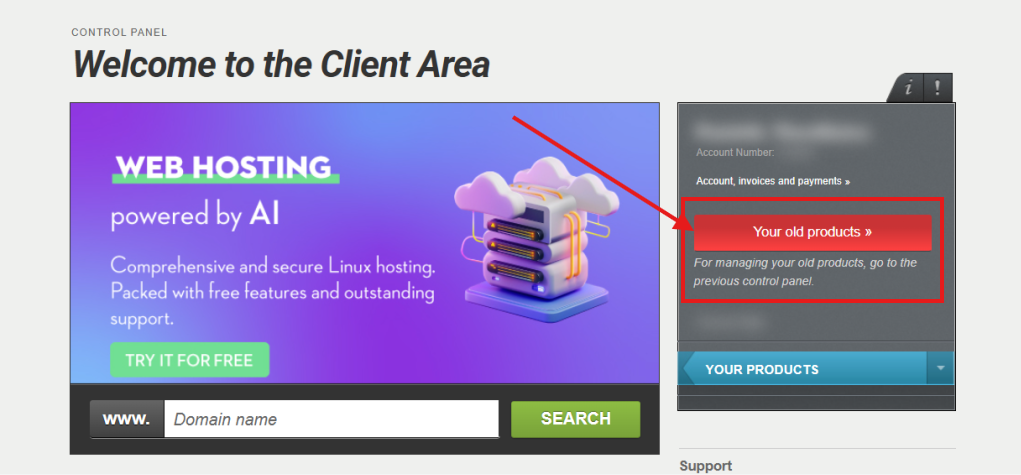
What if I can't see the red button?
If the button does not appear in your account, it usually means that:
- You have created a new Papaki account, and
- The initial login using the credentials from your old account was not completed correctly.
Important note
The new account can only be linked to the old one through the initial login process. Your first login must be completed using your original account credentials.
Where is it located?
The red button appears on the right-hand side of your account dashboard. It is labeled “Your Old Products”.
Clicking it will automatically take you to the old Papaki Control Panel without requiring you to log in again.
What if I can't see the red button?
If the button does not appear in your account, it usually means that:
- You have created a new Papaki account, and
- The initial login using the credentials from your old account was not completed correctly.
Important note
The new account can only be linked to the old one through the initial login process. Your first login must be completed using your original account credentials.
How does Single Sign-On (SSO) work?
The SSO (Single Sign-On) feature is activated automatically when you log in to the new Papaki Control Panel for the first time using the credentials from your old account.
Once this process is completed:
✅ Your new account is created
✅ It is linked to your old account
✅ You gain access to both environments (the old and the new Control Panel)
What can I do if I don't see the button?
If the button is not available in your account, the only solution is to complete the login process correctly using your old account credentials.
To do this:
- Log out of your current account
- Log back in to Papaki using the credentials of your old account
- Follow the first-login process as described in the relevant guide
Once completed:
✅ A properly linked account will be created
✅ SSO will be activated
✅ The red button for accessing the old Control Panel will appear
Once this process is completed:
✅ Your new account is created
✅ It is linked to your old account
✅ You gain access to both environments (the old and the new Control Panel)
What can I do if I don't see the button?
If the button is not available in your account, the only solution is to complete the login process correctly using your old account credentials.
To do this:
- Log out of your current account
- Log back in to Papaki using the credentials of your old account
- Follow the first-login process as described in the relevant guide
Once completed:
✅ A properly linked account will be created
✅ SSO will be activated
✅ The red button for accessing the old Control Panel will appear
My account is billed under a different document type (Receipt / Invoice) – what applies?
In the new Papaki Control Panel, each account is associated with a specific billing profile (e.g., Receipt or Invoice).
In some cases, during the migration to the new environment, the billing document type was assigned automatically. As a result:
✅ It cannot be changed within the same account
✅ All purchases made through that account will be issued using the same document type
What applies to new purchases?
If you place a new order:
✅ Billing will be issued based on the billing details already associated with your account
✅ It is not possible to change the document type (e.g., Receipt → Invoice) after the purchase has been completed
What can I do if I need a different billing document type?
If you need to use different billing details:
1. Create a new account with the desired billing profile (e.g., Invoice)
2. The account can be created either by you or with the assistance of our Support Team
3. Transfer the service you purchased to the new account
4. Future purchases and renewals will then be managed through the new account
How can I manage multiple accounts?
You can use the Technical Contact feature to access and manage all your accounts from a single location.
With this feature, you can:
✅ Manage your services
✅ Purchase and renew services
✅ Switch between different accounts without logging out
Important note
Using separate accounts is the recommended approach when you need different billing profiles (for example, both Receipts and Invoices).
In some cases, during the migration to the new environment, the billing document type was assigned automatically. As a result:
✅ It cannot be changed within the same account
✅ All purchases made through that account will be issued using the same document type
What applies to new purchases?
If you place a new order:
✅ Billing will be issued based on the billing details already associated with your account
✅ It is not possible to change the document type (e.g., Receipt → Invoice) after the purchase has been completed
What can I do if I need a different billing document type?
If you need to use different billing details:
1. Create a new account with the desired billing profile (e.g., Invoice)
2. The account can be created either by you or with the assistance of our Support Team
3. Transfer the service you purchased to the new account
4. Future purchases and renewals will then be managed through the new account
How can I manage multiple accounts?
You can use the Technical Contact feature to access and manage all your accounts from a single location.
With this feature, you can:
✅ Manage your services
✅ Purchase and renew services
✅ Switch between different accounts without logging out
Important note
Using separate accounts is the recommended approach when you need different billing profiles (for example, both Receipts and Invoices).
My domain is in the old Papaki Control Panel – how can I use new services (e.g., email)?
During the transition to the new Papaki Control Panel, your domain may still be managed through the old environment while some newer services, such as email, are primarily available through the new platform.
What applies in this case?
If your domain is located in the old Papaki Control Panel and you want to use an email service, then, as an exception:
✅ An email hosting package can be created on the legacy infrastructure, allowing it to be properly linked to your domain and ensuring that your email service functions correctly.
Why is this necessary?
The migration of accounts and services to the new Papaki Control Panel is being carried out gradually. Until the transition is fully completed:
✅ Your domain may still be managed through the old environment or even by another registrar
✅ Some newer services may be associated with the new platform
✅ In such cases, a temporary solution is implemented to ensure your services continue to operate correctly
What does this mean for you?
✅ You can continue using your email service normally through the legacy infrastructure
✅ This solution is temporary and applies only during the transition period
✅ No special action is required on your part—the Papaki team will guide you based on your specific case
Important note
Once the migration is completed:
✅ All your services (domains, hosting, and email) will be managed through the new Papaki Control Panel
✅ You will have a single, unified management environment
Until then, every effort is made to ensure that your services remain fully operational and that you receive the best possible support throughout the transition.
What applies in this case?
If your domain is located in the old Papaki Control Panel and you want to use an email service, then, as an exception:
✅ An email hosting package can be created on the legacy infrastructure, allowing it to be properly linked to your domain and ensuring that your email service functions correctly.
Why is this necessary?
The migration of accounts and services to the new Papaki Control Panel is being carried out gradually. Until the transition is fully completed:
✅ Your domain may still be managed through the old environment or even by another registrar
✅ Some newer services may be associated with the new platform
✅ In such cases, a temporary solution is implemented to ensure your services continue to operate correctly
What does this mean for you?
✅ You can continue using your email service normally through the legacy infrastructure
✅ This solution is temporary and applies only during the transition period
✅ No special action is required on your part—the Papaki team will guide you based on your specific case
Important note
Once the migration is completed:
✅ All your services (domains, hosting, and email) will be managed through the new Papaki Control Panel
✅ You will have a single, unified management environment
Until then, every effort is made to ensure that your services remain fully operational and that you receive the best possible support throughout the transition.
You haven't found what you are looking for?
Contact our experts, they will be happy to help!
Contact us