
Customer Support
Hosting for WordPress (Managed & Unmanaged) – How do I activate my Hosting for WordPress?
Whether you’ve purchased a Hosting for WordPress or Managed Hosting for WordPress plan, you’ll need to activate it before you can start building and configuring your website.
The process is simple and does not require any technical knowledge.
Step-by-step: Activating your Hosting for WordPress
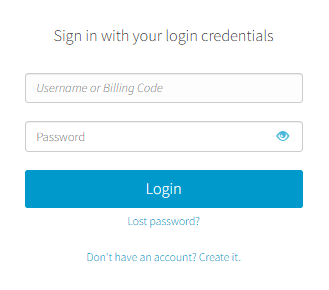
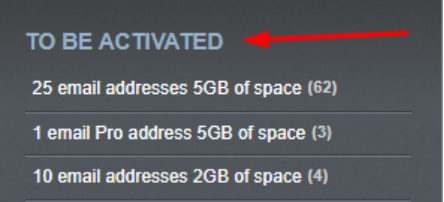
- Locate the plan that needs activation. From the right-hand menu, under To be activated select the hosting plan you want to activate.
- Click Activate on the right side of the plan.

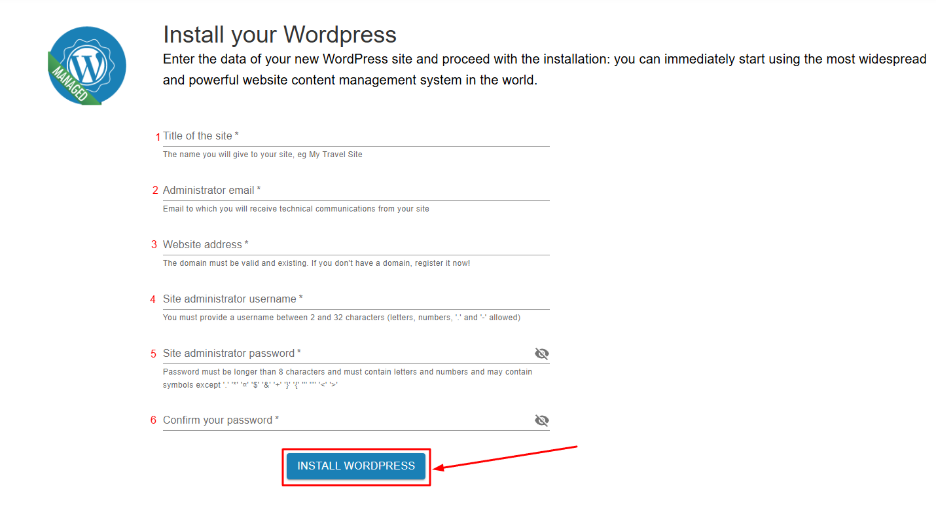
- To proceed with the automatic WordPress installation, fill out the following fields:
- Website Name (e.g., My Blog)
- Admin Email (you’ll receive notifications here)
- Website Address (e.g., yourdomain.gr)
- Admin Username
- Password for the WordPress admin area
- Confirm Password
Once completed, click Install WordPress.
- Once the installation is finished, click Login to access your WordPress admin dashboard.
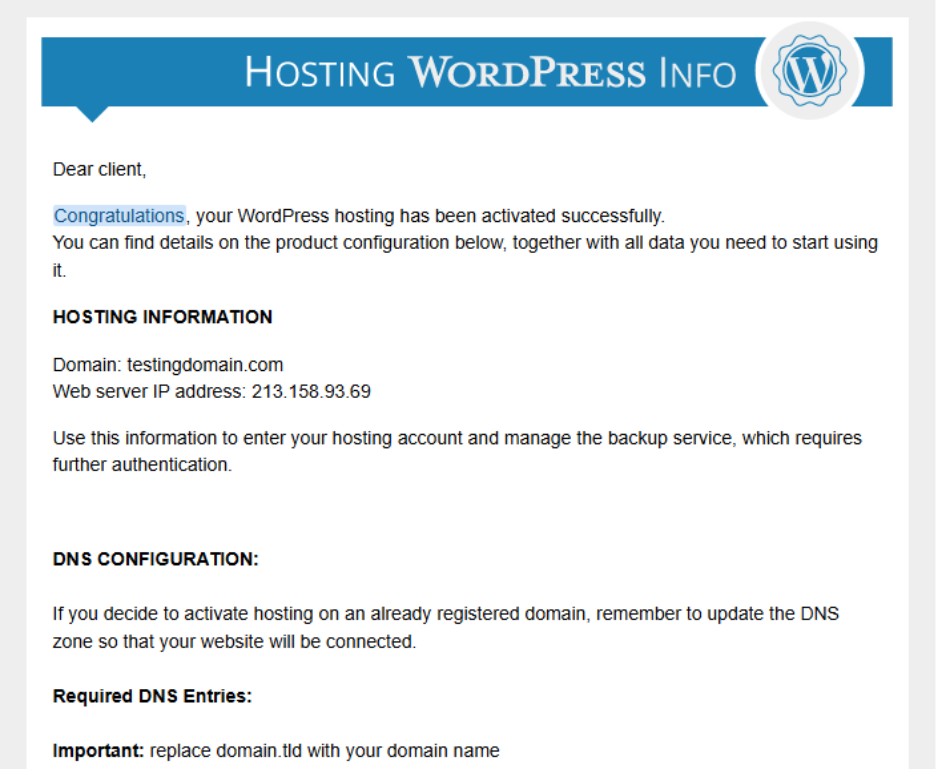
- After activation, you’ll receive an email with the necessary information to connect your WordPress installation to your selected domain. For more details, follow our guide.
Frequently Asked Questions (FAQs)
How long does the WordPress installation take?
The installation is fully automated and typically completes in just a few minutes.
Can I change the admin username or email after setup?
Yes, you can update admin details at any time via the WordPress dashboard under Users > Profile.
My domain doesn't show the WordPress site. What should I check?
Make sure the domain is properly linked to the hosting package. If you haven’t updated the nameservers yet, follow the instructions provided in your confirmation email.
I can’t access the WordPress admin panel. What should I do?
Double-check that you’re using the correct admin URL (e.g., yourdomain.gr/wp-admin) and credentials. If you still can’t log in, try resetting your password or contact our support team.
Can I use a different domain than the one I entered during setup?
Yes, but you’ll need to update the WordPress settings (Site URL & Home URL). If you’re not familiar with the process, we recommend reaching out to support.
What’s the difference between Hosting for WordPress and Managed Hosting for WordPress?
Managed Hosting for WordPress includes added features like automatic updates, enhanced security, and a pre-configured environment optimized for WordPress—ideal for users who prefer a hands-off experience.
You haven't found what you are looking for?
Contact our experts, they will be happy to help!
Contact us