
Customer Support
How to migrate the content of the free hosting package from Multihosting/Prohoster?
In this guide, you will learn step by step how to migrate your content from a free hosting package on the former Multihosting/ProHoster platform to a new free hosting package on Papaki 2.0.
With every domain you manage through Papaki, we provide you with a 500 MB hosting package (Microhosting) completely free of charge, where you can install WordPress and build your website. If you would like to migrate the content of your static website from the free hosting package you currently maintain on the CWP Panel to Free Microhosting, follow the guide below.
Which service would you like to migrate?
Website Migration to the New Free Microhosting
To transfer the files of your static website hosted on the former Multihosting/ProHoster free hosting platform, follow the steps below.
1. Create a Website Backup (CWP Panel)
- Log in to CWP through the management interface of your ProHoster account.
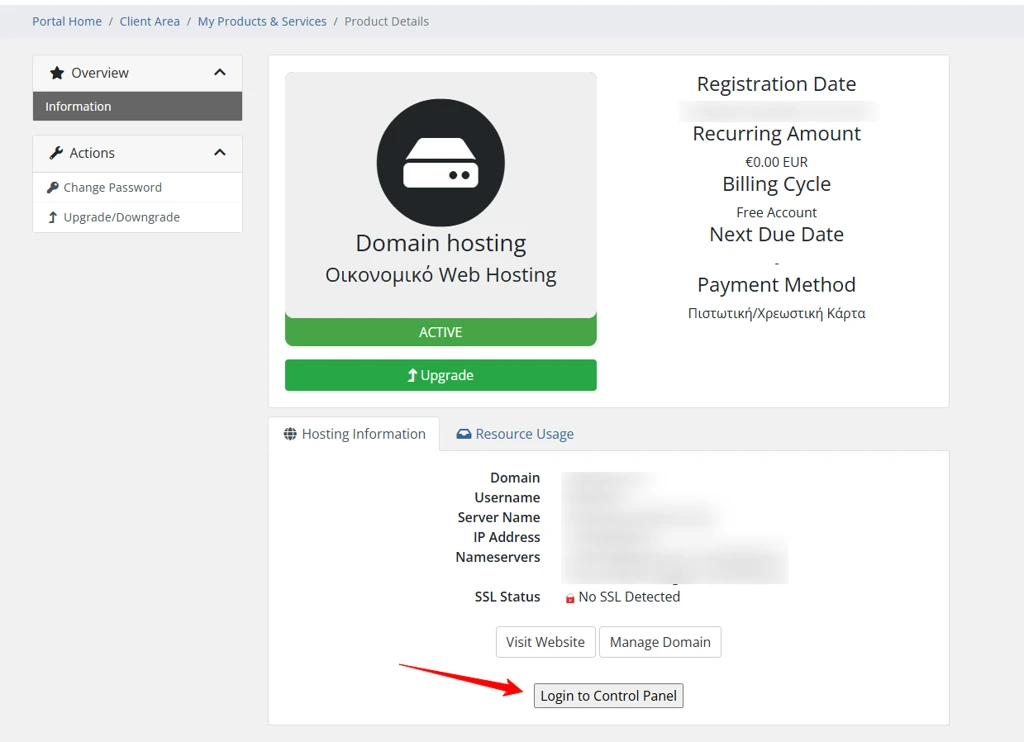
- Select the hosting package you want to migrate and then click "Login to Control Panel".
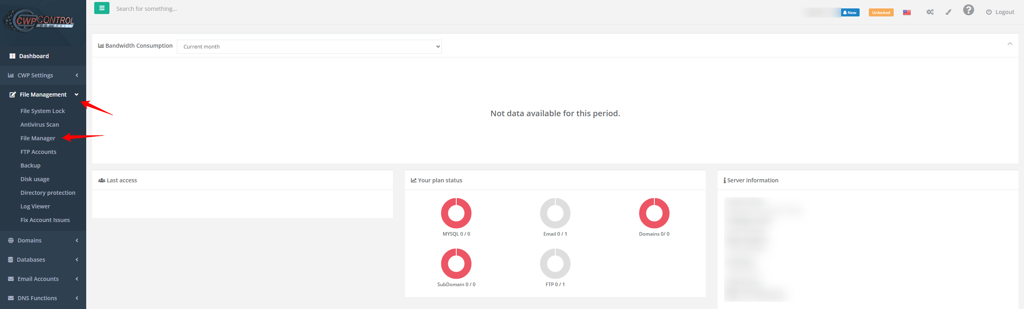
- From the main menu, navigate to File Management → File Manager.
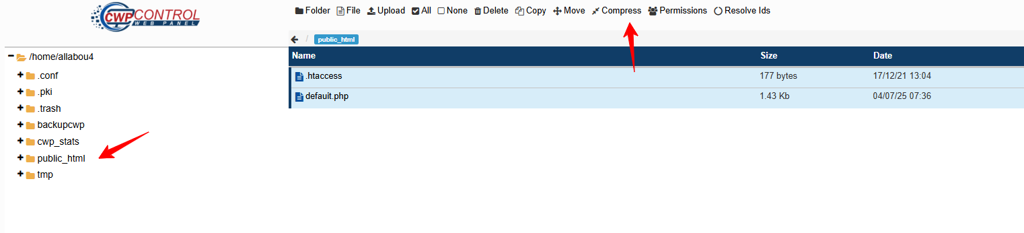
- Locate and open the public_html folder. Select all website files and folders, then click Compress → Compress Files.
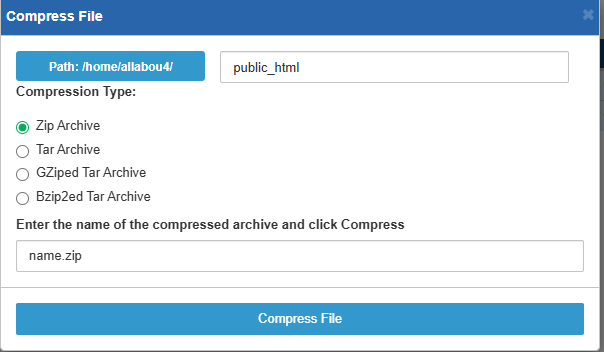
- Once the
.zipfile has been created, select Download from the available options to save the backup locally on your computer.

Important! Before proceeding to the next step, you must have activated the free hosting package provided by Papaki with every domain you manage through your account. You can find detailed instructions here:
How do I activate the free hosting service?
2. Prepare Hosting on Papaki 2.0
- Log in to your Papaki account.
Forgot your password? See here how to recover it.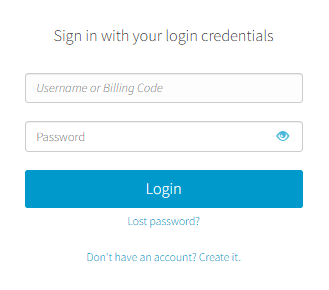
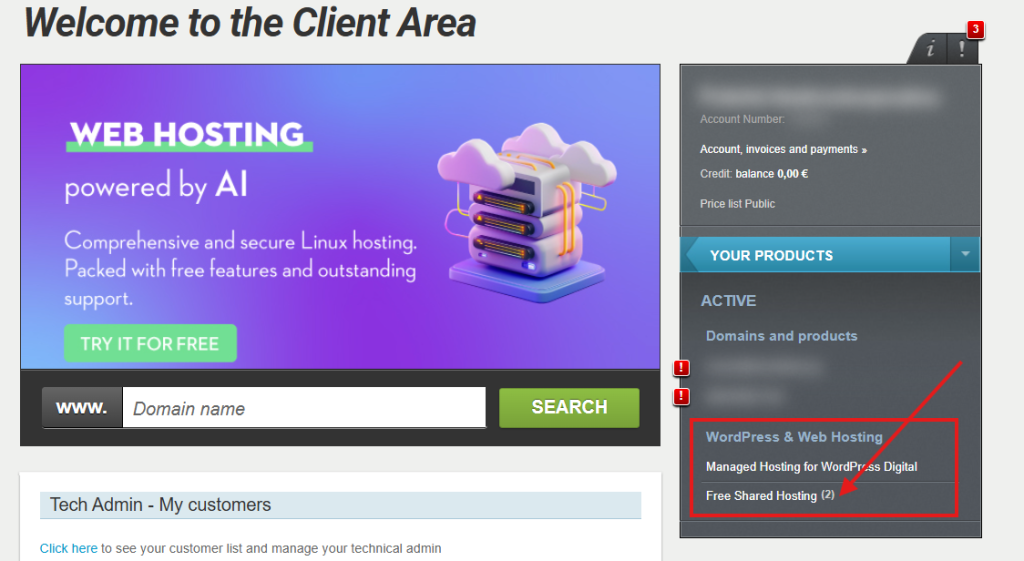
- Go to “Free Shared Hosting”.
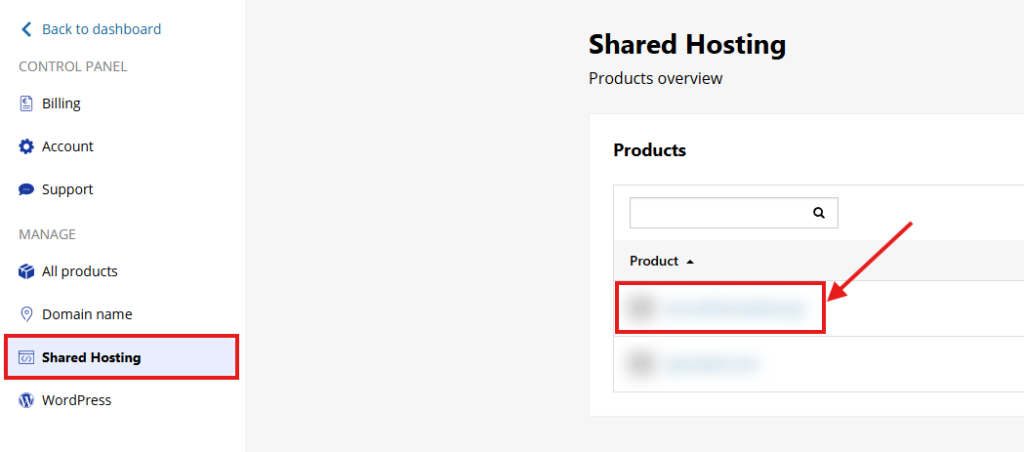
- Select your free hosting plan.
- Open the File Manager.
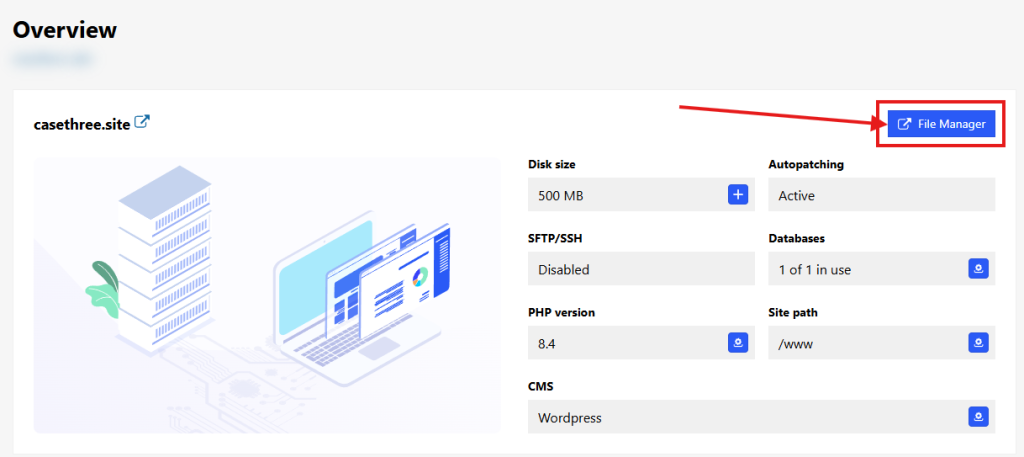
- Navigate to the
wwwfolder (your website's document root).

- Delete all contents of the folder by selecting all files and folders and then clicking the trash bin icon at the bottom.
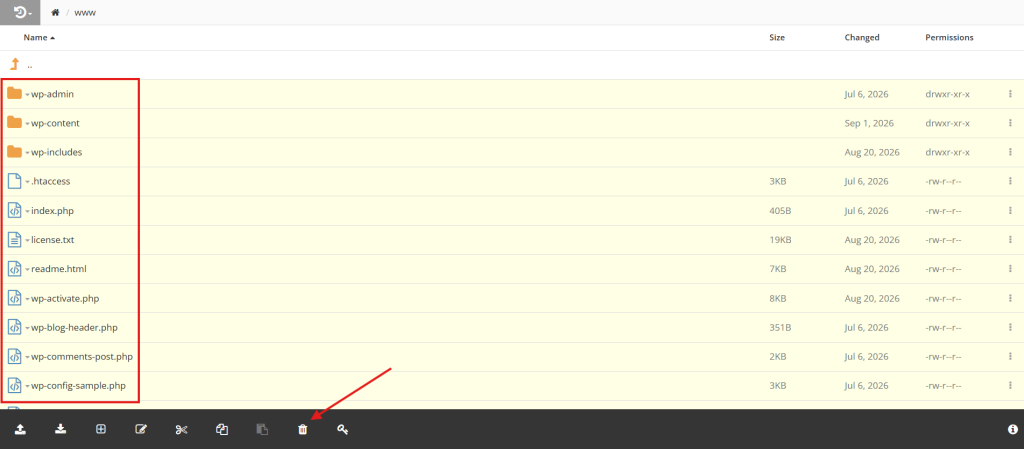
After a few seconds, the hosting package will be empty.
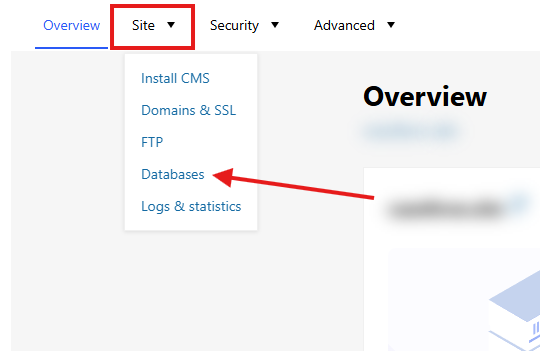
- From the hosting package management interface, navigate through the main menu to Site > Databases.
From the three-dot menu on the right, click Delete to remove the existing database.
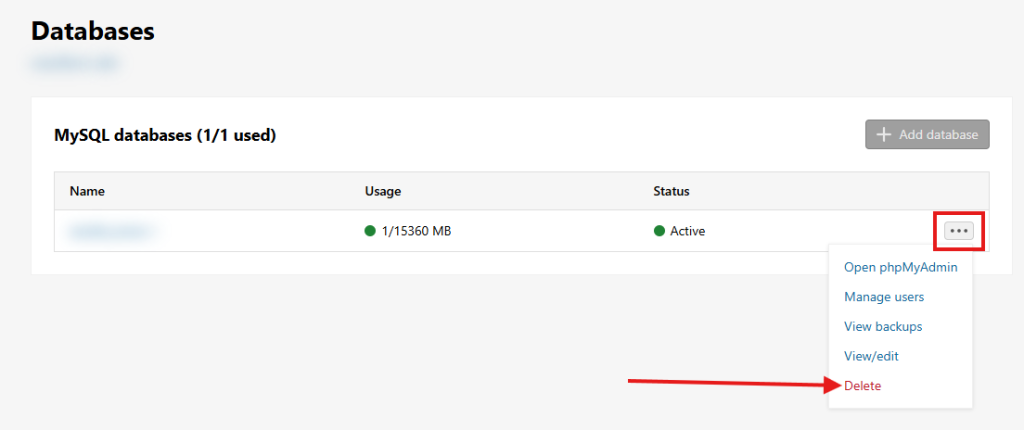
Your hosting package is now ready, and you can proceed with uploading your files.
3. File Transfer (Restore from Backup)
- Open the File Manager.
- Navigate to the
wwwfolder (your website's document root).

- Click Upload Zip and upload the backup
.zipfile.
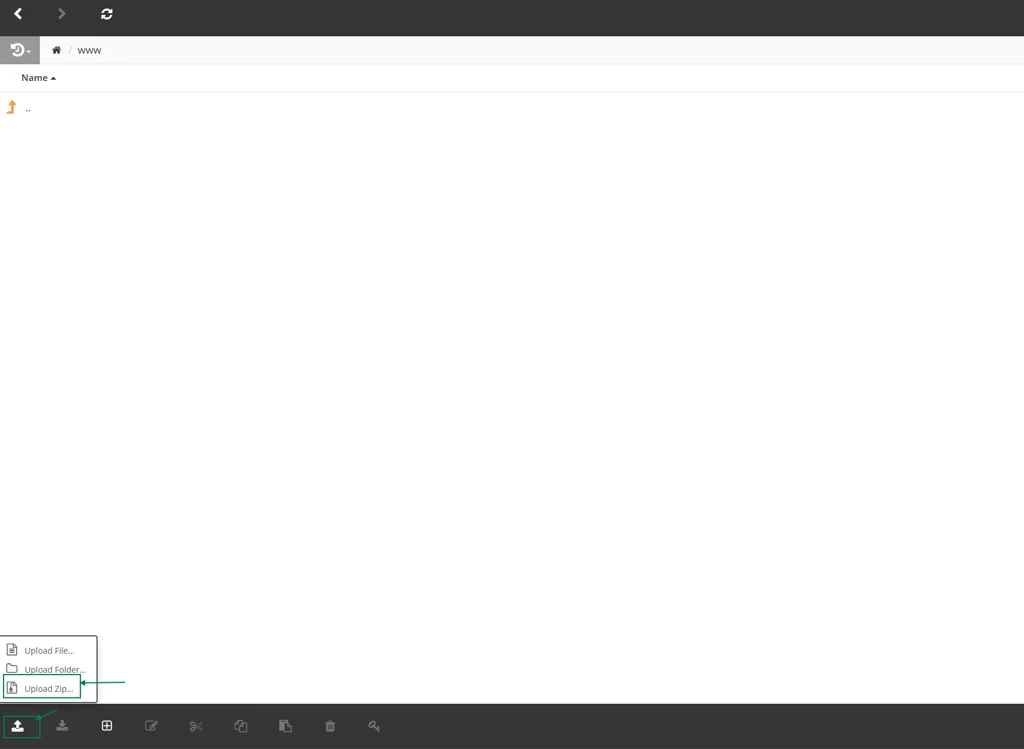
- Once the upload is complete:
- A pop-up window will appear.
- Select "Upload and Unzip".
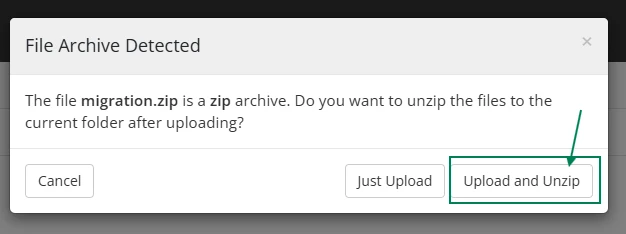
The contents of the archive will be automatically extracted into the www folder.
After a few minutes, the process will be completed and your website will have been successfully migrated to Papaki 2.0.
4. DNS Service
If you are using the DNS service provided through the free hosting package on the former Multihosting/ProHoster platform, you will need to migrate your domain's active DNS zone either to the free DNS service provided by Papaki or to another external DNS service (such as Cloudflare). As the old infrastructure will be decommissioned, your website will no longer be accessible if this step is not completed.
More specifically, if you choose to use Papaki's DNS service, you will need to set the following nameservers for your domain:
dns1.papaki.gr & dns2.papaki.gr
Read more here: How can I activate Papaki’s free DNS Hosting service?
See the full process for automatically connecting your free hosting package to your domain name here, specifically in the section "Connecting the hosting package to your domain"
Attention! If you have configured additional DNS records within the old DNS zone for other services (for example, Google Workspace email), you will need to manually recreate them in the new active DNS zone.
Read more here: How can I manage my DNS records?
5. Connecting the hosting package to your domain
If you are using Papaki’s free DNS service, the connection is easy and automatic through your account.
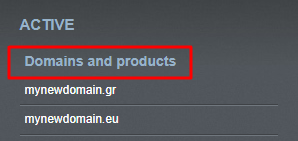
- From the right-side menu, under Domains and products, click on your domain.
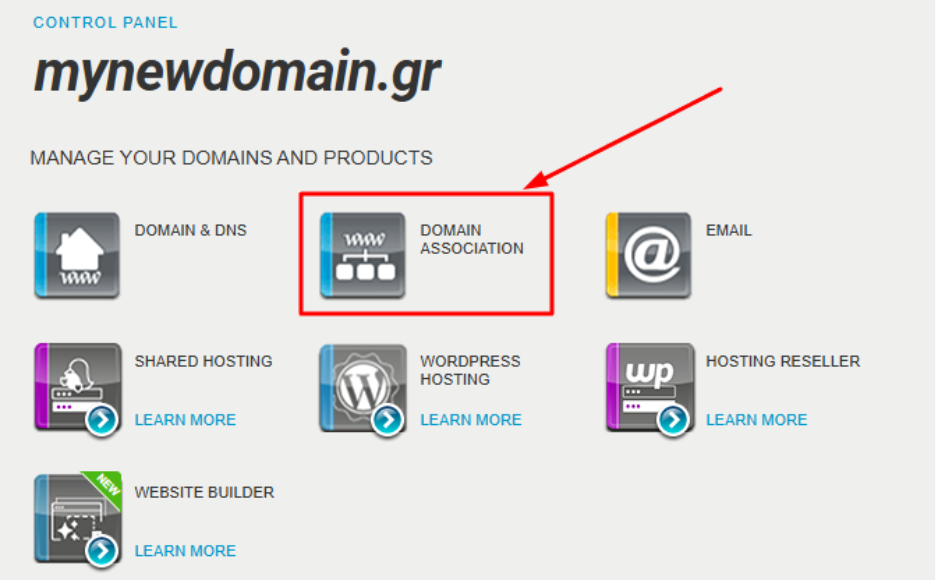
- Select Domain association.
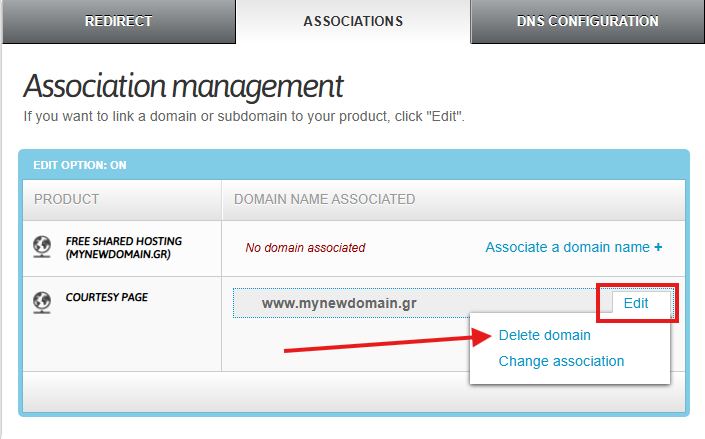
- In the Associations tab, locate the record for Hosting and click Associate a domain name. If your domain is currently connected to a welcome page, you’ll first need to disconnect it and then connect it to the free hosting package. Click Edit and then Delete domain.
- Choose Associate a domain name next to the Free Hosting and click Add.
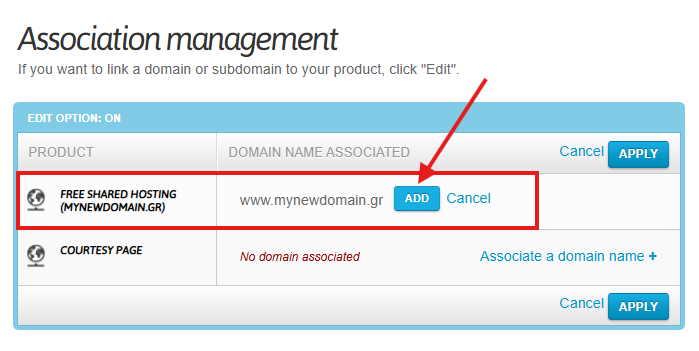
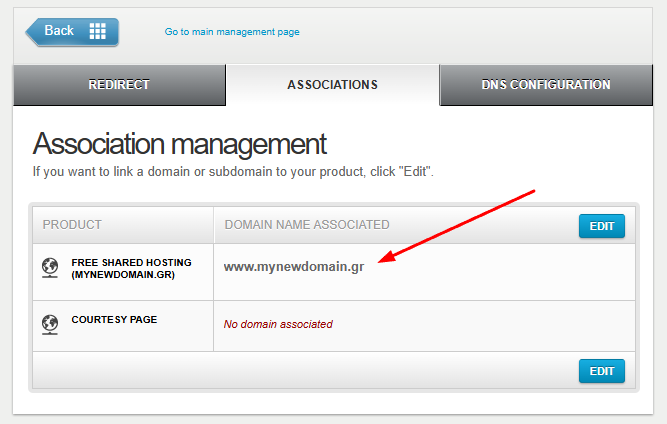
- Click Apply, then click Apply again at the bottom of the page.
Email Account Migration
If you only wish to migrate the content of your free email account from the free hosting service on the former Multihosting/ProHoster platform, you do not need to use the free hosting package provided by Papaki, as the email service is hosted on a separate hosting platform.
With Papaki 2.0, each domain name includes one free email account with 1 GB of storage space.
The steps you will need to complete are:
- Create the email account on the new email hosting service.
- Configure the active email account in an email client (such as Outlook, Thunderbird, etc.).
- Retrieve your emails locally using POP.
- Connect your domain to the new email hosting service.
- Synchronize your email data to the new server using IMAP.
More specifically, you can find detailed instructions for creating your email account on the new email hosting service in the following guide:
How to activate my free email account in Papaki?
Next, configure your account in the email client of your choice and then connect your domain to the new email service through the appropriate DNS records. Finally, synchronize your email data with the new email hosting package using IMAP.
For more information, refer to the following guide:
Email content migration guide via mail client
DNS Service Migration
If you are using the DNS service provided through the free hosting package on the former Multihosting/ProHoster platform, you will need to migrate your domain's active DNS zone either to the free DNS service provided by Papaki or to another external DNS service (such as Cloudflare).
In this case, you will not need to use the free hosting package offered by Papaki. As the old infrastructure will be decommissioned, your services will no longer function if this step is not completed.
A. Locating Your DNS Records
- Log in to CWP through the management interface of your ProHoster account.
- Select the hosting package that provides your DNS service and then click "Login to Control Panel".
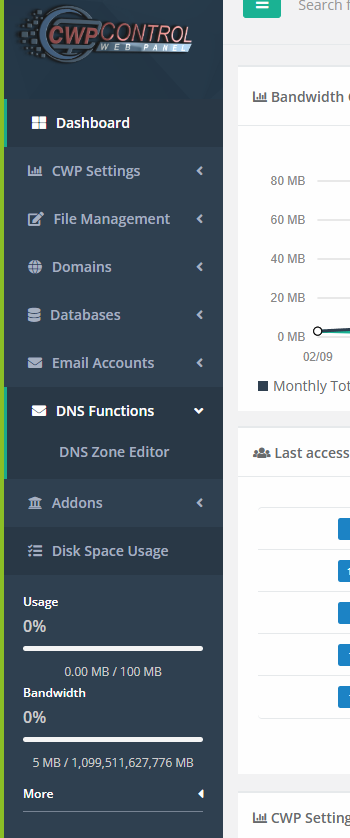
- From the left-hand menu, navigate to DNS Functions > DNS Zone Editor.
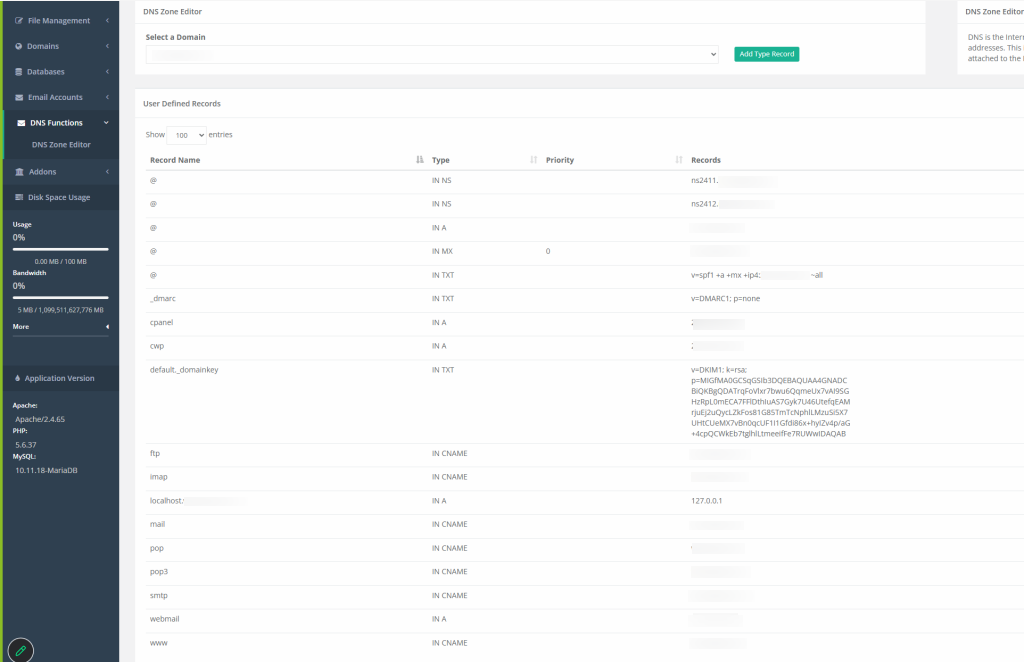
- Copy the DNS records stored in your DNS zone and recreate them in your new DNS service.
B. Importing DNS Records
If you choose to use Papaki's free DNS service, you will need to recreate these records within the new management environment to ensure that your services remain operational. First, you will need to set the following nameservers for your domain:
dns1.papaki.gr & dns2.papaki.gr
Read more here: How can I activate Papaki’s free DNS Hosting service?
Then, proceed with adding your DNS records to the new active DNS zone.
Read more here: How can I manage my DNS records?
Note: The nameserver update process may take between 4 and 48 hours (propagation) to be completed across all Internet Service Providers (ISPs).
You haven't found what you are looking for?
Contact our experts, they will be happy to help!
Contact us