
Customer Support
What applies to multiple billing accounts in the new Papaki Control Panel?
We would like to inform you that as of May 25, 2026, the new Papaki platform is available. Along with it comes a brand-new Control Panel, through which you can purchase new services, renew existing ones, and easily manage all your services.
Important information
The migration of your services to the new environment is carried out gradually. In the future, all your services will be available exclusively through the new Control Panel, with the exception of those that remain as legacy services.
There are some important points you need to know about the new platform and how the management of your services is changing.
1. New login and access to the old Papaki Control Panel (Papaki 1.0)
During your first login to the new environment after May 25, 2026, you will need to sign in using your old account credentials and set a new password. If you do not remember your password, you can reset it here. You can view the detailed process here.
Once the process is completed, your new account will be created with Billing Code: XXXXX. At the same time, SSO (Single Sign-On) is automatically enabled, allowing you to seamlessly access the old management environment for services that have not yet been migrated.
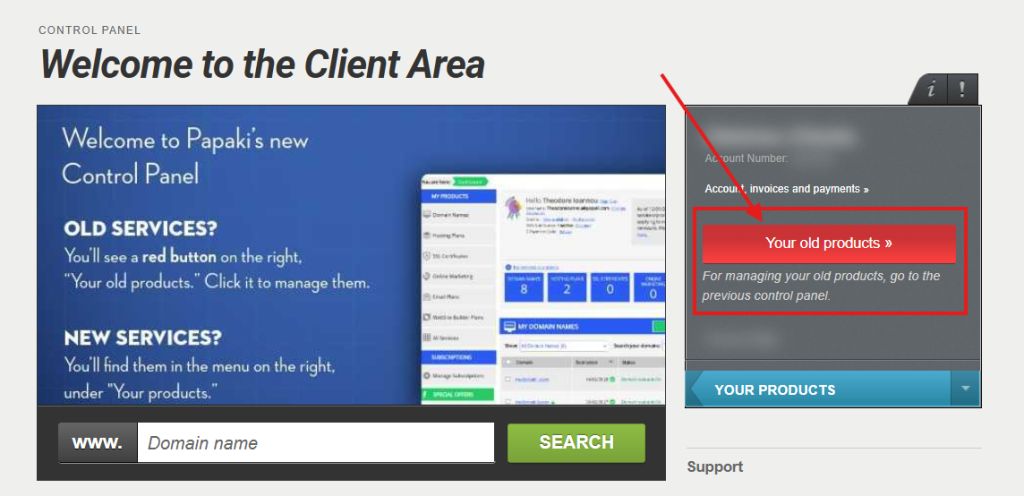
You can find this option on the right-hand side of your account, via the red button “Your old products”.
2. What applies in the new Papaki Control Panel (Papaki 2.0)
In the new management environment, there is an important change compared to the past: multiple billing profiles within the same account are no longer supported.
Specifically:
- Each account is now linked to a single set of billing details.
- In cases where multiple billing profiles existed in the old system, the new Control Panel automatically selected one during account creation.
- It is very likely that your account with Billing Code: XXXXX has been set with billing details of type Receipt.
If this does not fully meet your needs, there are alternative options available in the new platform.
3. How can I change from Receipt to Invoice?
If you require invoices instead of receipts, you will need to create a new account in Papaki.
During your first order in the new account, you will be able to enter your preferred billing details and select the appropriate type (Invoice).
For products that remain in the old Papaki Control Panel, renewal orders will continue to be billed based on the billing details you select during checkout, as was the case until now.
4. Can I use the same email address for multiple accounts?
Yes, this is possible.
To use the same email address across multiple accounts, follow these steps:
- Go to the “Account, billing and payments” menu of your account with Billing Code: XXXXX.
- Check the “Username” field.
- If the username is the same as your email address, select “Change Username” and set a different username.
This will free up your email address so it can be used to create a new account. You can find the detailed process here.
5. Tools for managing multiple accounts
The new platform offers the “Technical administrator” feature, which makes managing multiple accounts significantly easier.
You can find it under:
“Account, billing and payments” → “Technical administrator” → “My customers”
Through this feature, you can link all your accounts and switch between different Billing Codes without needing to log out each time.
Specifically, it allows you to:
- Place new orders and renew services
- Manage the services of all your accounts
- Set automatic or manual renewals
You can find detailed information here.
Need help?
For more information about the “Technical Contact” feature or assistance with creating a new account, our support team is at your disposal.
You haven't found what you are looking for?
Contact our experts, they will be happy to help!
Contact us