
Customer Support
What are the Execution Modes in Macaly
Execution Modes determine how the Macaly AI Agent approaches your requests. Depending on the mode you choose, the Agent can start building immediately, create a plan first, or decide on the best approach automatically.
You can switch modes at any time using the mode selector located next to the chat input field.
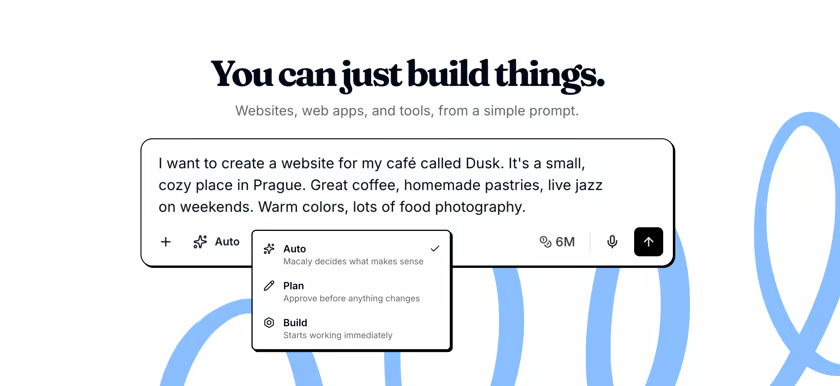
Auto Mode (Default)
Auto Mode is the default setting in Macaly.
In this mode, the Agent decides when it should create a plan and when it can proceed directly with implementation.
How does it work?
- For simple requests, it starts building immediately.
- For complex or unclear requests, it creates a plan or asks clarifying questions first.
- It adapts its behavior based on the complexity of the task.
When should I use Auto Mode?
Auto Mode is ideal when:
- You are working on different types of tasks.
- You're not sure which mode is most appropriate.
- You want the Agent to make judgment calls.
- You want a balance between speed and control.
Examples
- "Create a landing page for my hotel."
- "Add a contact form to the homepage."
- "I want to build a booking system."
Plan Mode
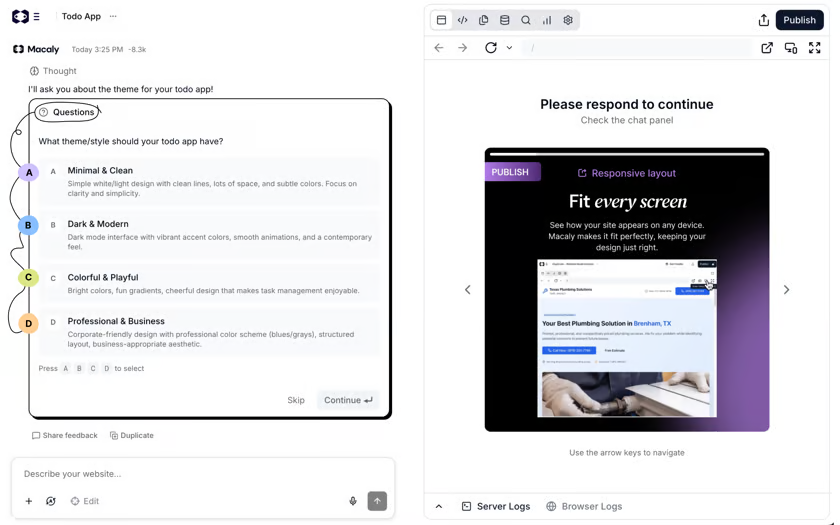
Plan Mode requires the Agent to create a plan before building anything.
Instead of writing code immediately, the Agent:
- Analyzes your request.
- Breaks it down into steps.
- Asks for any necessary clarification.
- Presents the implementation strategy.
- Waits for your approval.
No changes are made to your project until you approve the plan.
When should I use Plan Mode?
Plan Mode is the best option when:
- You are building complex features.
- You want to understand what will be built.
- You need full visibility before any changes are made.
- You are learning how Macaly works.
Examples
- Multi-user booking system
- Member area with user accounts
- Marketplace or e-commerce application
- CRM or internal management tool
Benefits
- Helps avoid misunderstandings.
- Lets you review the implementation approach before work begins.
- Allows you to add or remove requirements before any code is generated.
Build Mode
Build Mode is the fastest mode.
The Agent starts working immediately without creating a plan or asking clarifying questions.
If some details are missing, it makes reasonable assumptions and continues building.
When should I use Build Mode?
Build Mode is ideal when:
- You know exactly what you want.
- The requirements are clear.
- You are making simple, straightforward changes.
- An implementation plan has already been approved.
Examples
- "Change the header color to blue."
- "Add a new FAQ section."
- "Replace the homepage images."
- "Add a contact button to the footer."
Benefits
- Faster implementation.
- Fewer intermediate steps.
- Ideal for day-to-day updates and modifications.
Why Does Planning Help?
Many users choose Build Mode because it appears faster. However, for complex projects, planning can actually save time.
- Catch misunderstandings early
If the proposed plan does not match your expectations, you can correct it before any work begins. - Understand the changes
The plan explains what will be built in plain language, even if you do not have technical experience. - Change direction before work starts
You can provide additional instructions or modify the approach before implementation begins. - Better results for complex projects
Plan Mode is especially helpful when your project includes:- Multiple pages
- Complex functionality
- Authentication
- Databases
- Automations
When Is Planning Not Necessary?
For simple requests, creating a plan often adds unnecessary steps.
Examples include:
- Text changes
- Content corrections
- Color updates
- Small design improvements
- Obvious bug fixes
In these cases, it is usually recommended to use:
- Auto Mode
- Build Mode
- Visual Edits
Which Mode Should I Choose?
| If I want to... | Recommended Mode |
|---|---|
| I'm not sure what I need | Auto |
| Create a new project | Auto |
| Build a complex feature | Plan |
| Review the implementation approach first | Plan |
| Make quick, simple changes | Build |
| Implement an approved plan | Build |
| Edit text or colors | Build or Visual Edits |
If you're just getting started with Macaly:
- Use Auto Mode for most tasks.
- Enable Plan Mode for more complex projects or features.
- Use Build Mode when you know exactly what changes you want to make.
For most users, Auto Mode is the best choice because it combines the speed of Build Mode with the additional control and visibility offered by Plan Mode.
You haven't found what you are looking for?
Contact our experts, they will be happy to help!
Contact us