
Customer Support
How do I manage and edit images in Macaly?
Macaly allows you to manage and edit images directly from your project preview, without modifying code or describing every small change to the AI Agent.
Using Visual Edits, you can replace images, edit them with AI assistance, and apply changes directly to your page.
Note: Visual Edits are available on all Macaly plans, but they only work on desktop devices. The toolbar does not appear on mobile devices or in very narrow browser windows.
Accessing Visual Edits
A floating Toolbar appears over your project preview and includes the main editing tools:
- Edit Design
- Edit Text
- Annotation
To edit an image:
- Open your project preview.
- Click Edit Design.
- Select the image you want to edit.
- The available settings will appear in the left panel.
You can return to normal preview mode at any time by pressing Esc.

Replacing an Image
Replacing an image is one of the most common editing tasks.
To do this:
- Select the image using Edit Design.
- Open the image settings in the left panel.
- Choose the image replacement option.
- Upload the new image file.
- Review the result in the preview.
- Click Save to apply the change.
Changes made directly from the panel do not consume credits.
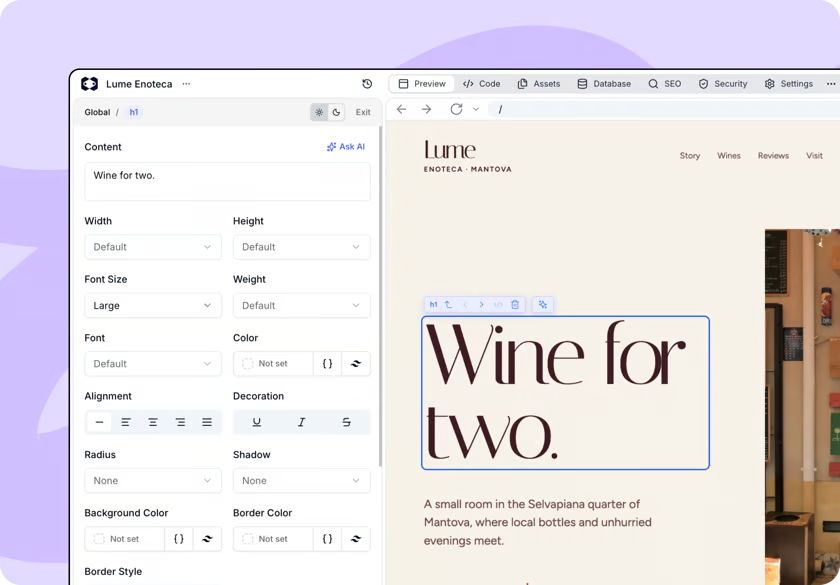
Editing Images with Ask AI
Instead of manually replacing or editing an image, you can use Ask AI.
After selecting an image through Edit Design, use Ask AI to describe the change you want to make.
Ask AI can:
- Edit the existing image
- Generate a new image
- Show a preview of the result before applying the change
The associated cost is displayed before the action is executed.
Note: Actions performed through Ask AI consume credits, just like any other AI-powered feature in Macaly.
Using Annotation for Image Changes
In many cases, it is easier to show the Agent which image you want to modify rather than describe it.
Using the Annotation tool, you can:
- Select Annotation from the Toolbar.
- Draw over the area you want to reference.
- Type your request in the chat.
- Send the message to the Agent.
Example
"Replace this image with an office photo."
The Agent automatically detects the elements you have marked.
Useful Annotation Tools
While drawing, you can use:
- Undo
- Redo
- Clear
Annotations are only used to point to elements on the page and are not saved as part of your project.
Note: Save or discard any pending changes before using Annotation. If the preview is resized, your annotations will be cleared.

Navigating Between Elements
When multiple elements overlap, selecting the exact image you want can sometimes be difficult.
Macaly displays a small navigation bar above the selected element that allows you to:
- Move to parent elements
- Navigate between neighboring elements
- Open the related source code in the Code tab
- Remove the selected element entirely
Saving Changes
Changes made through Visual Edits remain temporary until you save them.
When there are pending changes:
- The Toolbar displays the total number of unsaved changes.
- You can choose:
- Save to apply the changes
- Discard to cancel them
Changes are saved immediately, without consuming credits and without requiring the Agent to process them.

When Visual Edits Are Not Available
The toolbar may be hidden or disabled when:
- The Agent is still working on the project.
- The preview has not finished loading.
- There is an open Plan in the chat that must be closed first.
If this happens, wait for the relevant process to finish and try again.
Helpful Tips
- Use Edit Design to quickly replace images without using credits.
- Use Ask AI when you want AI-assisted image editing or image generation, which consumes credits.
- Always review the result in the preview before saving your changes.
- For small image changes, Visual Edits are usually faster than sending instructions through the chat.
You haven't found what you are looking for?
Contact our experts, they will be happy to help!
Contact us