
Customer Support
How do Chat and the Workspace work in Macaly?
In Macaly, every project is managed through a dedicated chat. This is where you collaborate with the AI Agent to create, edit, and develop your website or application.
Each chat corresponds to a single project. Macaly keeps the conversation history and remembers what has already been built, allowing the Agent to continue from where it left off without requiring you to repeat information.
Starting a New Chat
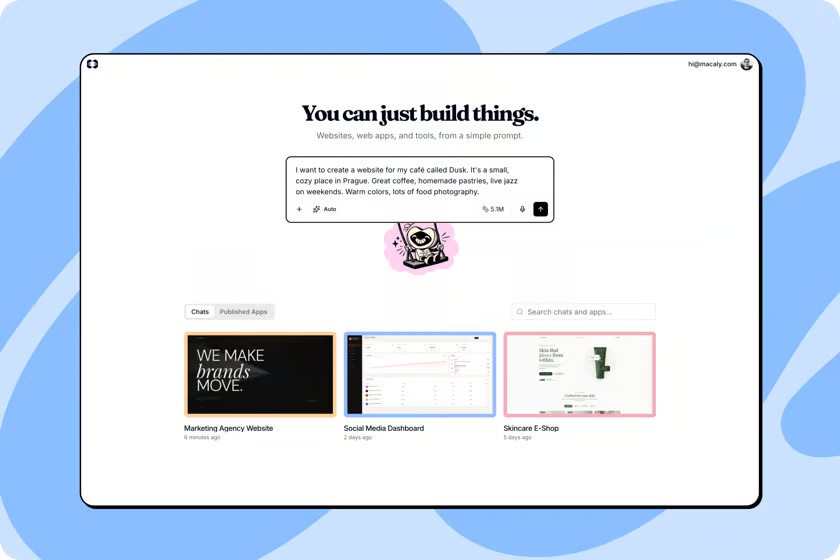
The Macaly home screen displays all your projects as a collection of cards.
You can use:
- Chats to view projects that are currently in progress.
- Published Apps to view projects that have already been published.
- The search bar to quickly find a project by name.
How do I create a new project?
- From the home screen, click the prompt field at the top of the page.
- Describe what you want to build.
- Press Enter or click the send button.
There is no need to use special commands or technical terminology. Simply describe your project the same way you would explain it to a colleague.
Example
"I want to create a website for an architectural firm with a project portfolio, contact form, and modern design."
Inside a Chat
When you open a chat, the screen is divided into two main areas:
Conversation (Chat)
On the left side, you'll find your conversation with the AI Agent.
Here you can:
- Describe new requirements
- Request changes
- Add features
- Upload files
- Continue developing your project
Workspace
At the top of the interface, you'll find the Workspace, which contains all the tools used to manage and monitor your project.

Workspace Tabs
At the top of the Workspace, you'll see a tab bar that allows you to switch between different project views.
- Preview: Displays your website or application in real time as the Agent builds or updates the project.
- Code: Shows the complete source code of your project.
- Assets: Contains all files and media used within the project.
- Database: Allows you to view and manage project data.
- Analytics: Provides insights into visitors and traffic for your published project.
- Settings: Contains your project's configuration and settings.
- SEO: Includes tools for optimizing your project for search engines and social media platforms.
- Security: Helps identify and resolve potential security issues.
At the end of the tab bar, you'll find the ... menu.
From there, you can:
- Pin frequently used tabs
- Remove pinned tabs from the bar
- Organize the Workspace according to your needs
Pinned tabs remain visible for faster access.
Working with the AI Agent
The message field at the bottom of the chat is the primary way to communicate with the Agent.
You can use it to describe:
- New features
- Content changes
- Design improvements
- Fixes and corrections
- New pages
Examples
- “Add a Services page.”
- “Change the colors to match my logo.”
- “Create a contact form.”
- “Make the design more minimal.”
Adding Content and Files
Next to the message field, you'll find the + button.
From there, you can choose:
- Upload from Device: Upload files directly from your computer.
- Create in Canvas: Create graphics using Macaly's built-in Canvas tool.
You can also drag and drop files directly into the chat.
Files are automatically added to Assets and can be used by the Agent when needed.
Depending on your platform's configuration, additional options may also be available, such as:
- Skills
- GitHub Import
Choosing an Execution Mode
In the lower-left corner of the message field, you'll find the Execution Mode selector.
Available modes include:
- Auto
- Plan
- Build
Auto Mode is the recommended option for most users.
Credits
Your available credit balance is displayed in the lower-right corner of the message field.
From there, you can:
- View your remaining credits
- Purchase additional credits
- Upgrade your plan
Voice Input
A microphone icon is available next to the message field.
You can use voice input instead of typing.
Macaly converts your speech to text and processes it like any other message.
Troubleshooting the Preview
If the preview does not update correctly or appears frozen:
- Click the Reload button in the Preview toolbar.
- If the issue continues:
- Select Rebuild Preview for newer projects.
- Select Restart App for older projects.
Version History
Newer projects include a Version History feature.
Using Version History, you can:
- View previous project versions
- Identify the latest or published version
- Open a previous version in a new tab
- Jump to the related Agent message
- Restore a previous version
You can also use Restore this version below previous Agent responses to return your project's code to that specific point in time.
Helpful Tips
- Use natural language when communicating with the Agent.
- Keep each project in its own dedicated chat.
- Upload files and supporting materials to help the Agent better understand your project.
- Use Auto Mode if you're unsure which Execution Mode is best for your task.
- Take advantage of Version History before making major changes so you can easily restore a previous version if needed.
By using the Chat and Workspace effectively, you can manage every stage of your project's development within Macaly.
You haven't found what you are looking for?
Contact our experts, they will be happy to help!
Contact us