
Customer Support
How can I back up my Website Builder?
Website Builder allows you to create manual backup files so you can restore your site to a previous state if needed.
Important!
This guide applies to Website Builder installations available through the new Papaki Control Panel. If you have a similar product managed through the old Papaki Control Panel, the backup restoration feature is not available.
Step 1: Access the Management Environment
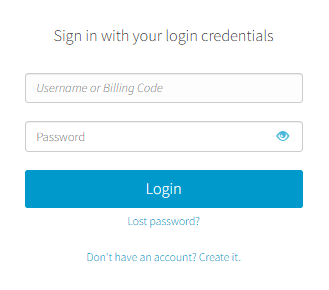
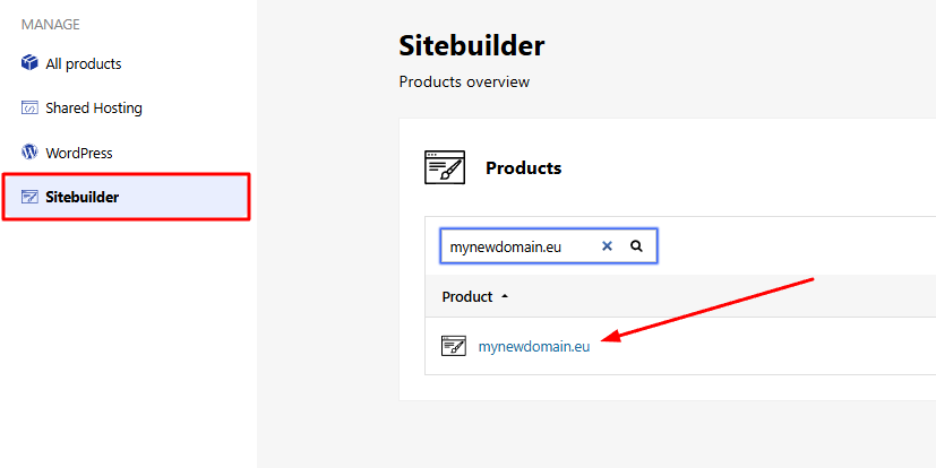
- From the right side menu, click on Other services > SiteBuilder

- Locate the hosting pack you want to edit and click on the domain
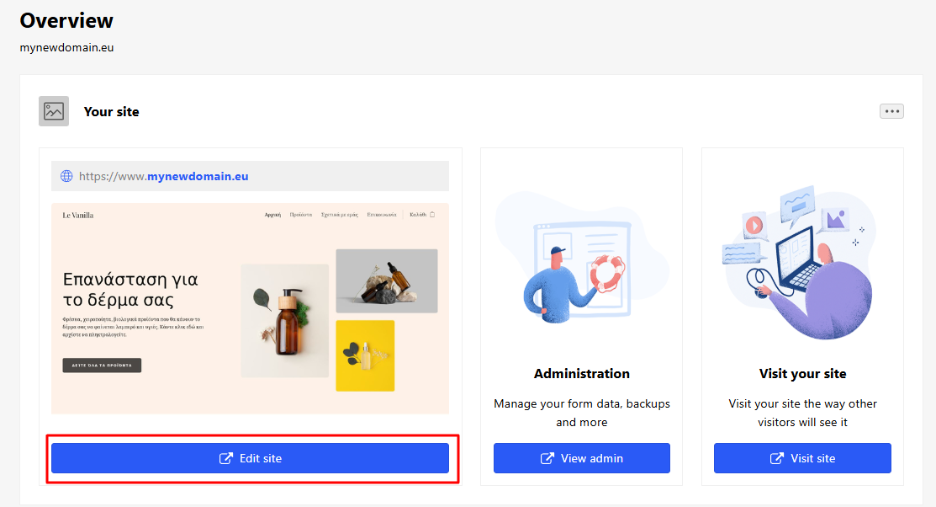
- Click Edit Website to enter your site’s management environment.
Step 2: Access the Backup Feature
You can access your backups in two ways:
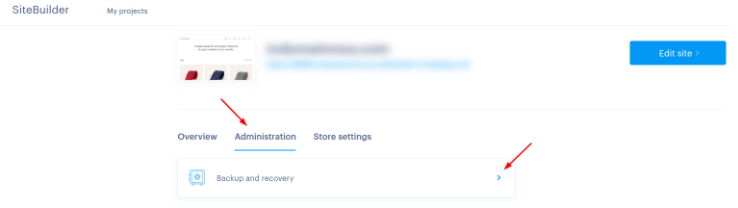
A. From your Papaki account dashboard
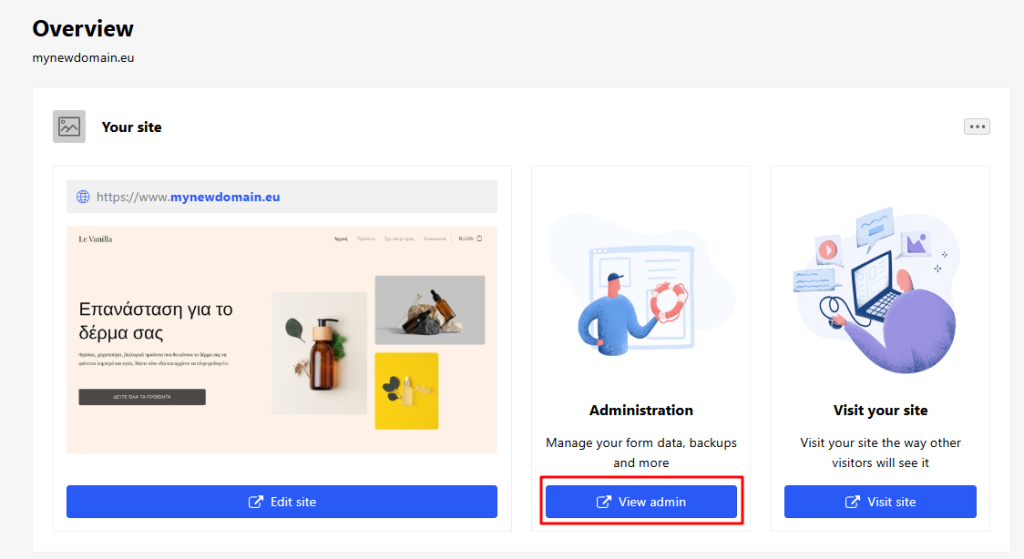
- From your account dashboard, click View Admin.
- In the top menu select:
Administration > Backup and Recovery.
B. From the Website Builder environment
- From your site’s top menu go to:
Settings > Backup and Recovery > Manage Backups.
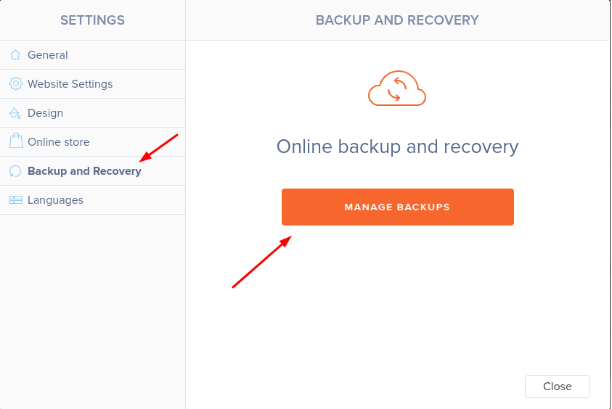
- You’ll be redirected to the list of available backup files.
Step 3: Create and Restore Backups
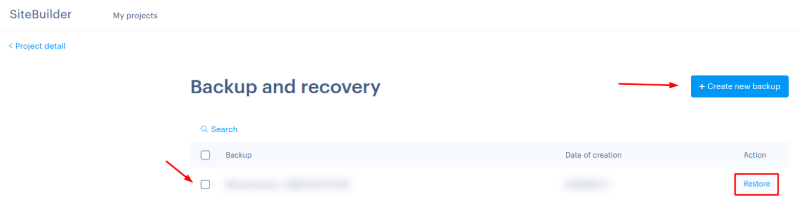
- From the Manage Backups page you can manually create a new backup file.
- To restore your site:
- Find the backup file with the desired date.
- Select it and click Restore to revert your site.
Important: The Backup and Recovery feature is not available in all plans.
You haven't found what you are looking for?
Contact our experts, they will be happy to help!
Contact us