
Customer Support
How can I connect Google Analytics to my Website Builder to track my page traffic?
To monitor your website traffic using Google Analytics, follow the steps below:
Create a Google Analytics Account
First, you’ll need to create an account on the Google Analytics platform in order to activate the tracking service for your website.
During the setup process, Google will generate a tracking code (Tracking ID), which you will need to insert into your Website Builder dashboard.
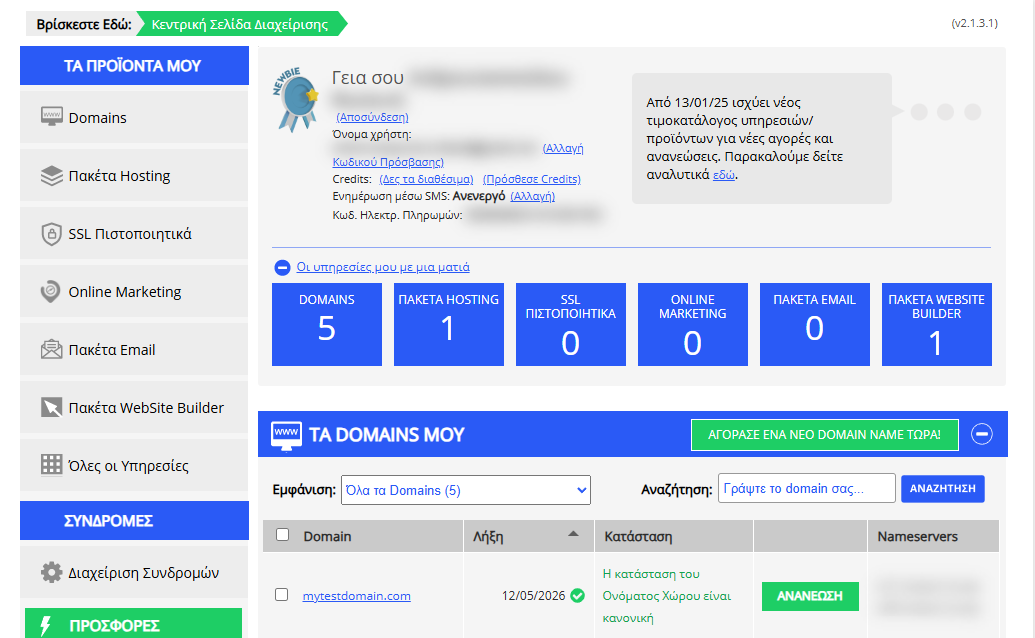
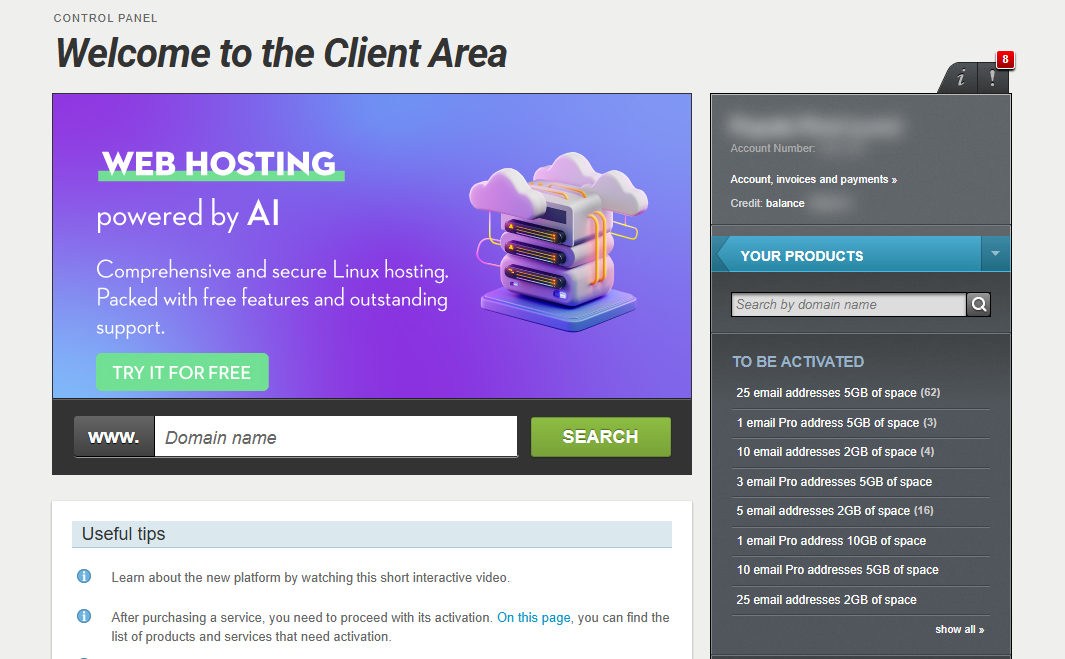
[Papaki 2.0]
Add the Tracking Code in Website Builder
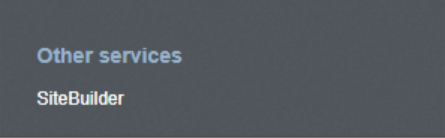
- From the right side menu, click on Other services > SiteBuilder
- Locate the hosting pack you want to edit and click on the domain
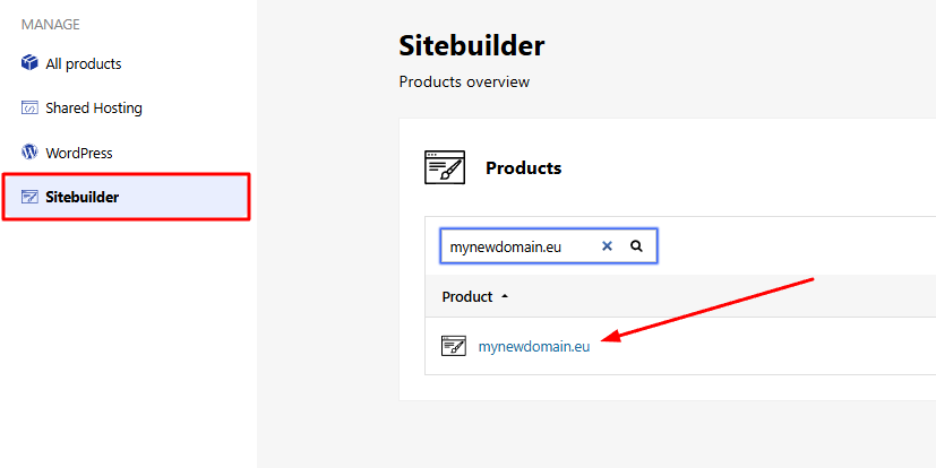
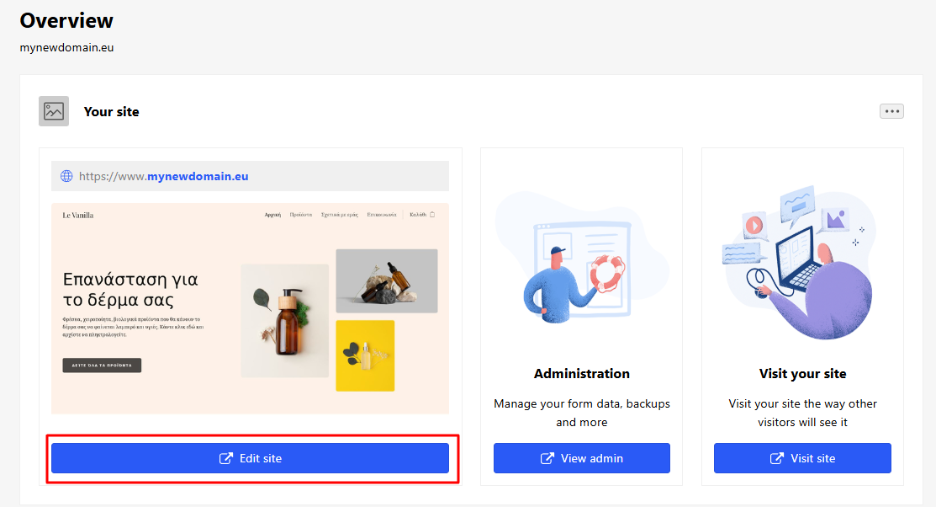
- From your account dashboard, click Edit site.
- Go to:
Settings → Website Settings → Google Analytics
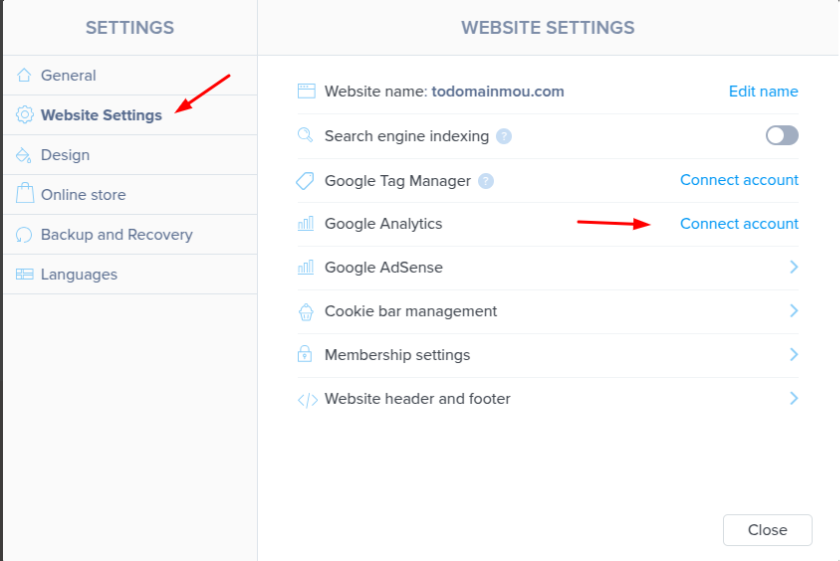
- Paste the tracking code into the appropriate field.
Once completed, Google Analytics will begin collecting and processing data from your website.
Important Note
The integration with Google Analytics is not available in all plans. To access this feature, you will need to upgrade to a higher-tier plan.
[Papaki 1.0]
- From the main dashboard, click Home Page in the main menu.
- Select <> Site scripts.
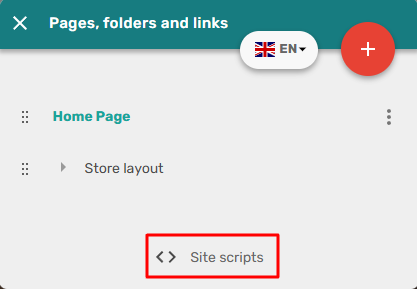
- In the Head Scripts tab, paste the tracking code generated by Google into the editor and click Save.
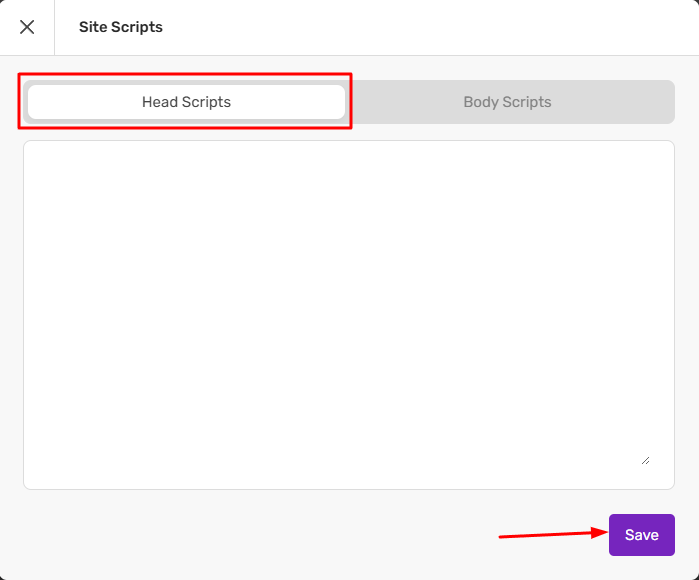
- After a short while, Google will detect the code and activate the service.
You haven't found what you are looking for?
Contact our experts, they will be happy to help!
Contact us