
Customer Support
How do I delete emails through Roundcube webmail?
When your mailbox starts to fill up, you may stop receiving new messages or see warnings that there is no available space. Through Roundcube webmail, you can easily delete old emails to free up storage space.
Follow the steps below.
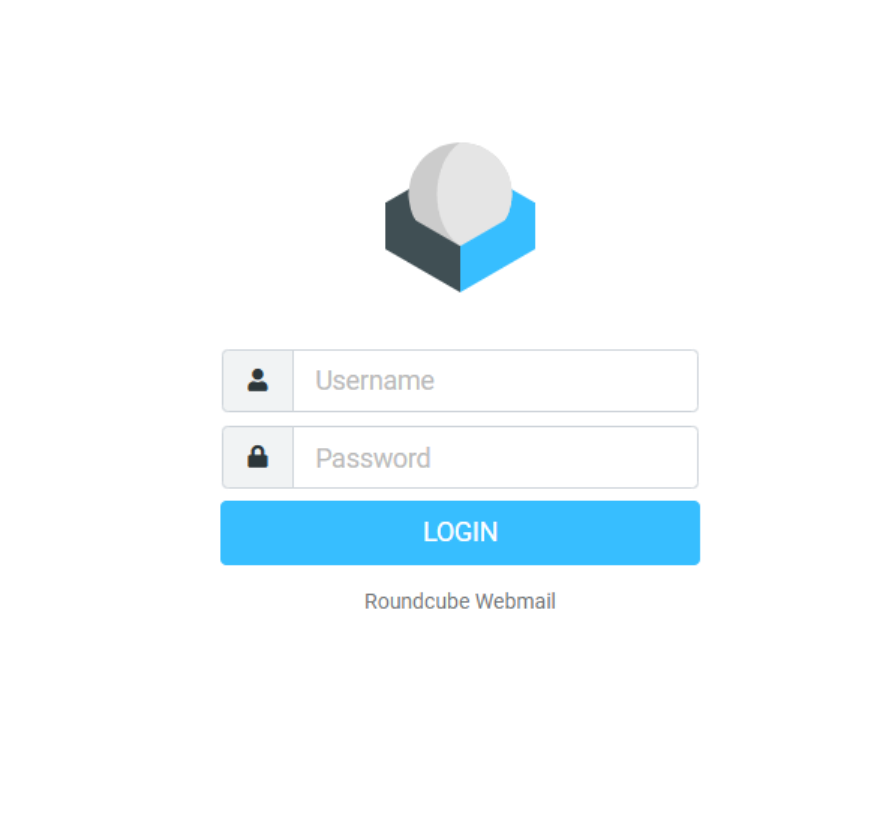
1. Log in to Roundcube
- Open your browser.
- Go to your domain’s webmail address (for example, https://mail.yourdomain.com).
- Enter your email address and mailbox password.
Once logged in, you will see the Roundcube main interface.
2. Locate the emails you want to delete
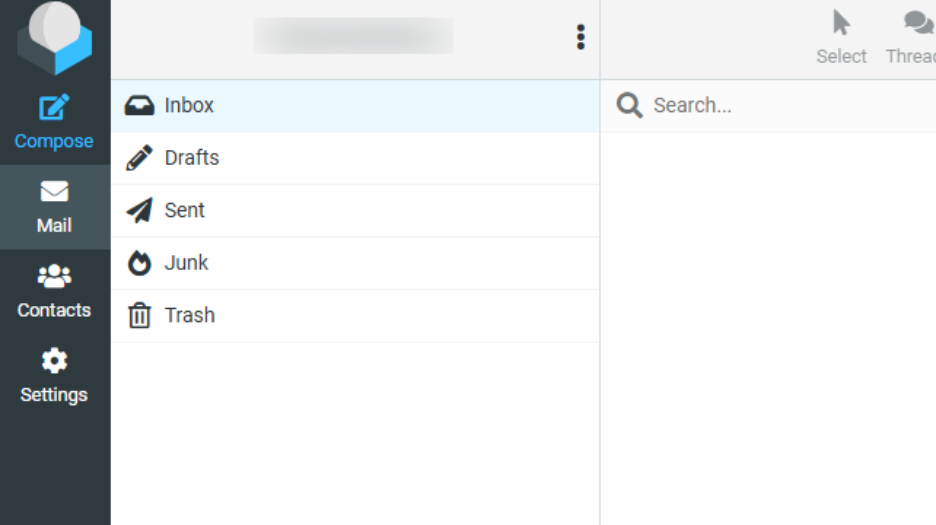
On the left-hand side, you will see the available folders:
- Inbox
- Sent
- Drafts
- Spam / Junk
- Trash
Click on any folder to view the messages it contains.
3. Delete single or multiple emails
To delete emails:
- Select a message by clicking on it.
For multiple selection:- Hold Ctrl (or Cmd on Mac) and click the messages you want to delete.
- Or use Select → All from the menu.
- Click the Delete button (trash bin icon).
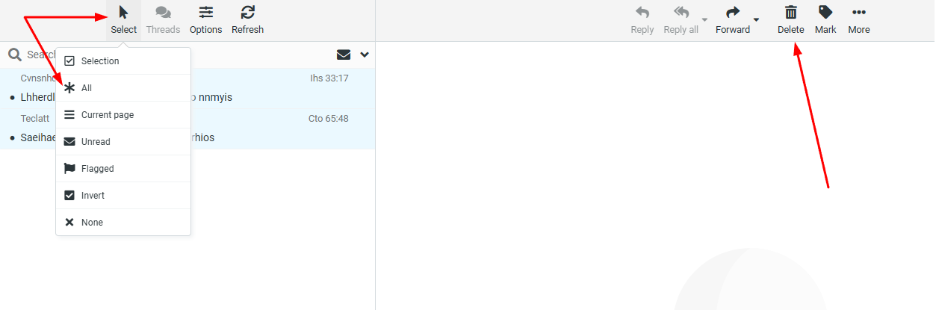
The deleted emails are not removed permanently yet; they are moved to the Trash folder.
4. Delete emails from Spam or other folders
The same process applies to all folders.
If the Spam folder contains many messages:
- Open the Spam folder.
- Select the messages.
- Click Delete.
Cleaning the Spam folder can quickly free up a significant amount of space.
5. Permanently delete emails (empty the Trash)
Mailbox space is not actually freed until the Trash folder is emptied.
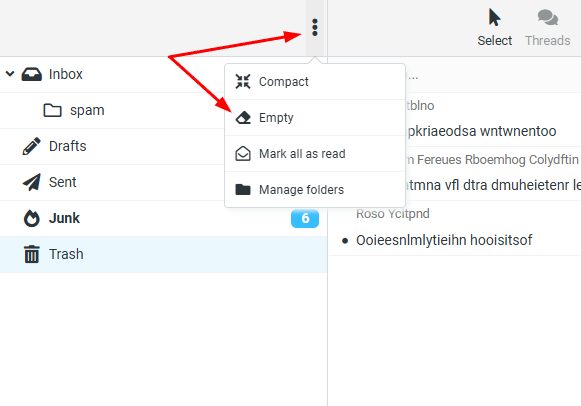
To permanently delete all emails in Trash:
- Click on the Trash folder.
- Open Folder actions or right-click the folder.
- Select Empty or Empty Trash.
To permanently delete specific emails:
- Stay in the Trash folder.
- Select the emails.
- Click Delete again.
At this point, the emails are permanently removed from the server and storage space is released.
6. The mailbox still appears full
If the system still shows that your mailbox is full after deleting emails:
- Wait a few minutes for usage statistics to update.
- Make sure the Trash folder is completely empty.
- Check for emails with large attachments (you can sort messages by size).
- Review folders that are often overlooked, such as Sent or Junk.
7. Webmail access is blocked due to hosting suspension
If your hosting package has exceeded its disk quota and has been suspended, you may not be able to access Roundcube to delete emails.
In this case:
- Contact our support team via ticket so we can temporarily reactivate the package.
- Once reactivated, follow the steps above to clean up your mailbox.
Tips to prevent mailbox space issues in the future
- Delete emails with large attachments regularly.
- Download older emails to your computer using an IMAP client (Outlook, Thunderbird).
- Organize folders and empty the Trash frequently.
- Consider upgrading your hosting plan if the issue occurs often.
You haven't found what you are looking for?
Contact our experts, they will be happy to help!
Contact us