
Customer Support
How to set up your email in Outlook 2016
To set up your email in Outlook 2016, you’ll need:
- Your full email address.
- The password you set when creating the email in Plesk.
- The incoming and outgoing mail server addresses.
- Open Outlook 2016 and click on File.
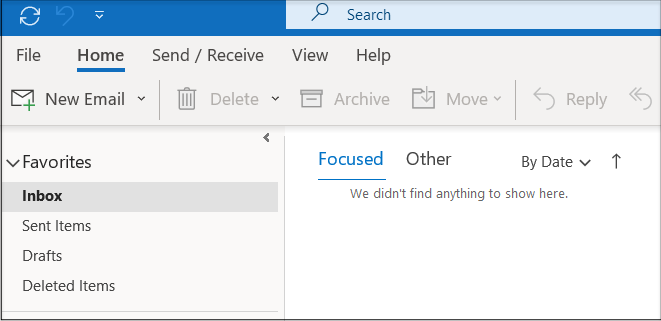
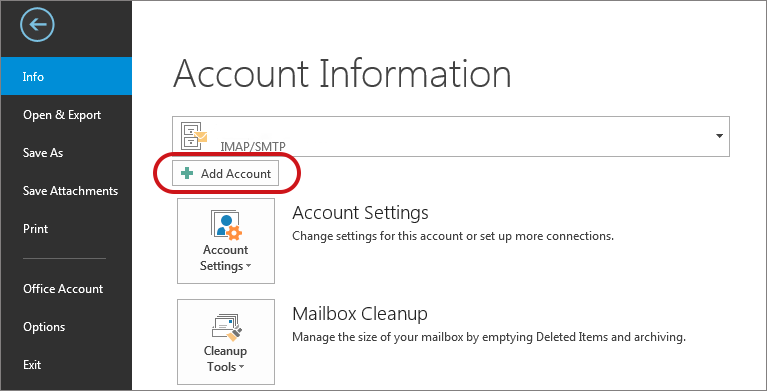
2. Click on Add Account or Account Settings → Account Settings… and select New
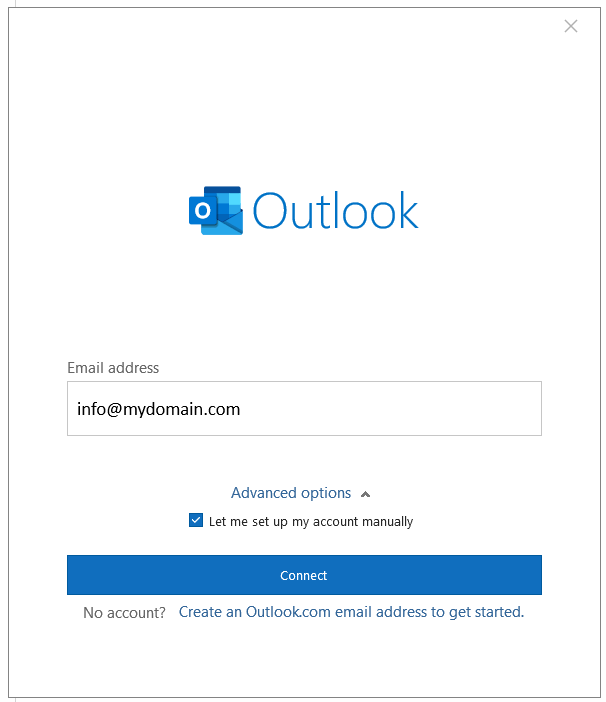
3. Type your full email address (e.g. info@yourdomain.tld).
Select the 'Let me set up my account manually' option and click 'Connect'.
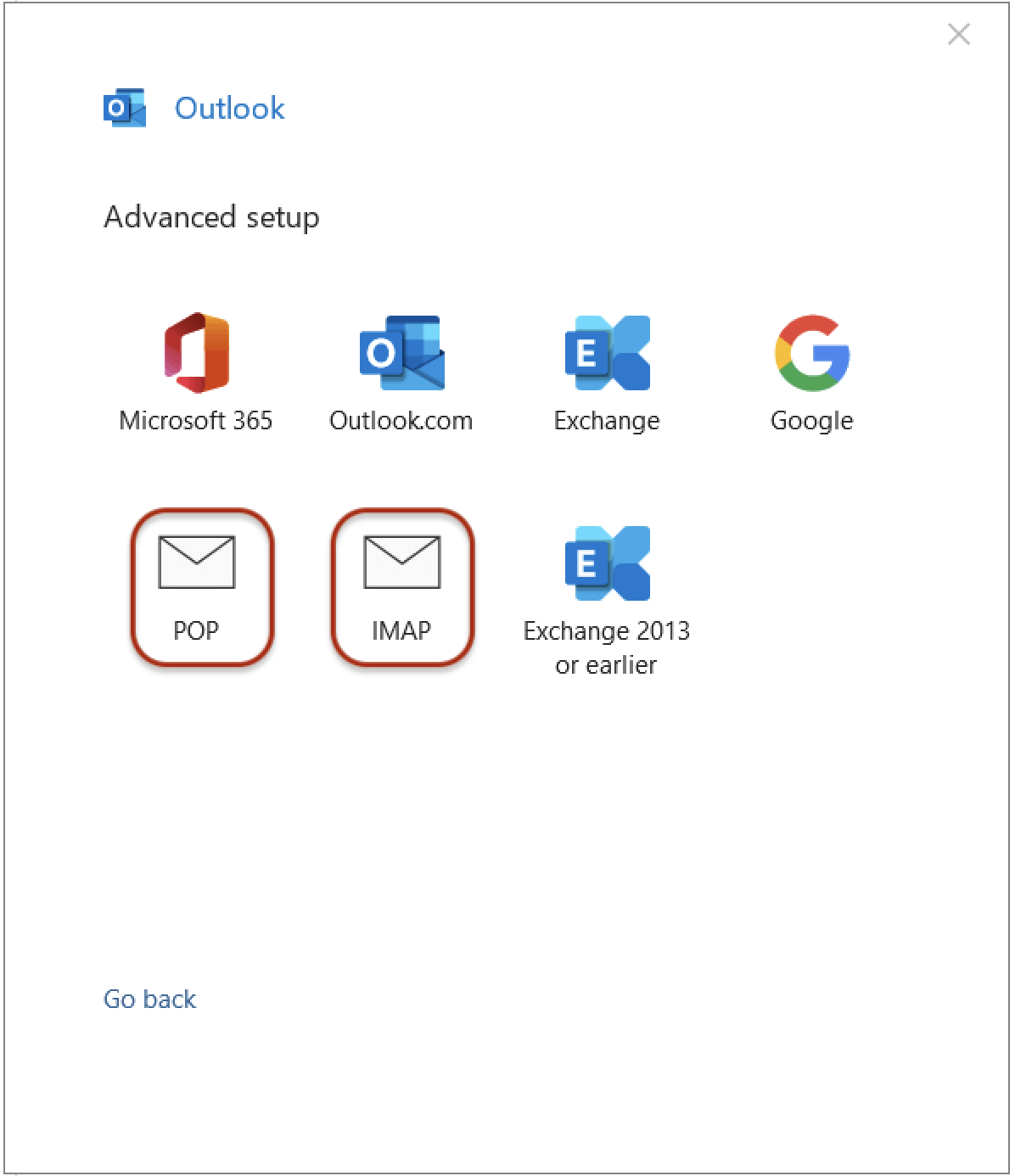
4. In the next window, select IMAP or POP3.
(In this example, we continue with IMAP.)
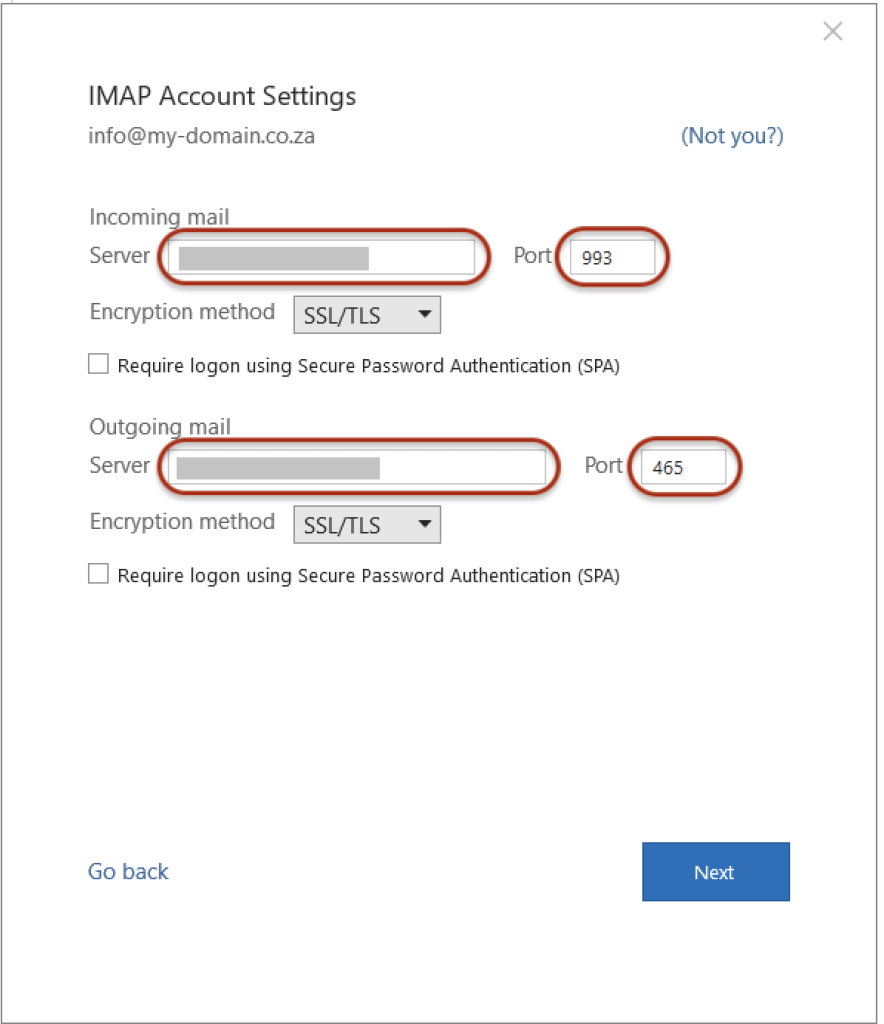
5. Configure Server Settings
Incoming Mail
- Server:
- New Papaki Control Panel: mail-gr.securemail.pro
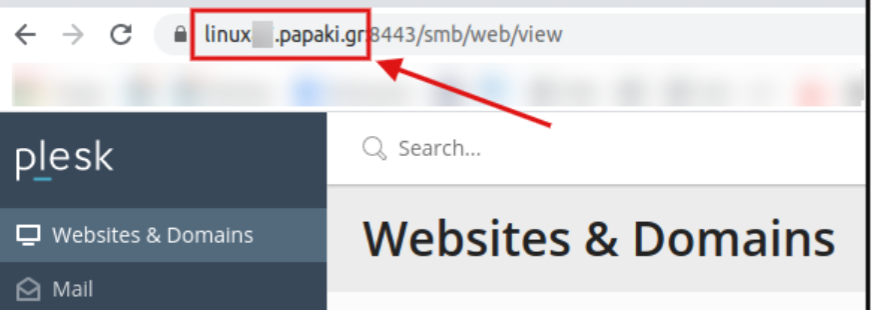
- Old Papaki Control Panel: the hostname from your Plesk URL (Do not include the "port:8443")
Read more here.
- Port: 993 (IMAP) or 995 (POP3)
- Encryption method: SSL/TLS
Outgoing Mail
- Server:
- New Papaki Control Panel: smtp-gr.securemail.pro
- Old Papaki Control Panel: the hostname from your Plesk URL (Do not include the "port:8443")
Read more here.
- Port: 465 (SMTP)
- Encryption method: SSL/TLS
Click Next.
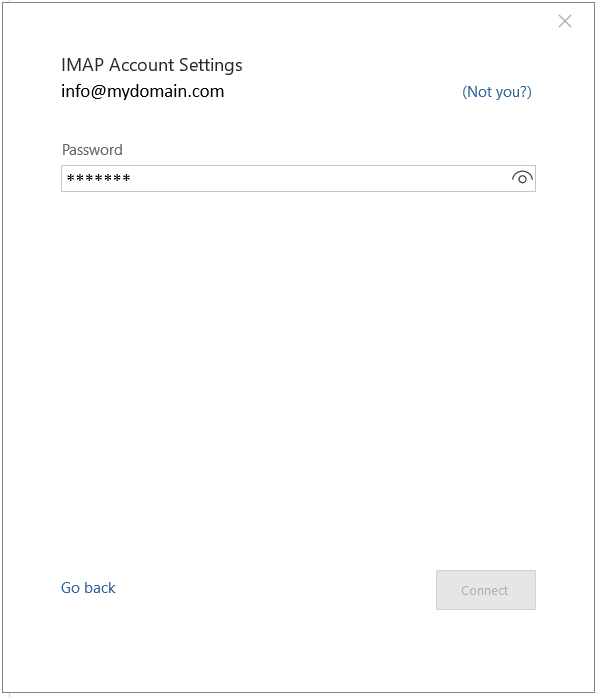
6. Enter the password you set for your email account in Plesk and click Connect.
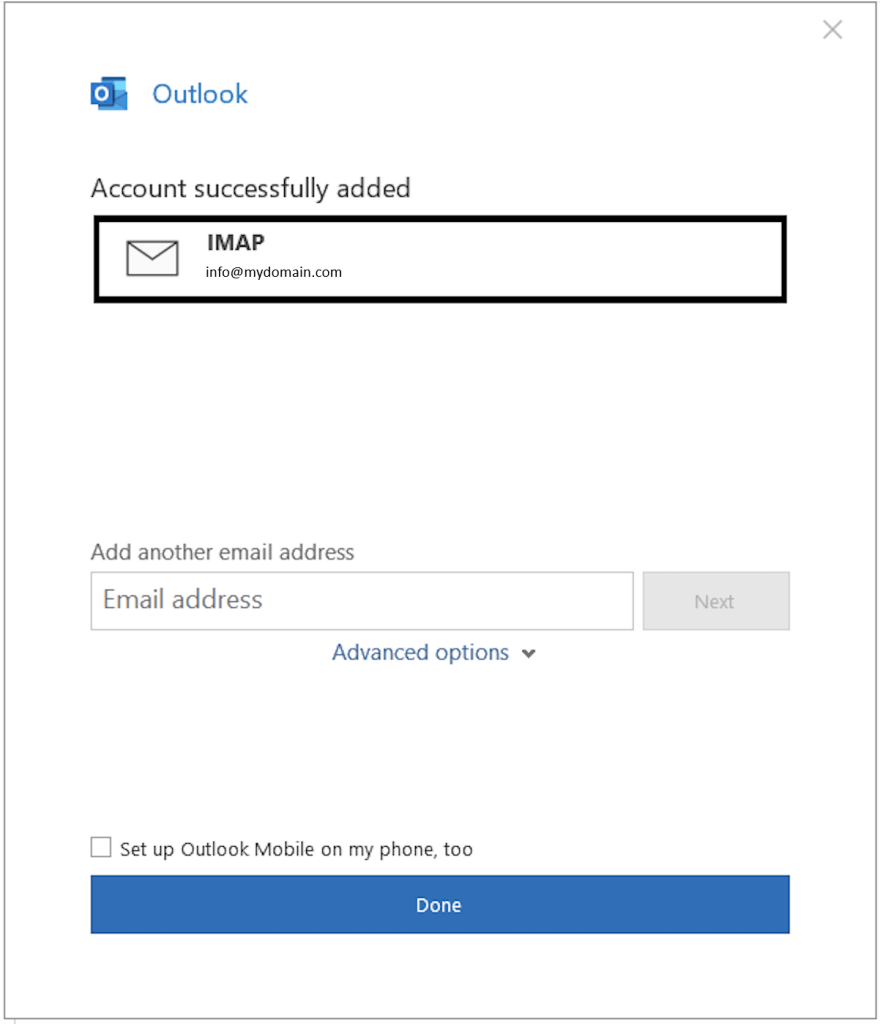
8. Once the configuration is correct, your account will be added successfully.
Click Done to start managing your email through Outlook.
Where to find your mail servers
If your email is hosted on the Papaki 2.0 control panel:
- Incoming mail server: mail-gr.securemail.pro
- Outgoing mail server: smtp-gr.securemail.pro
If hosted on the Plesk environment (Papaki 1.0):
- Find the server's name in the browser's address bar when logged into Plesk
- Omit the port:8443
Frequently Asked Questions (FAQ)
What if Outlook doesn’t connect automatically?
Verify that the server details (IMAP/POP, SMTP) and ports are accurate according to your provider's specifications.
What is the difference between IMAP and POP3?
- IMAP syncs your emails across all your devices.
- POP3 downloads emails only to the device you’re using.
Can I add multiple email accounts?
Yes. Repeat the process from File → Add Account.
You haven't found what you are looking for?
Contact our experts, they will be happy to help!
Contact us