
Customer Support
iubenda – Activating Google Consent Mode
If you use Google Ads or Google Analytics for audiences in Europe and have noticed a decrease in data after the cookie banner appeared, you may need to correctly configure the Google Consent Mode to avoid losing statistics or tracking when users reject cookies. Iubenda is fully compatible with version 2 of Google Consent Mode. Follow the steps below.
Access the management environment
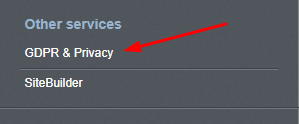
- From the dashboard, under Other Services, click on GDPR & Privacy.
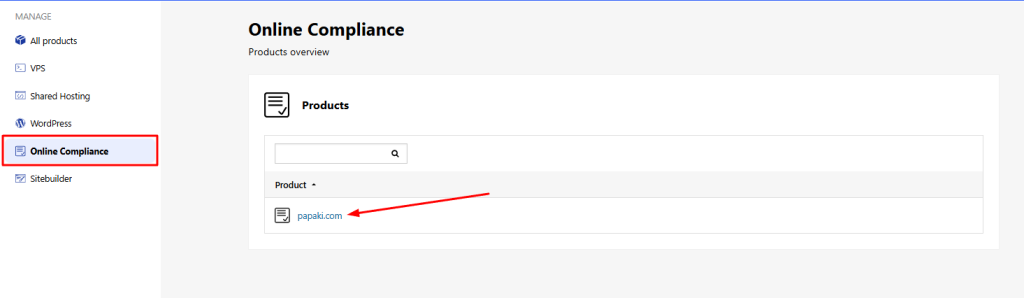
- Under Online Compliance, click on your domain name.
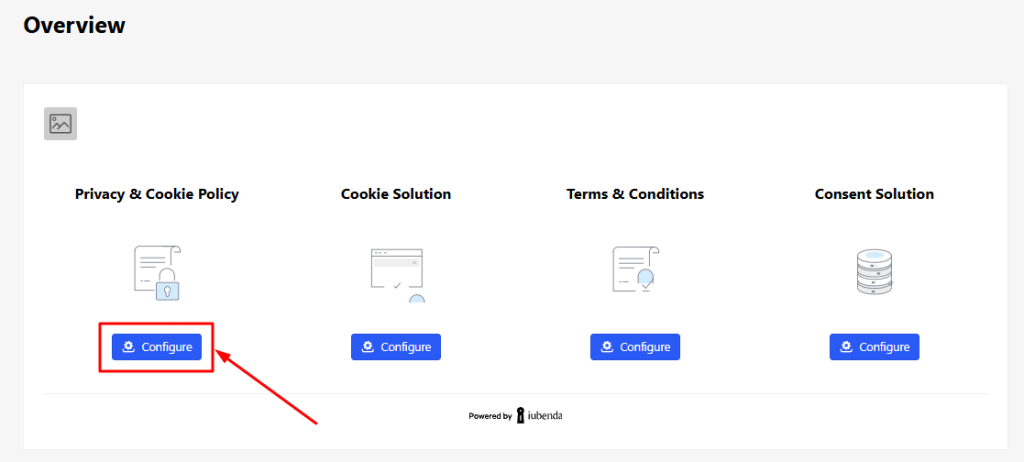
You’ll now see all the available iubenda services associated with your domain.
- Click Configure in the Privacy and Cookie Policy section (or any other available section).
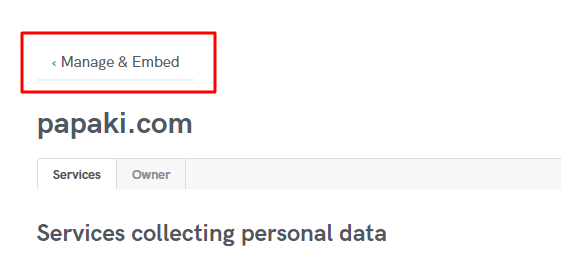
- On the next screen, at the top left, click Manage & Embed.
Configuring the Consent Mode
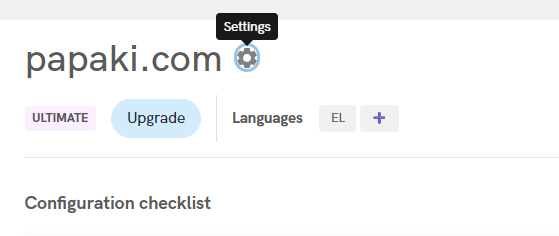
- Click the gear icon (Settings) to the right of your domain name.
- In the menu “Block scripts prior to consent”, enable the option:
“Do not block Google’s services that adhere to Consent Mode.”
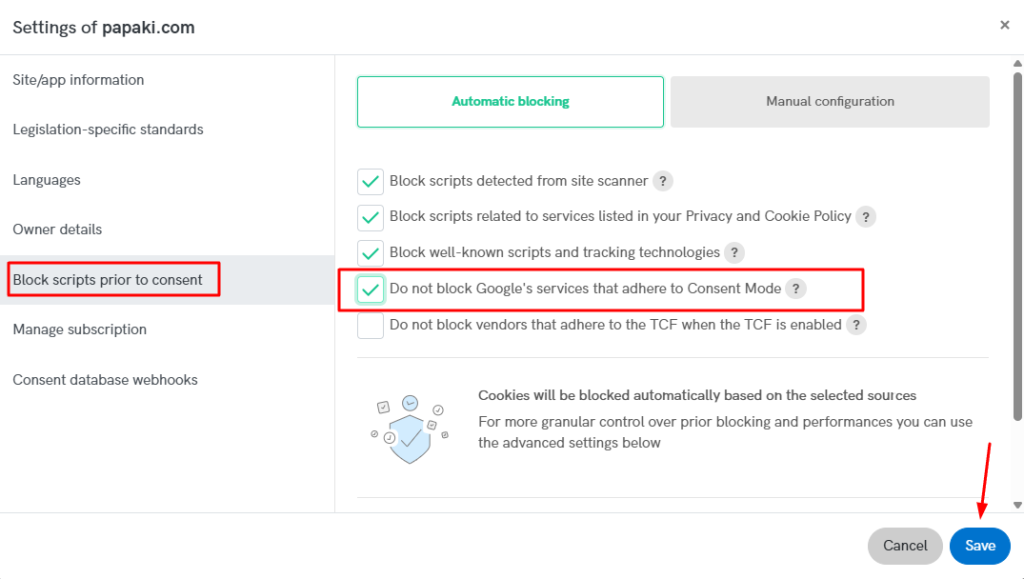
- Click Save. A message will appear informing you that changes will take effect in about 1 hour.
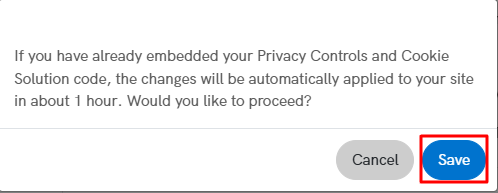
- After approximately 1 hour, Google Consent Mode will be active in iubenda for your website.
Notes / Tips
- The Consent Mode allows for continuous tracking of conversions and basic analytics even when users don’t fully consent to cookies (Google services supporting Consent Mode adjust data collection accordingly).
- If you use cache or a CDN, clear it after making changes to ensure updates are applied everywhere.
You haven't found what you are looking for?
Contact our experts, they will be happy to help!
Contact us