
Customer Support
iubenda – Embedding Settings into a Website
If your website is custom-built (without a CMS), you’ll need to manually add iubenda integration codes.
Every website is different, so it’s up to you or your developer to decide where each script should be placed. In this guide, you'll see where to find each integration code.
Accessing the iubenda Management Interface
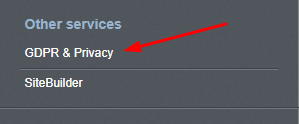
- From the dashboard, under Other Services, click on GDPR & Privacy.
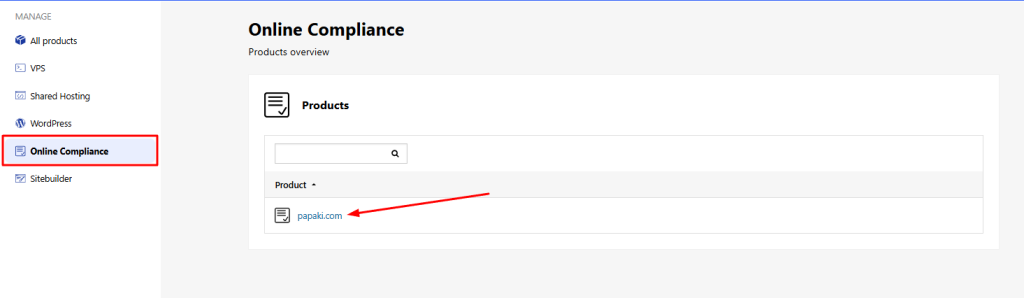
- Under Online Compliance, click on your domain name.
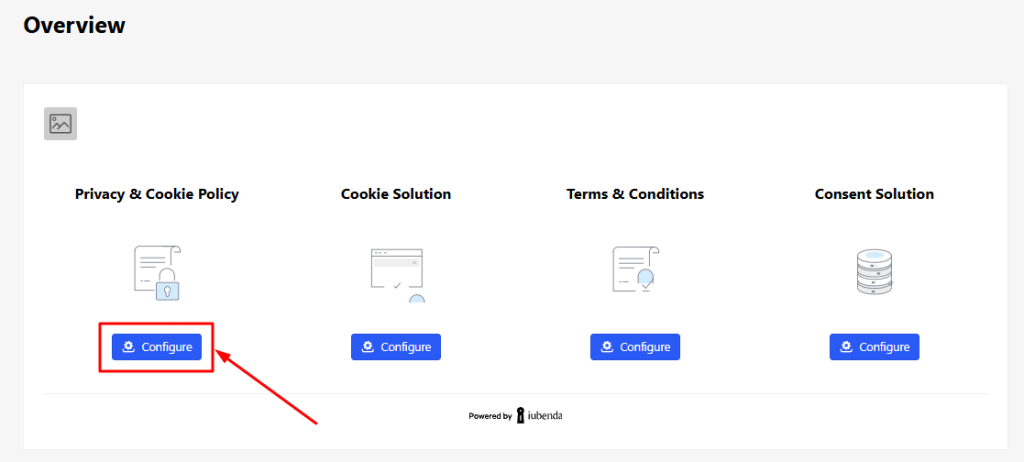
You’ll now see all the available iubenda services associated with your domain.
- Then click Configure in the Privacy and Cookie Policy section, or in any other iubenda section you want to set up.
Privacy & Cookie Policy Integration Code
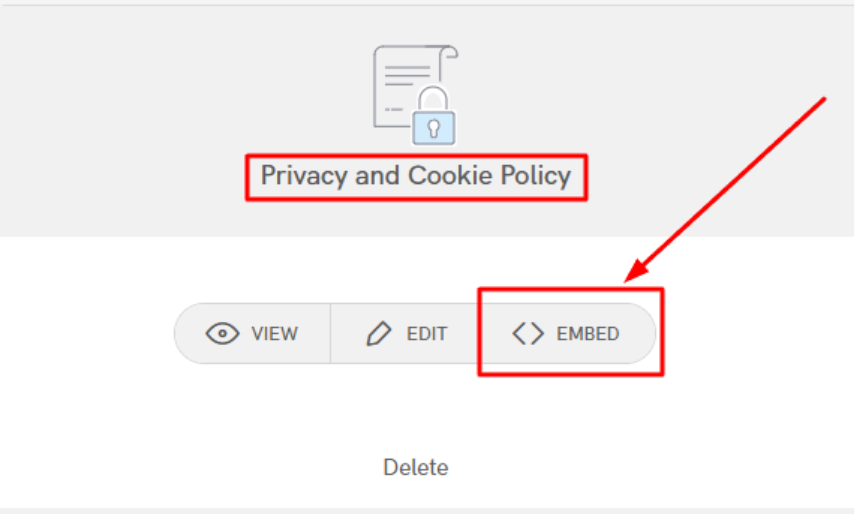
- Go to the Privacy and Cookie Policy section and click Manage and Embed.
- Then, click Embed.
- Under the Install the Documents section, locate the Privacy Policy box and copy the code (use the COPY button to ensure the entire code is selected).
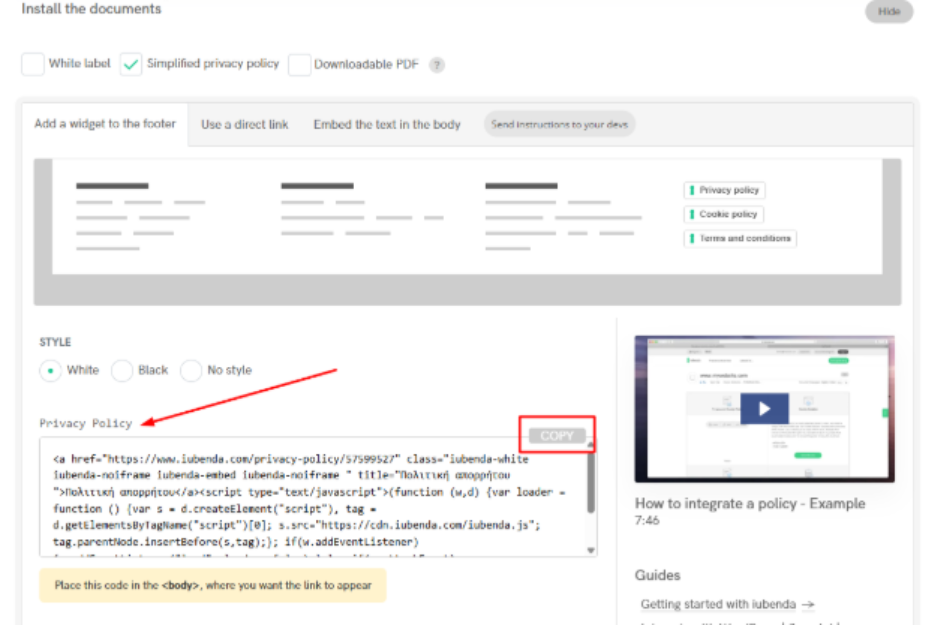
- Paste the code inside your website’s <body>, wherever you want the privacy policy link to appear.
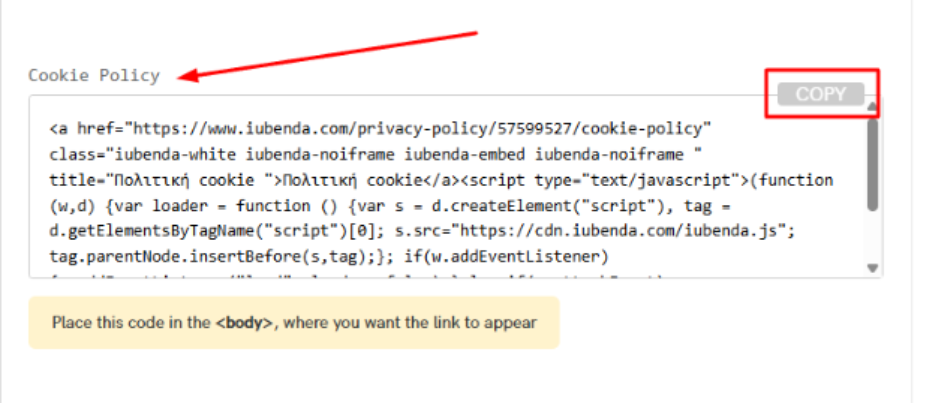
- Next, go back and copy the code from the Cookie Policy box, and paste it right after the previous one.
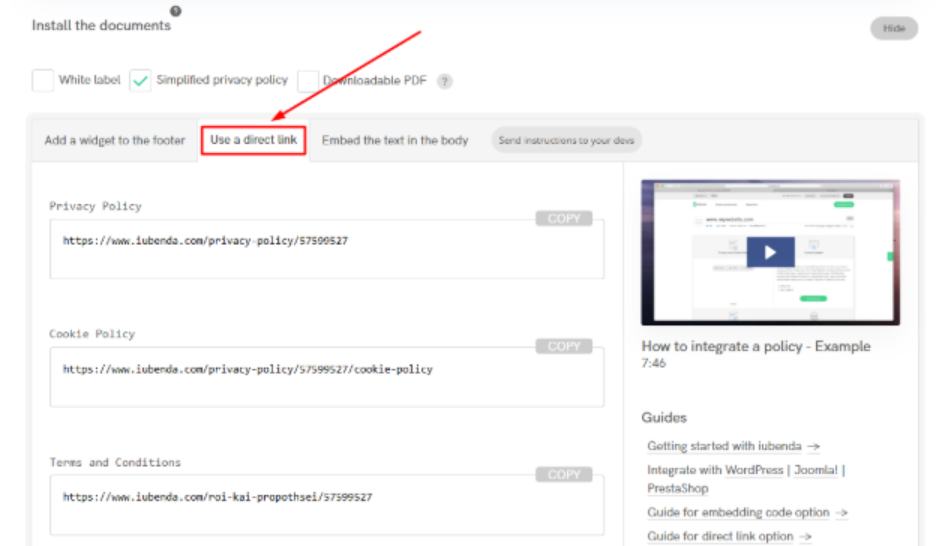
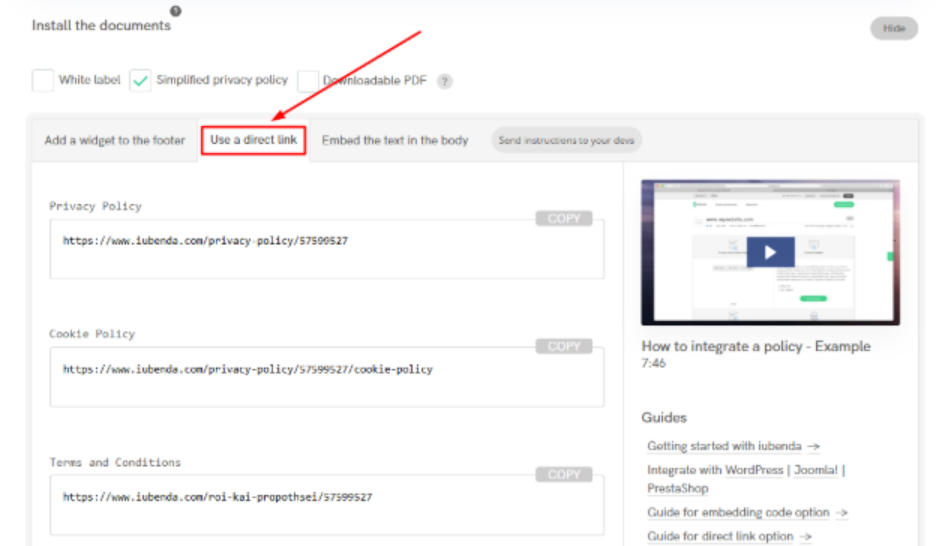
Alternatively, from the Use a direct link tab, you can copy direct URLs to your policies and insert them into your website’s navigation menus.
Cookie Solution Integration Code
- In the Privacy Controls and Cookie Solution section of the iubenda dashboard, click Embed.
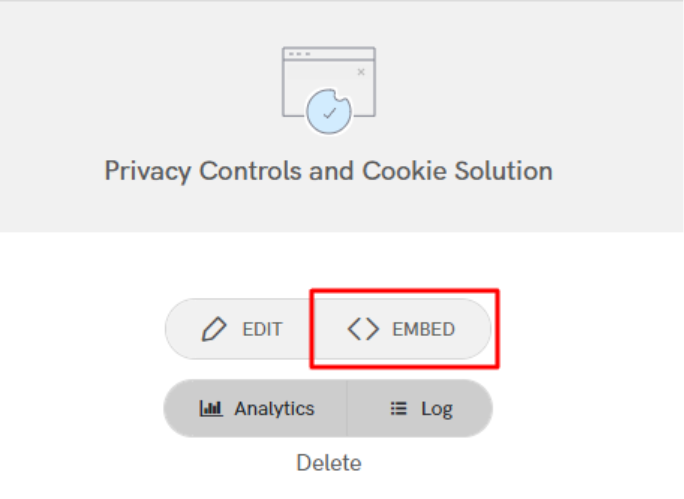
- Copy the code from the provided box (use the COPY button to ensure it’s complete).
- Paste this code inside your website’s <head> tag, ideally as the first script to load.
Important:
After installation, make sure to enable cookie pre-blocking, as required by EU law (GDPR).
Terms and Conditions Integration Code
- In the iubenda platform, go to the Terms and Conditions section and click Embed.
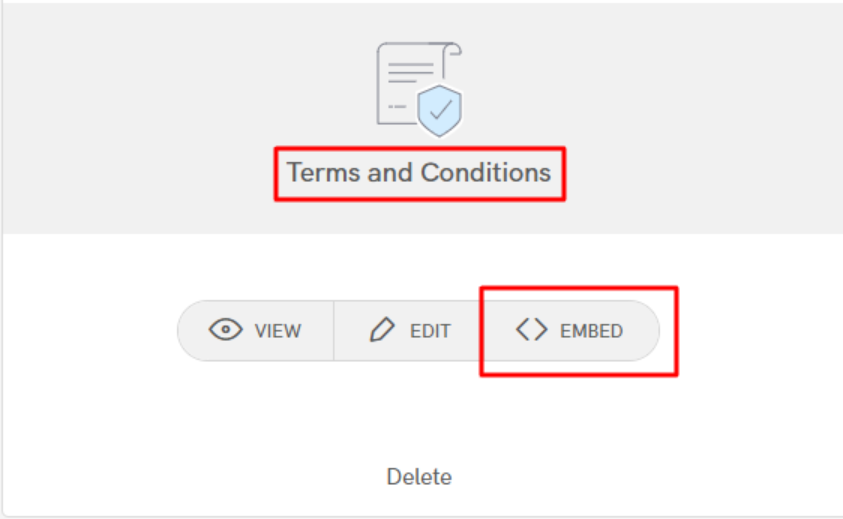
- Under the Install the Documents section, locate the Terms and Conditions box and copy the code (use the COPY button to ensure a complete copy).
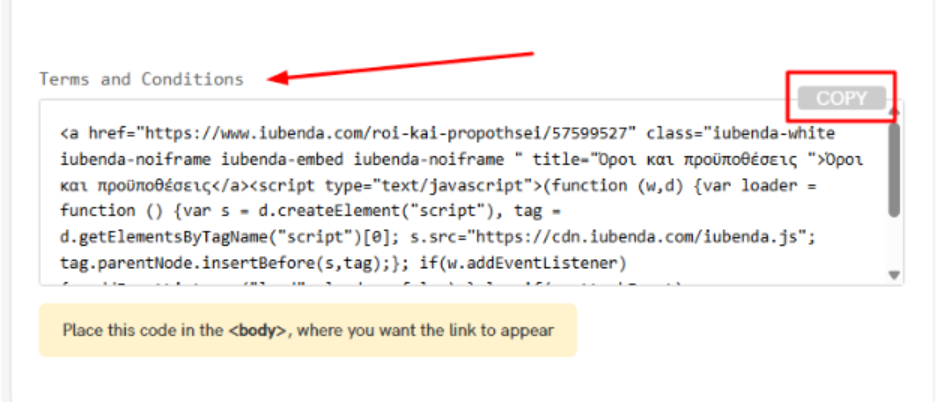
- Paste this code inside the <body> of your website, wherever you'd like the link to appear (e.g., just below the cookie policy link).
From the Use a direct link tab, you can also copy a direct URL to the Terms and Conditions page and add it to your site’s menus.
Consent Solution Integration Code
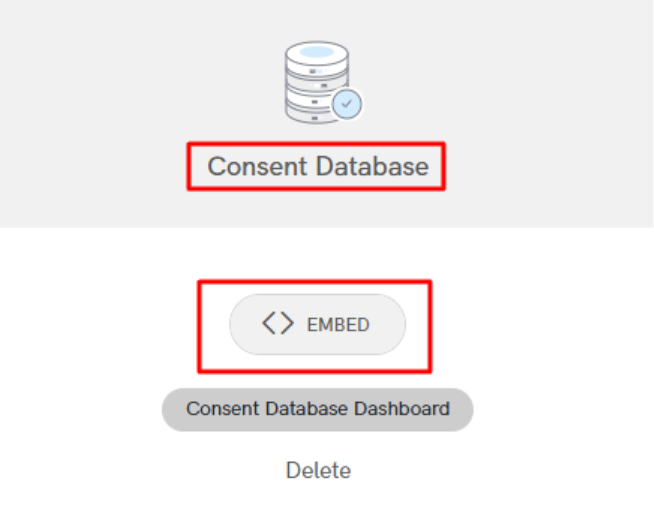
- In the iubenda dashboard, go to the Consent Database section and click Embed
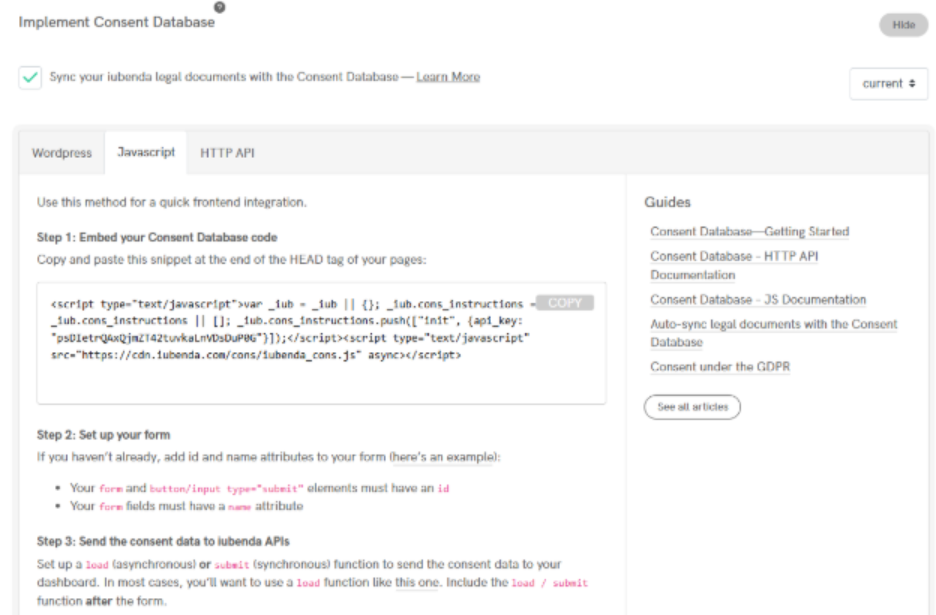
- You'll find multiple integration methods such as Javascript or HTTP API.
The simplest method is via Javascript. - Select the Javascript tab.
- Follow the instructions displayed to complete the setup.
Once completed, iubenda will be fully integrated with your website.
Important
If your website uses a cache system, make sure to clear the cache before testing the integration.
Otherwise, the cookie banner might not appear until the cache is cleared.
You haven't found what you are looking for?
Contact our experts, they will be happy to help!
Contact us