
Customer Support
How do I configure cookie consent in the Website Builder?
As cookie regulations become stricter, the need to build websites that comply with privacy laws has become essential. Website Builder provides a built-in cookie management tool that fully complies with the General Data Protection Regulation (GDPR) of the European Union.
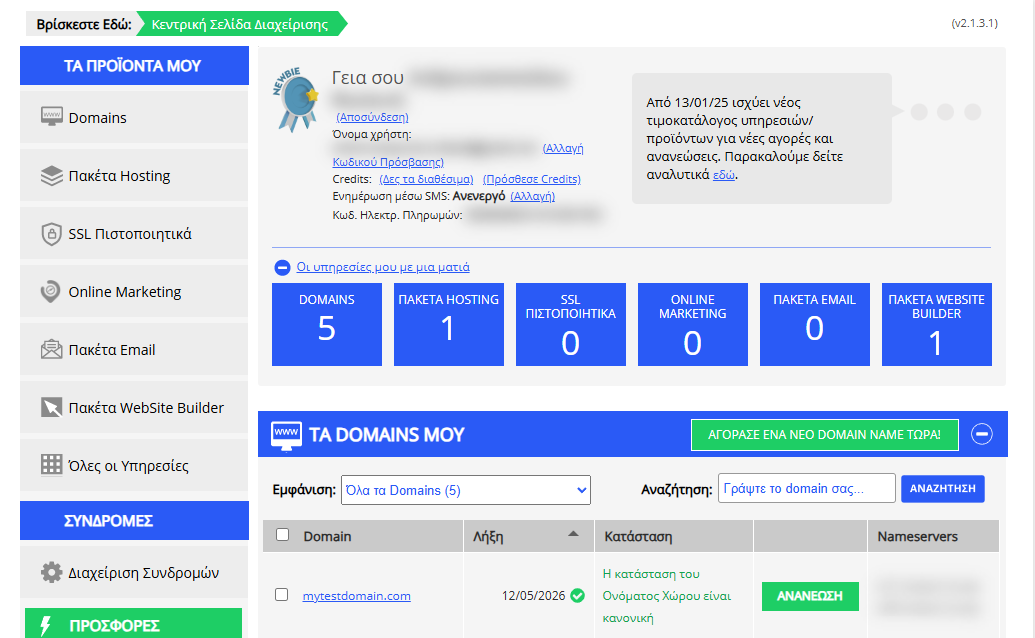
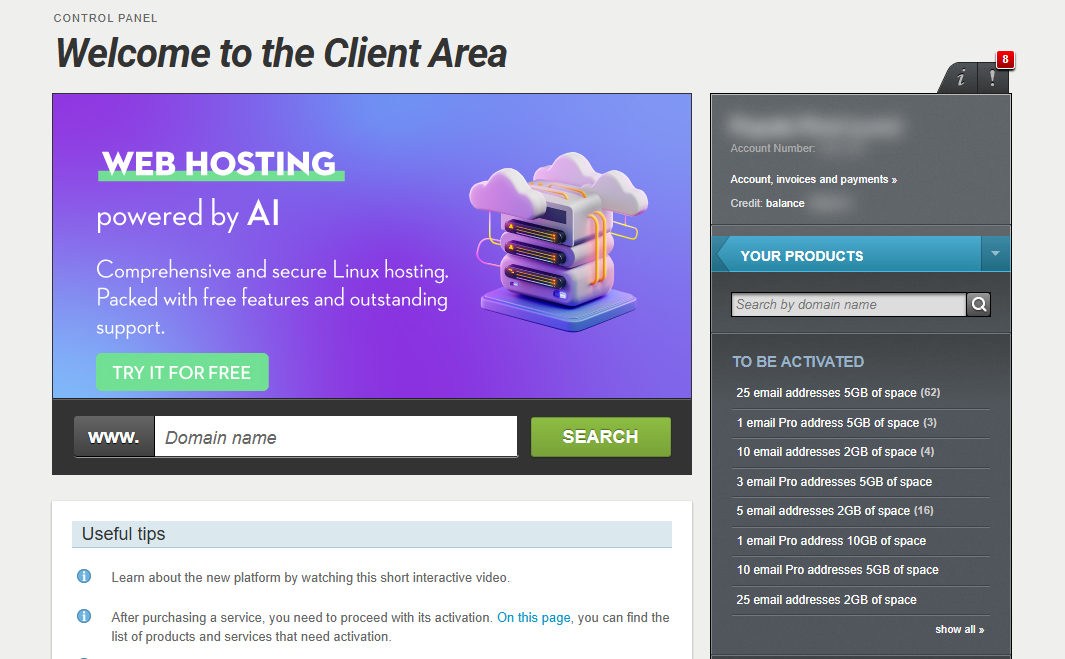
[Papaki 2.0]
Accessing the Settings
To configure cookie preferences on your site, follow this path:
- From the right side menu, click on Other services > SiteBuilder

- Locate the hosting pack you want to edit and click on the domain
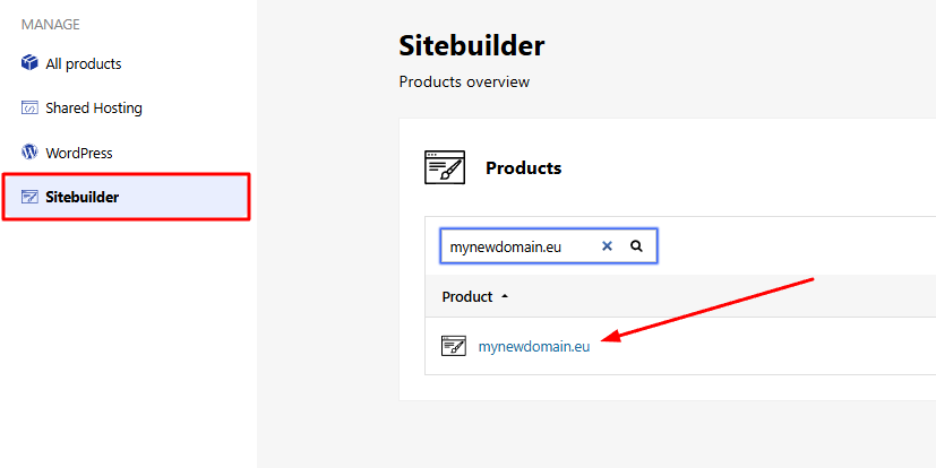
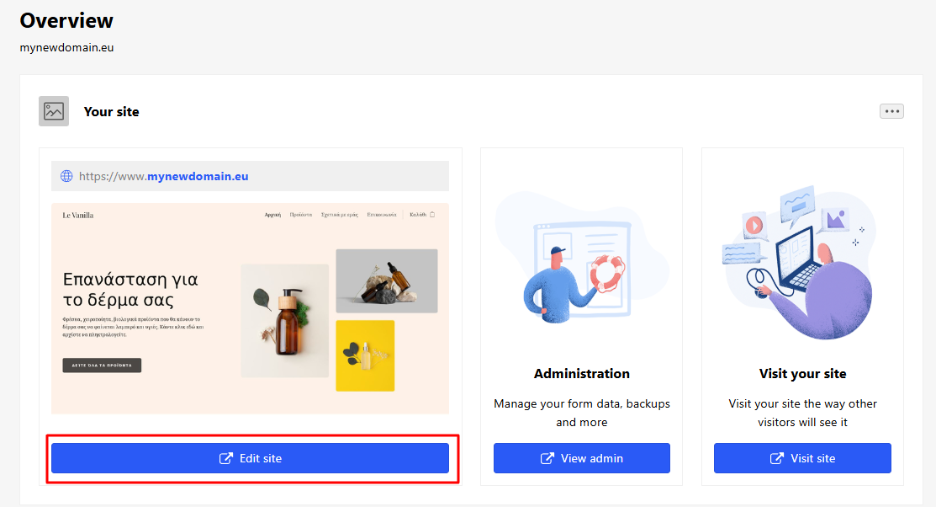
- From your account dashboard, click Edit site.
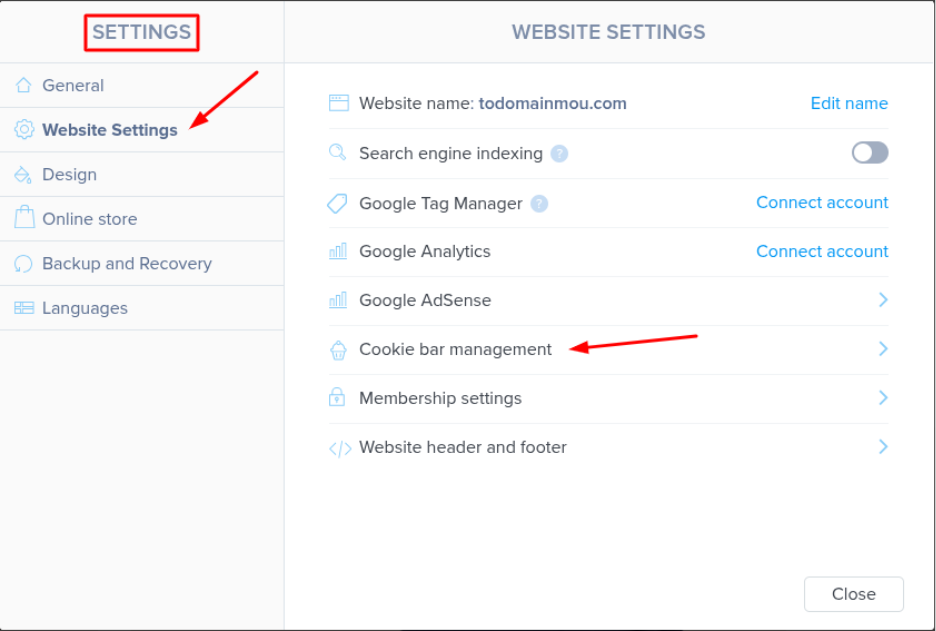
- Go to:
Settings → Website Settings → Cookie bar management
Tool Functionality
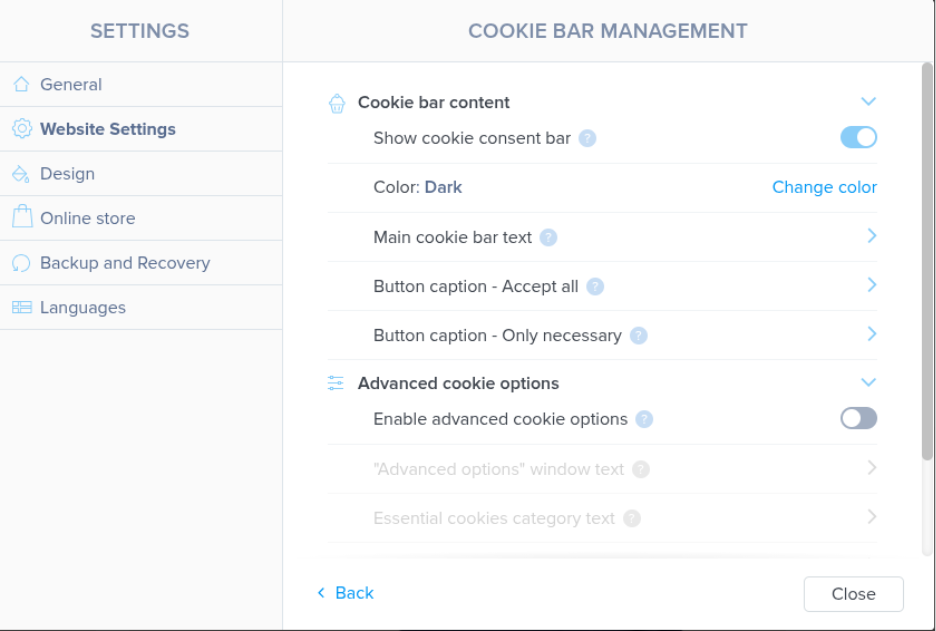
This cookie consent tool offers much more than a simple pop-up notice. It provides:
- Full control over cookie-related settings for the site administrator.
- The ability to customize consent messages and explanations.
- Multilingual support, with separate text per language.
- Explicit consent enforcement, in compliance with legal requirements.
Explicit Consent
With explicit consent enabled:
- Cookies remain disabled by default when the site is loaded.
- Visitors must actively select which cookies they consent to.
- Actions such as scrolling or clicking elsewhere on the page do not count as consent.
Advanced Settings
In the Advanced Cookie Settings, administrators have granular control over the types of cookies used on the site. They can decide which types of cookies are allowed or disallowed (opt-out), except for necessary cookies.
Cookie Types:
- Necessary Cookies:
Required for the core functionality of the website and cannot be disabled. - Functional Cookies:
Store user preferences and help personalize the experience. - Performance Cookies:
Monitor website performance and collect analytics data. - Marketing Cookies:
Used for user profiling and to deliver targeted advertisements.
[Papaki 1.0]
- From the main dashboard, click Menu at the top left corner.
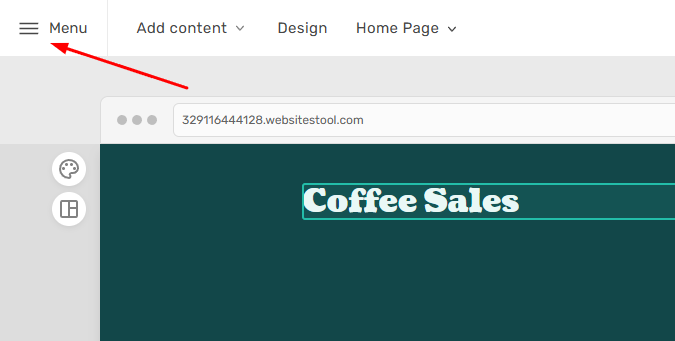
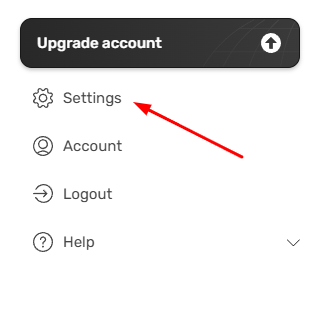
- Select Settings.
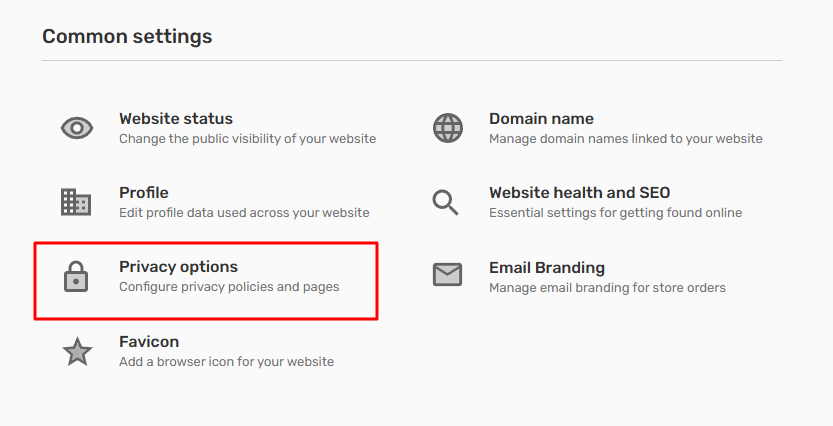
- Under Common Settings, click Privacy Options.
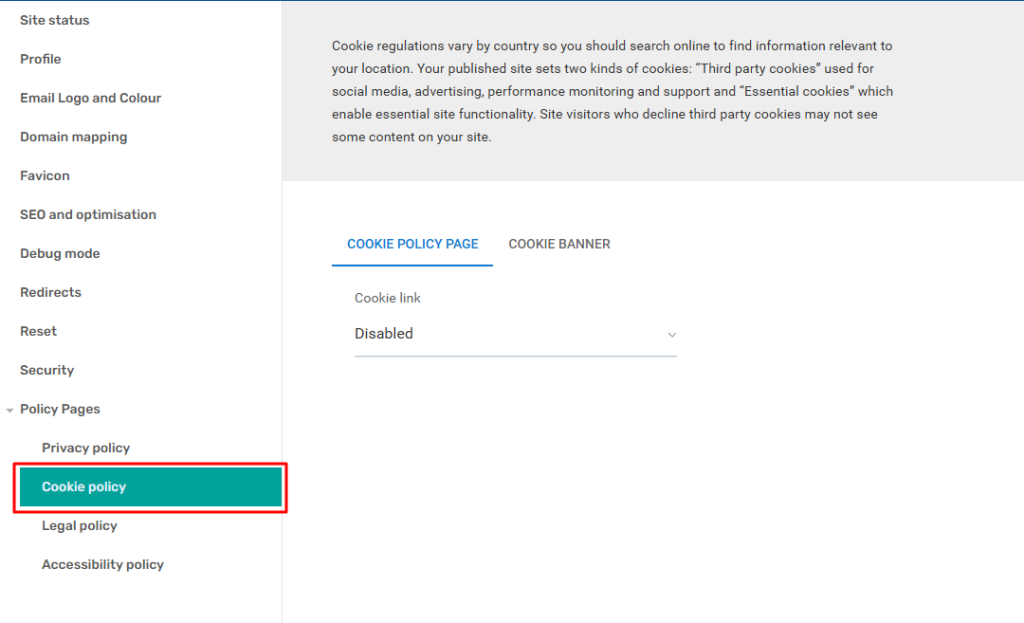
- From the side menu, under Policy Pages, select Cookie Policy.
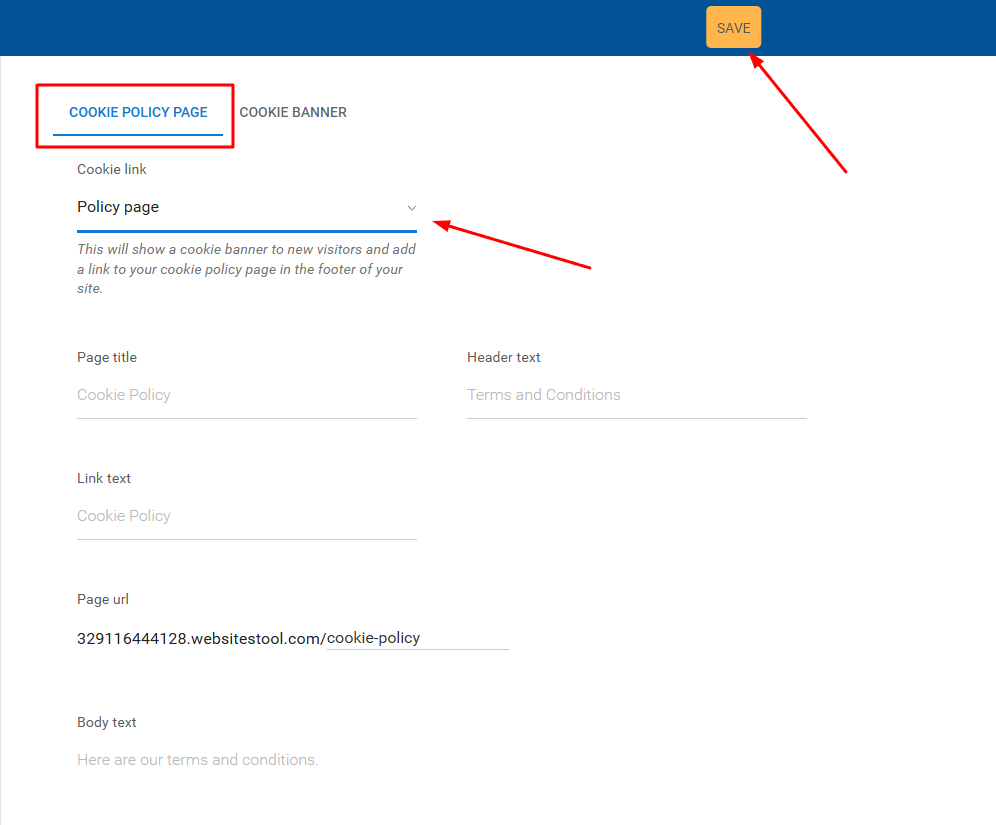
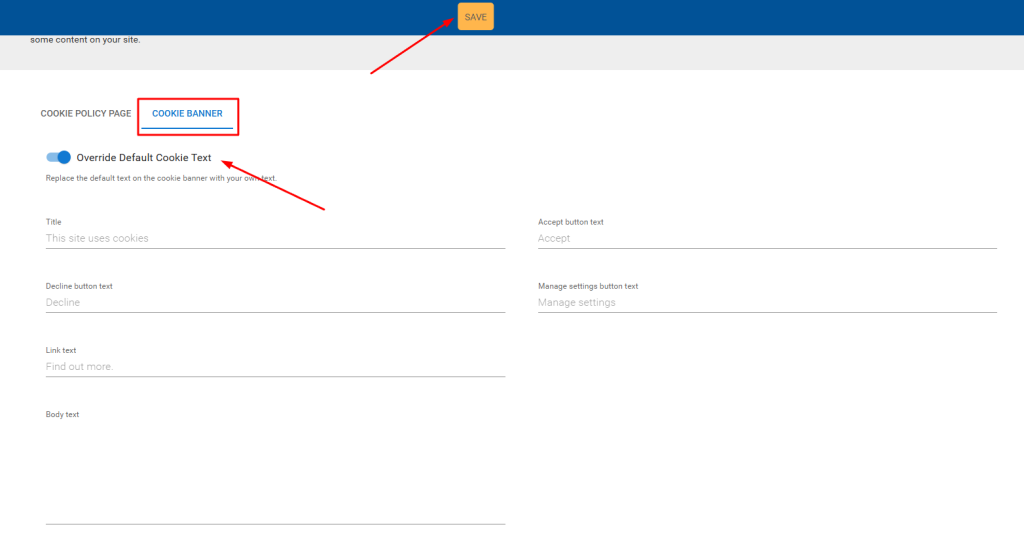
- Once you enable the cookie policy page of your choice from the corresponding tab, you can edit the text and customize the cookie consent banner options under the Cookie Banner tab. Then click Save.
You haven't found what you are looking for?
Contact our experts, they will be happy to help!
Contact us