
Customer Support
How can I create email accounts for my Hosting for WordPress?
Your WordPress Hosting package includes a number of email accounts, depending on the specific hosting plan you’ve selected.
You can create your own email accounts based on the platform that hosts your WordPress installation.
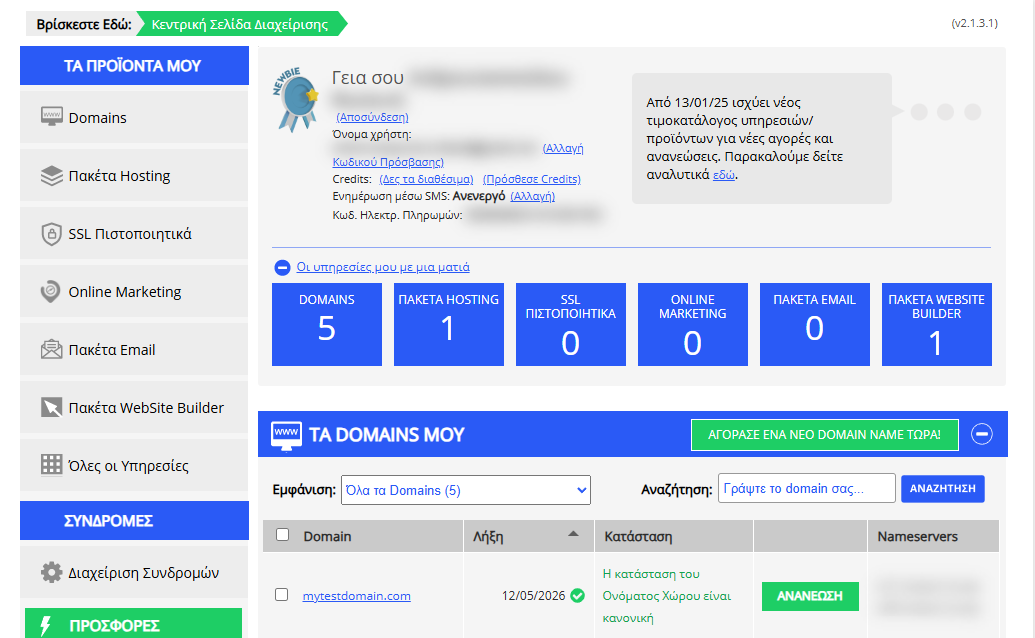
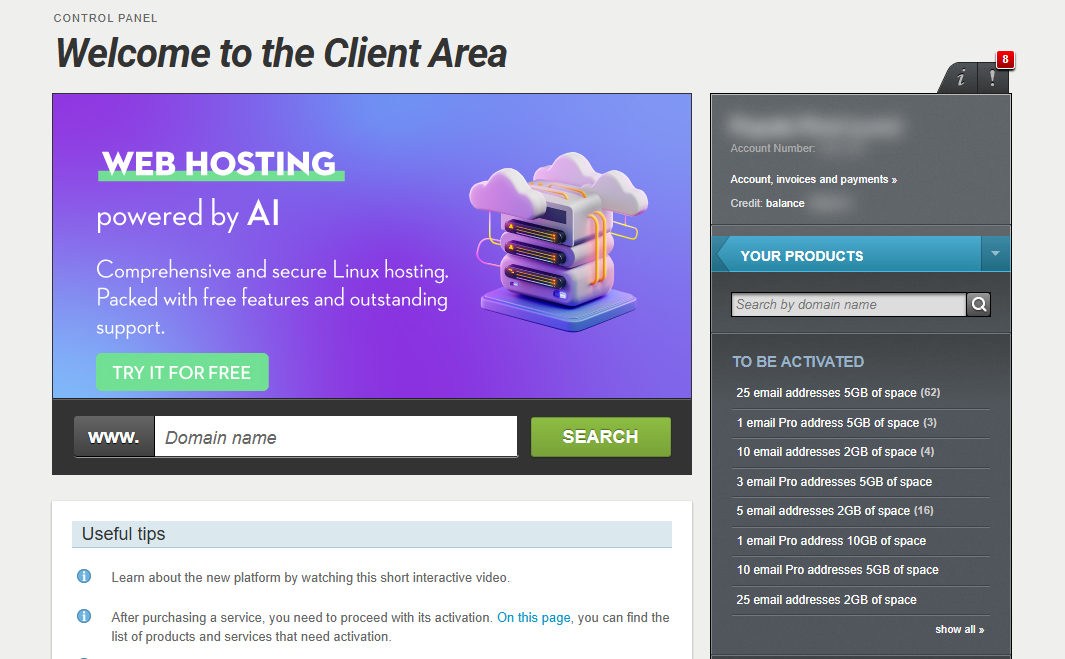
[Papaki 2.0]
If your WordPress Hosting is managed through the new Papaki 2.0 Control Panel, you can easily create and manage your email accounts directly from your Papaki account.
Steps:
- Activate the email package that comes with your WordPress Hosting.
- Connect the email package to your domain.
Follow the step-by-step guide to activate your email accounts here:
How do I activate my email package and connect it to my domain?
Important Note:
For the email service to function correctly, your domain must be registered with Papaki and managed under the same account that hosts your email and hosting package.
Guide: How to Create an Email Account
Follow the step-by-step guide to create your email accounts here:
How can I create an email account?
[Papaki 1.0]
- Log in to your Papaki account.
Forgot your password? See here how to recover it. If it's your first login attempt to the new Papaki panel, please read more here.
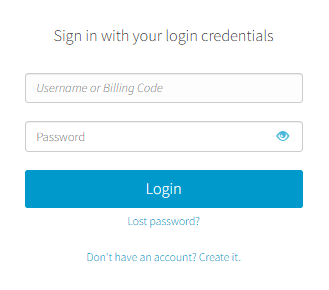
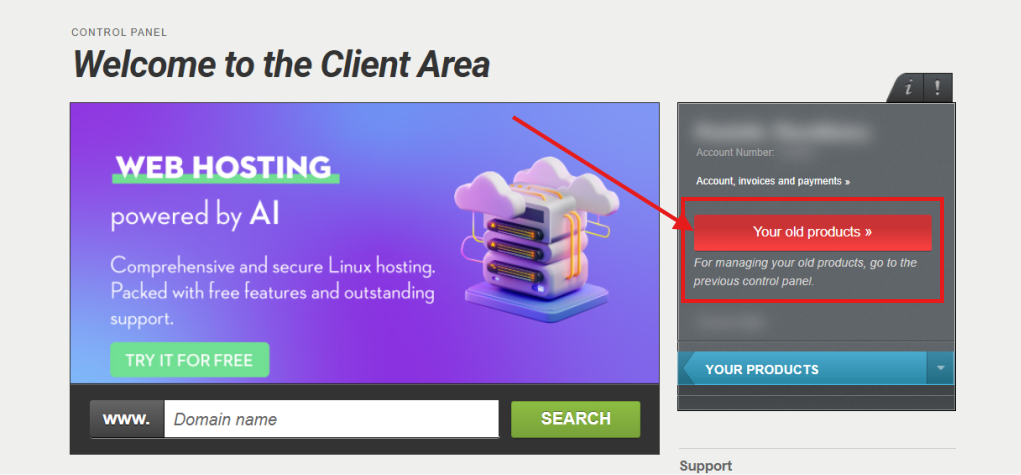
- Click the red button Your old products » on the right side of the control panel to access the old Papaki panel.
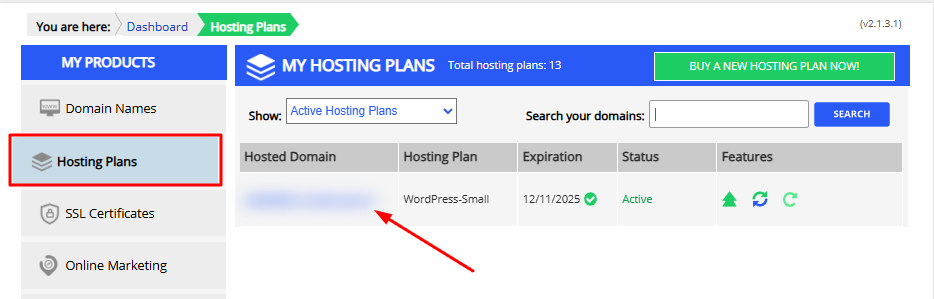
- In the left menu, click on Hosting Plans and select the package you wish to manage.
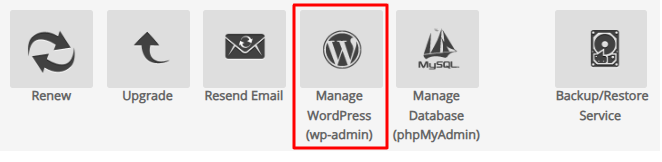
- Then click on Manage WordPress (wp-admin).
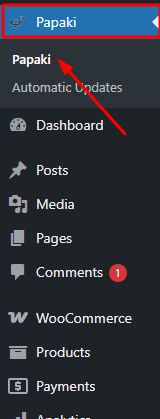
- From your WordPress dashboard, select the Papaki Plugin.
- Click on Email.

- Select Add new email account.
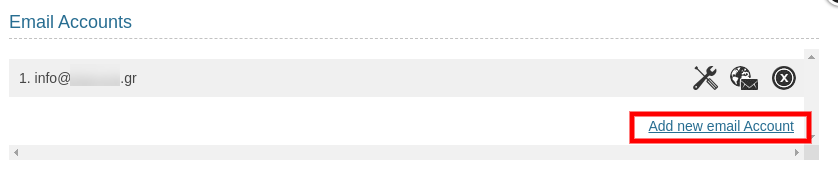
- Enter the email address you wish to create, set a password, and click Save.
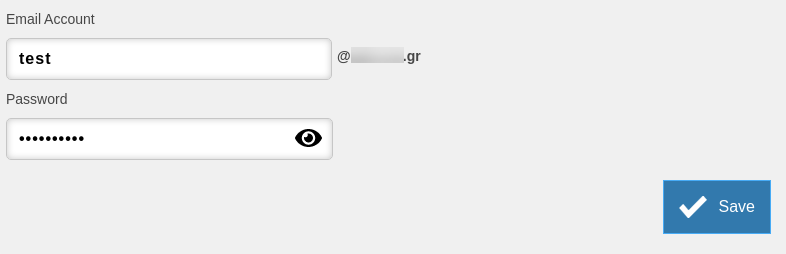
To activate your email, make sure your domain is connected to your Managed WordPress plan according to the instructions in this guide.
You haven't found what you are looking for?
Contact our experts, they will be happy to help!
Contact us