
Customer Support
(Shared Hosting) – How can I create a domain or subdomain in my hosting?
You can add extra domains or subdomains to your Papaki hosting plan to host additional websites, create separate sections of your site (like blogs), or set up development environments. This guide walks you through the process in a few simple steps.
When Should You Add a Domain or Subdomain?
You may need to add a domain or subdomain if:
- You want to host another website on the same hosting plan
- You’re creating a dedicated section of your website (e.g. blog.mydomain.gr)
- You’re setting up a staging or development environment (e.g. staging.mydomain.gr)
What to Know Before You Start
- Your primary domain is automatically assigned during activation of hosting.
- The total number of domains or subdomains depends on your hosting plan.
Note: If you reach the domain limit of your plan, you’ll need to upgrade your hosting package to add more.
Attention!
If you have a hosting package hosted on a Plesk infrastructure, please refer to the guide available here.
Step-by-Step Guide: Add a Domain or Subdomain
Steps:
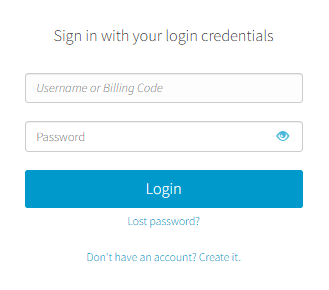
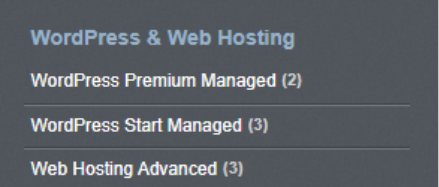
- From right side menu, choose from WordPress & Webhosting the plan you want to edit
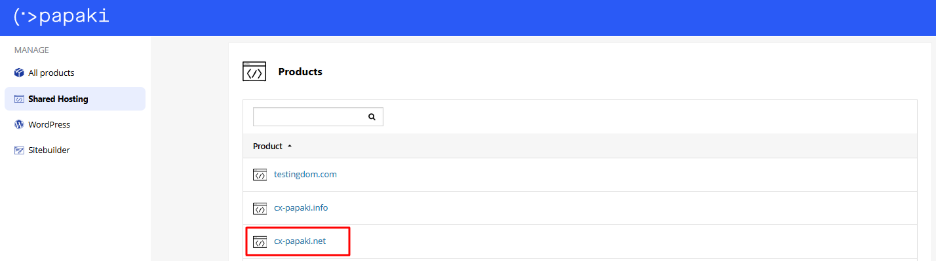
- Select the domain of your hosting plan.
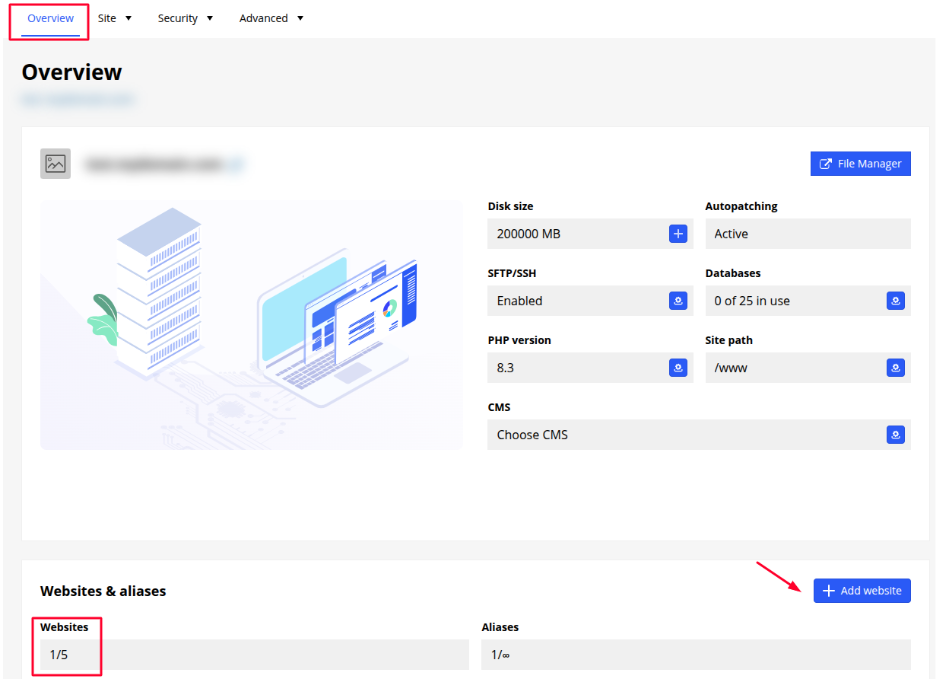
- From the Overview tab, click Add Website.
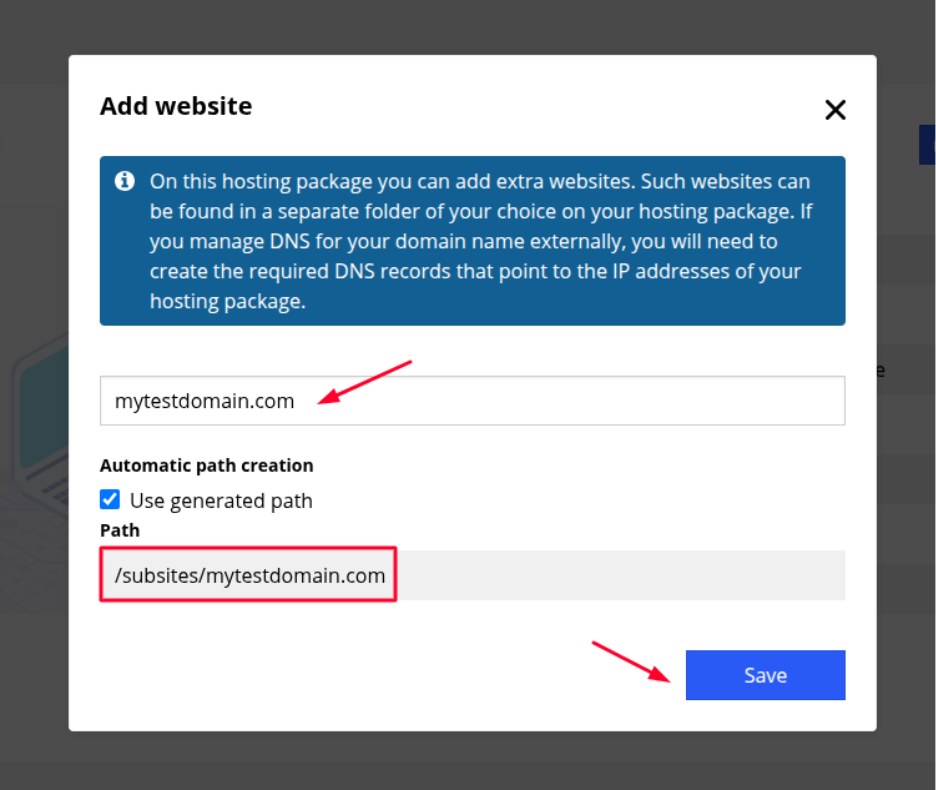
- In the pop-up window, type the domain or subdomain you want to add (e.g. blog.mydomain.gr). By default, the files will be created under the /subsites/ folder. To use a different folder, uncheck the box and select a custom path. Then, click Save.
- Once added, your domain/subdomain will appear in the website list and is ready for management.
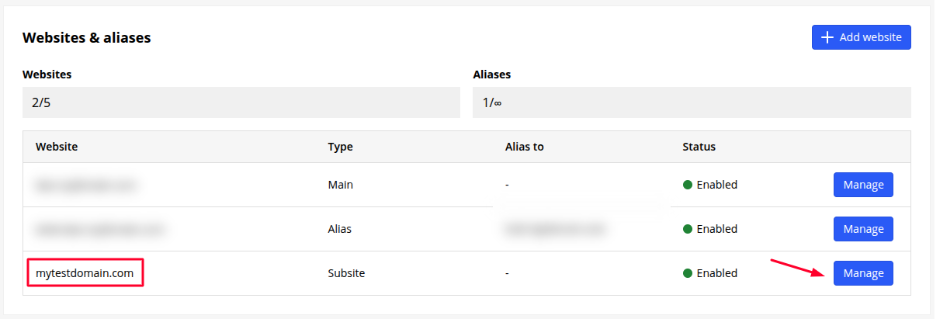
From the Site Information panel, you can:
- View or change the folder path
- View the server IP address
- Add a domain alias
- Enable or disable the site
- Delete the domain/subdomain if needed
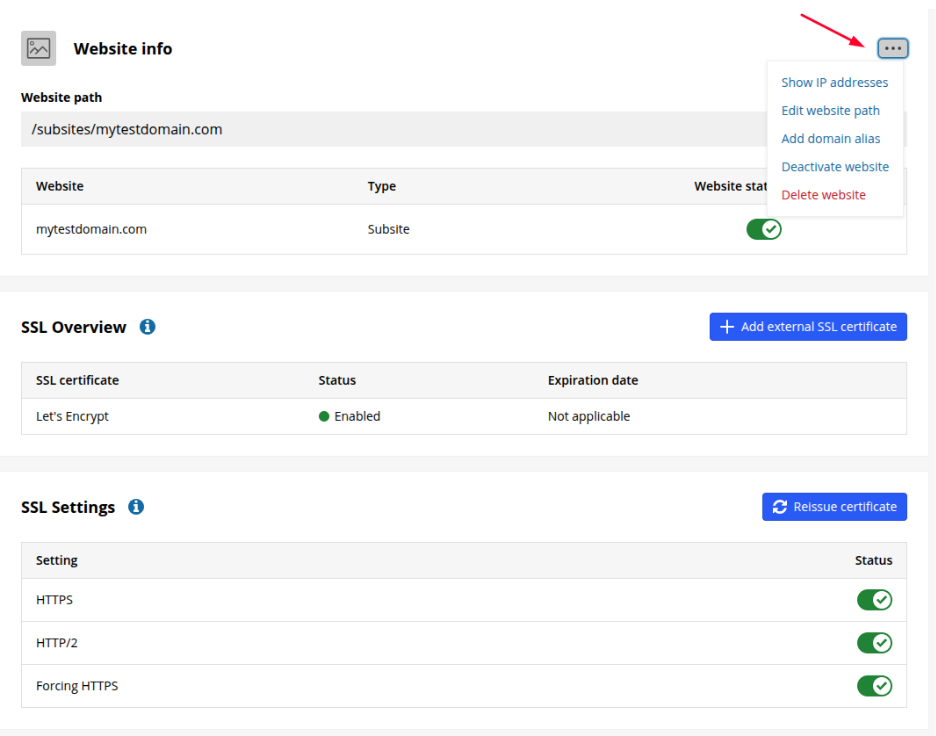
You’ll also find settings for the SSL certificate of the selected domain or subdomain.
Learn more about SSL certificates here.
Important Note
If you manage DNS for your domain name externally, you will need to create the required DNS records that point to the IP addresses of your hosting package. Please find the appropriate DNS records in the welcome email you received after creating the new domain/subdomain.
You haven't found what you are looking for?
Contact our experts, they will be happy to help!
Contact us