
Customer Support
How to add and edit text to my Webiste Builder
[Papaki 2.0]
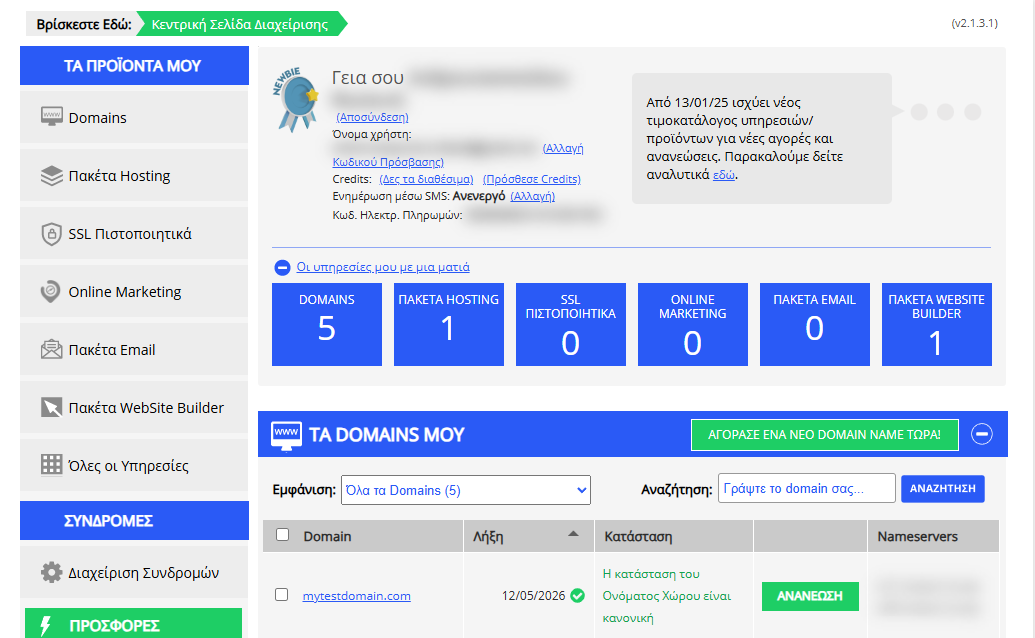
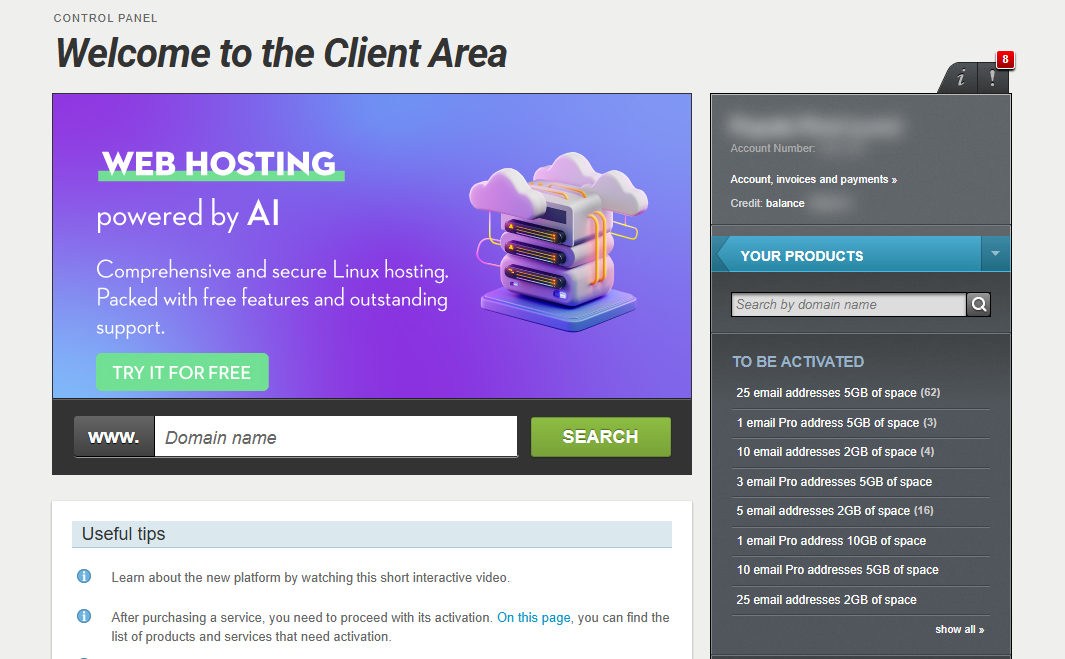
Accessing the Management Dashboard
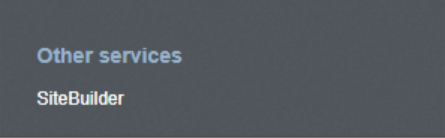
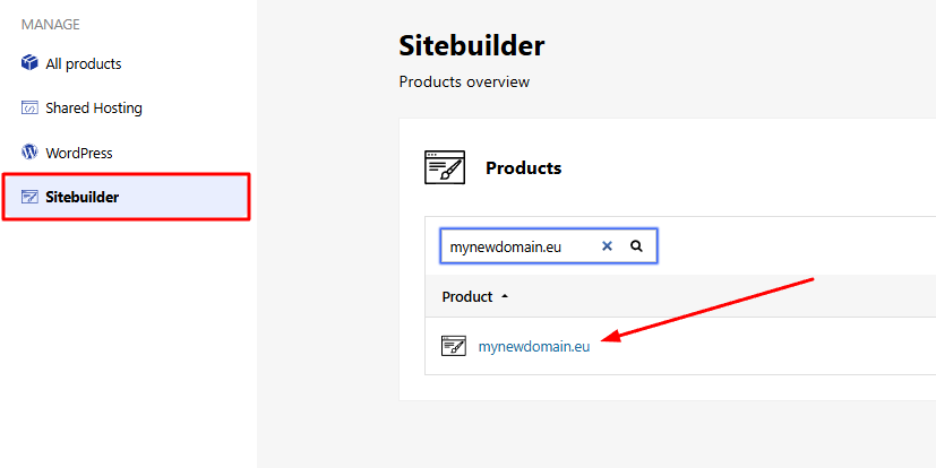
- From the right side menu, click on Other services > SiteBuilder
- Locate the hosting pack you want to edit and click on the domain
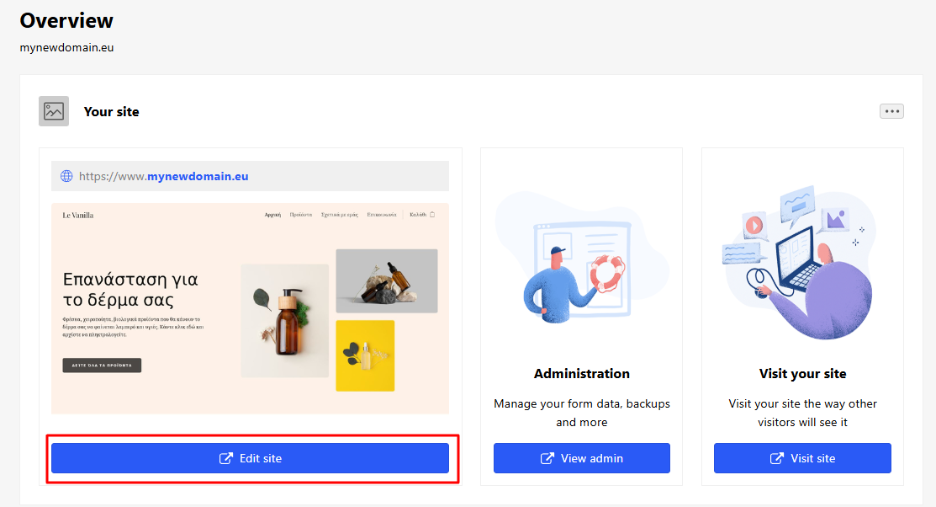
- Click Edit Website to enter your site’s management environment.
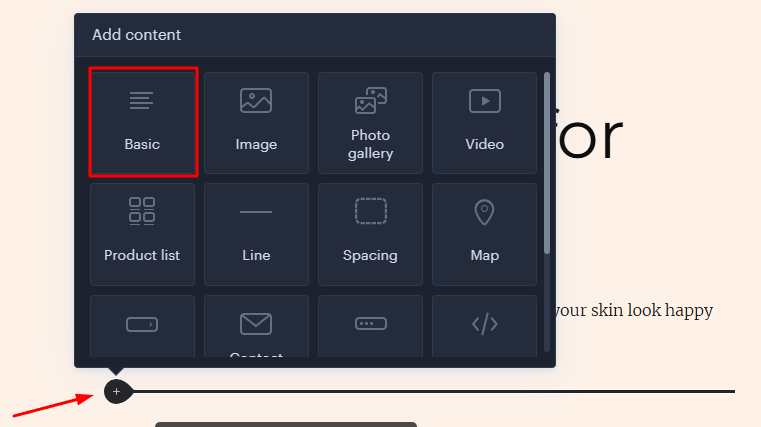
- Click "+" on the spot you want to add the text, and then click Basic
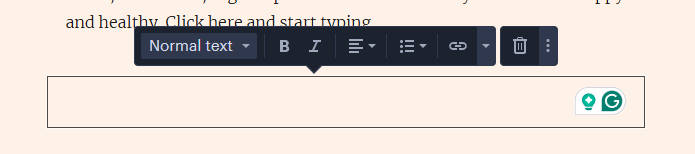
- Add your text, edit the style, or delete it.
[Papaki 1.0]
You can add text to any page
Add a text block to your page
Click on the Add content (1) button to open the widgets panel. Click and drag a normal text block (2) or a Heading into your page (3).
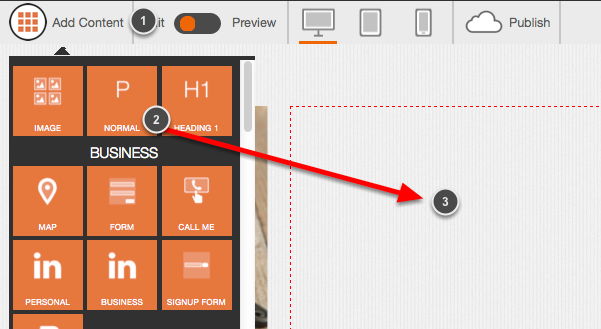
Text can only be dropped into the page body, not the header or footer.
Working with text blocks
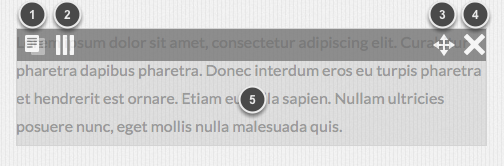
- Copy the text block. Copied items appear at the top of the editor window and can be dragged onto any page.
- If the text block is within a column, this icon opens the column settings
- Drag the text block to a different place on the page
- Delete the text block
- Click anywhere in the text to open the text for editing
Editing your text
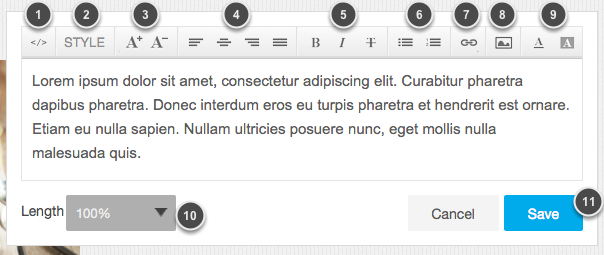
- Click on the code icon to see the code of your text block.
- The Formatting drop-down lets you choose different styles for your text, such as Heading, Quote, Normal text, and Code.
- Make your text bold, italic, or strike it out.
- Change the size of your text.
- You can use these options to change the font color or the background color.
- Add bullets or numbers to your text
- Add or remove the indentation on your text.
- You can add an image between your text lines.
- Add an external, internal, or mailto link to your text
- Align your text.
- Add a horizontal line.
- If you select 100% as the length of your text, you will be able to see it all on your page, but if you select 50% you will only see half of it and a button saying 'More' that will reveal the rest of your text when clicked.
- Don't forget to save your changes
You haven't found what you are looking for?
Contact our experts, they will be happy to help!
Contact us