
Customer Support
How do I create a customer and a subscription through my Reseller account?
Attention!
In case your hosting plan is hosted on a Plesk infrastructure, please refer to the guide available here.
[Papaki 2.0]
With WePanel Reseller Hosting, you can easily create new customers and assign them hosting packages (subscriptions) you’ve already set up. By following the steps below, you can organize your customers and provide them with the appropriate resources based on their needs.
Step 1: Log in to WePanel Reseller Dashboard
- Log in to your WePanel Reseller Dashboard.
- From the main menu, select Customers.
Step 2: Create a New Customer
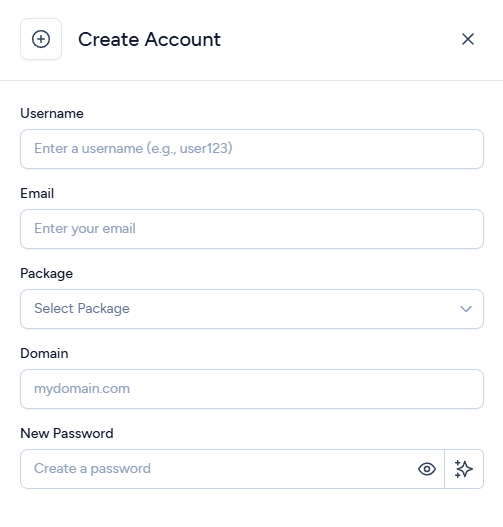
- Click Create New Account.
- Fill in the required details:
- Username (used to log in to the control panel; only Latin characters, -, and _ are allowed)
- Contact Email (used for notifications and account credentials)
- Package: Associate the customer with one of the available packages
- Domain: The primary domain of the account
- Password (or you can choose to generate one automatically)
All fields are required.
- Click Add Account to save the customer account.
Tip: Keep contact info updated to ensure customers receive all notifications related to their hosting account.
Step 3: Create a Subscription (Hosting Account)
After creating the customer account, you must assign a Package to it, which represents the hosting package that will be associated with the account.
- From the menu, select Accounts.
- Locate the customer to whom you want to assign a package. You can search by username, domain name, or the package currently assigned to the account.
- Click the three dots on the right-hand side of the customer entry and then select Change Package.

Your customer now has their own hosting account based on the assigned package.
Step 4: Manage Customers and Subscriptions
- Under Customers, you can view and edit your customer list.
- From the Packages menu, you can view all available hosting packages and their respective features.
Frequently Asked Questions (FAQ)
Can I create a customer without assigning a subscription?
Yes, but the customer will not have a hosting account until you assign one.
What if a customer needs an upgrade?
You can change the assigned package at any time by navigating to Accounts → Three Dots → Change Package.
What happens if the hosting package limits are exceeded?
The system automatically blocks excess usage (e.g., creating new files or databases) until the package is upgraded or space is freed.
[Papaki 1.0]
If you have a Reseller account on Papaki and wish to create a customer and assign a subscription, follow these steps:
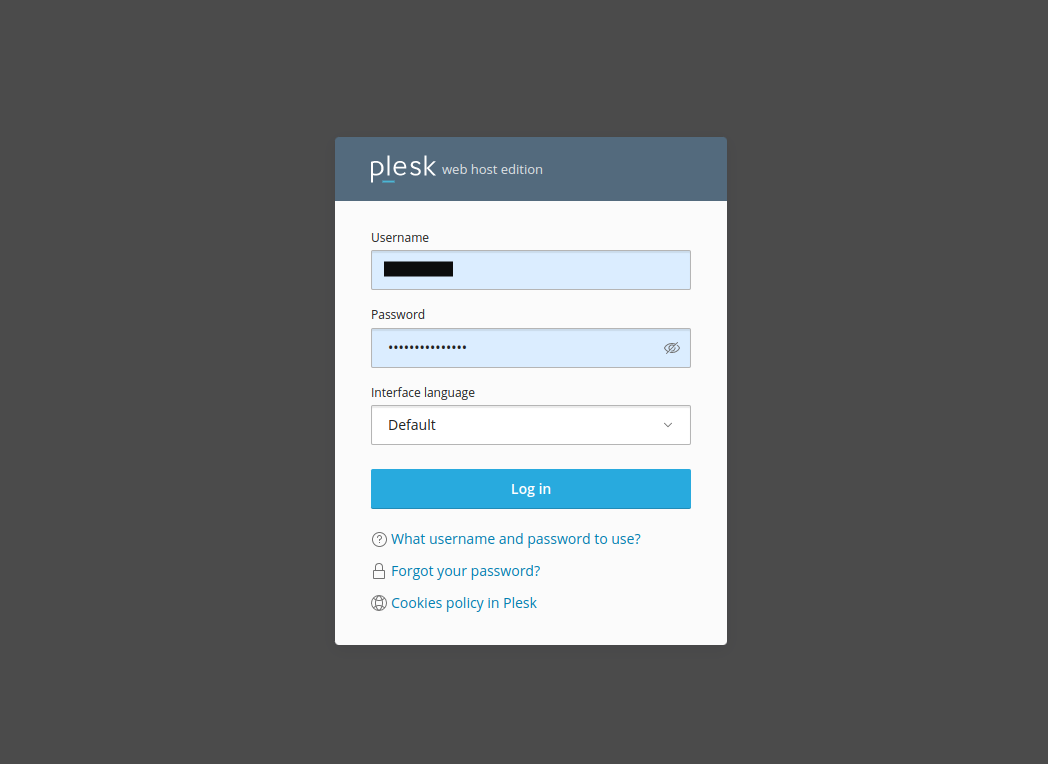
- Log in to Plesk
- Go to Customers → Add Customer.

- Fill in the customer’s contact details.

- Set the Username and Password for Plesk access.

- Check the box "Create Subscription For The Customer" and then specify:

- Customer’s domain name
- FTP username for file access
- FTP password and confirmation
- Select the package you previously created

Click Add Customer to complete the setup.
You haven't found what you are looking for?
Contact our experts, they will be happy to help!
Contact us