
Customer Support
How can I access my hosting via SSH?
SSH (Secure Shell) is a secure remote access protocol that allows you to connect to your server via a command-line interface (terminal).
With SSH, you can:
- Navigate through server directories
- Execute commands
- Edit files
- Manage system settings
What Do You Need to Connect via SSH?
To connect via SSH, you’ll need the following:
- The hostname or IP address of your server
- The SSH port – typically 22
- Your username
- Your password
- An SSH client application (e.g., PuTTY)
You can find your SSH credentials inside your Papaki hosting control panel.
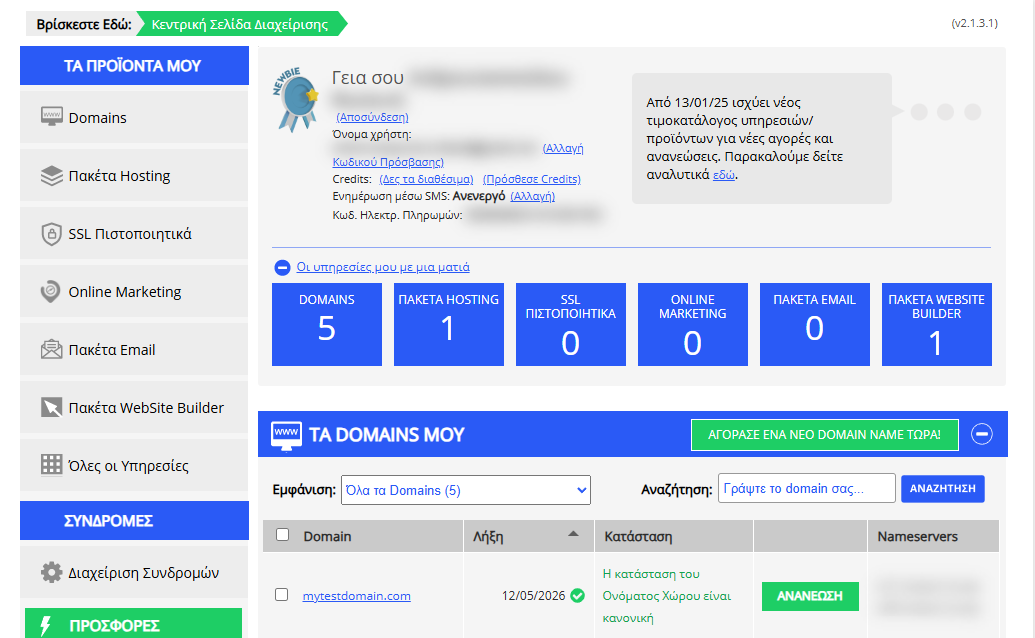
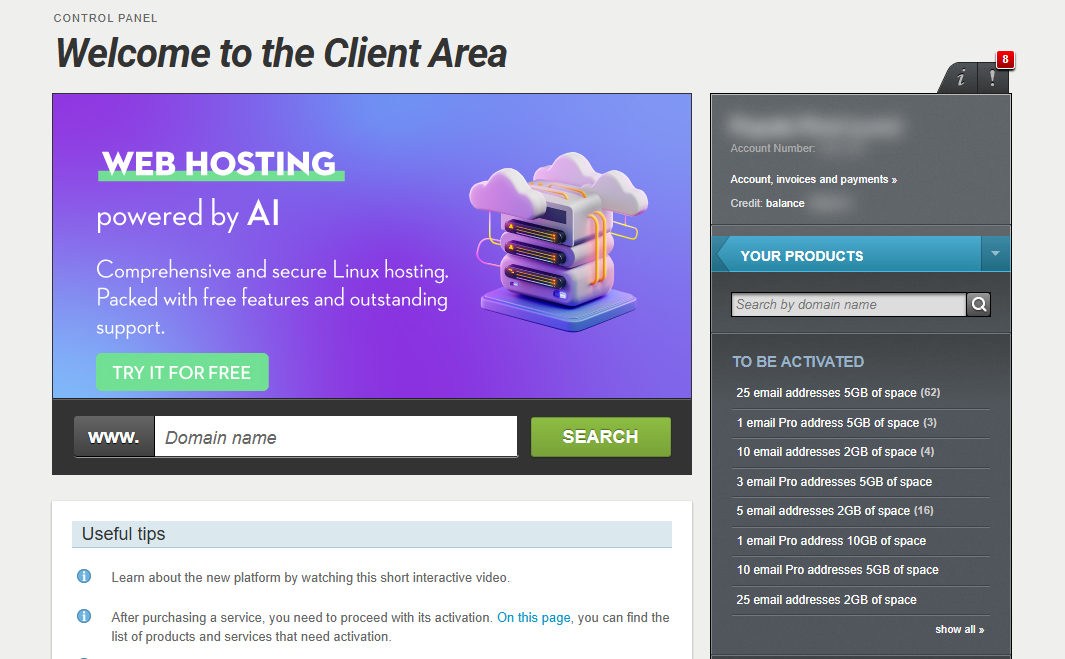
[Papaki 2.0]
Accessing SSH in Papaki
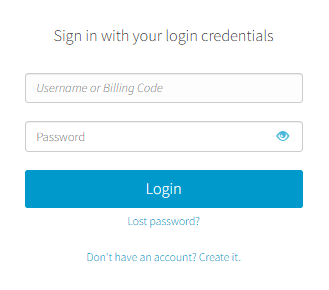
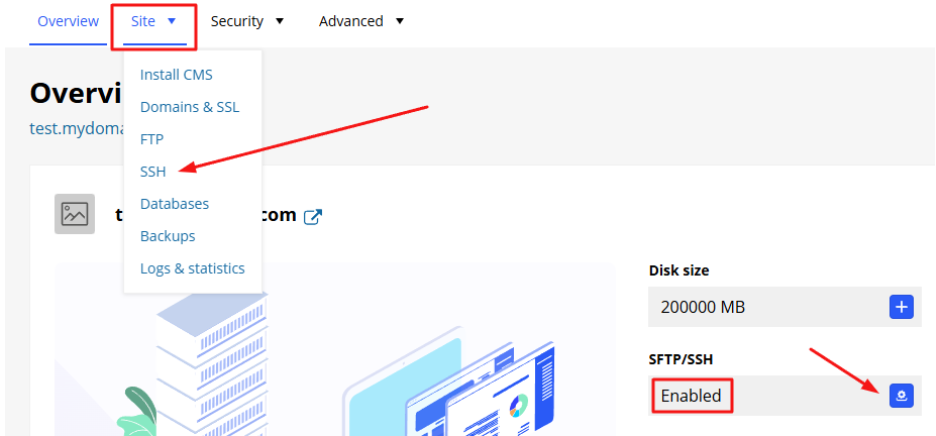
- From the dashboard, locate the product you want to manage. Click the name of the plan.

You will be redirected to the hosting management area. Here you can view, by category, all services linked to your Papaki account.
- Click the hosting plan name you want to manage.
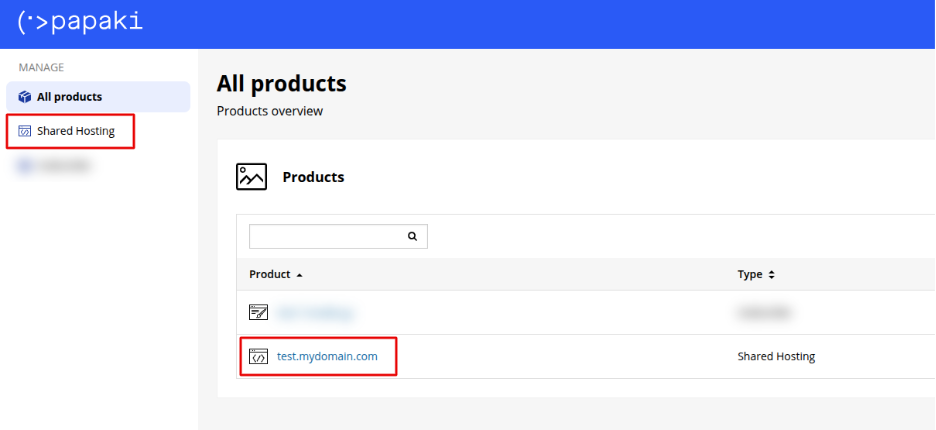
- From the Site tab or the main dashboard, click on SSH.
This section shows whether SSH access is currently enabled for your hosting plan.
- Here you’ll find all required connection details for SSH clients like PuTTY. You can also deactivate SSH access, if needed.
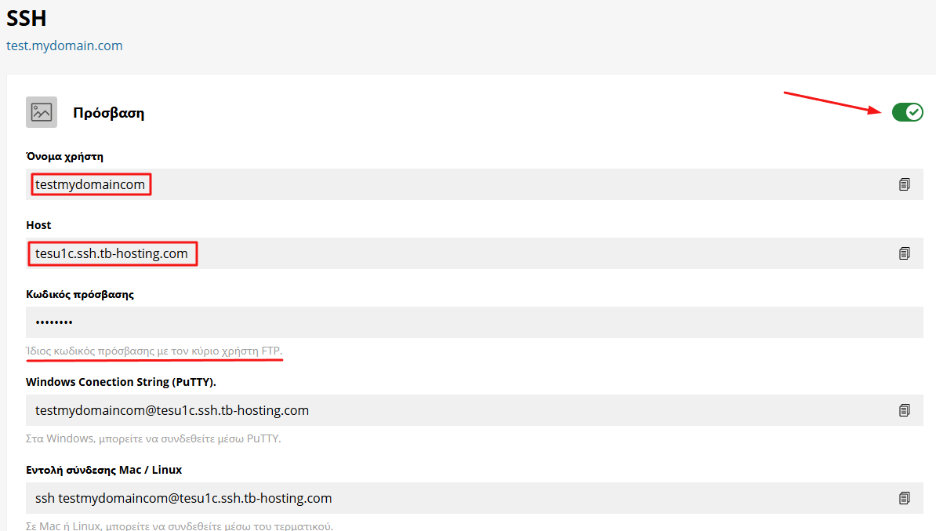
Important: The SSH password is the same as the one used by your main FTP user.
You can find more detailed FTP connection instructions here.
SSH Connection Using PuTTY
PuTTY is a free SSH client for Windows. Follow these steps to connect to your server:
Steps to setup PuTTY:
- Download and install PuTTY. Official website: https://www.putty.org
- Open PuTTY. You will see the main window titled "PuTTY Configuration".
- Enter your connection details
- Host Name (or IP address): Enter the hostname provided in your Papaki panel
- Port: 22 (default for SSH)
- Connection Type: Select SSH
Optionally, you can save the connection for later use by entering a name in the Saved Sessions field and clicking Save.
- Click Open. A terminal window (black screen) will appear asking for:
- Login as: Type your SSH username and press Enter
- Then enter your password (note: characters are not displayed as you type)
If the credentials are correct, you’ll be connected to your server and gain access to the bash shell.
Security Warning (First-Time Use)
On your first connection, PuTTY may display a security alert asking you to verify the server’s SSH fingerprint.
- Click Yes to accept and save the server’s fingerprint.
Troubleshooting
- Timeout or connection refused: Ensure SSH access is enabled for your hosting package.
- Invalid credentials: Double-check your username and password.
- Blocked firewall or port: If you're on a corporate or public network, port 22 might be blocked.
[Papaki 1.0]
If you're managing your hosting through the older version of the Papaki control panel, you may need to contact Customer Support to enable SSH access manually (for security reasons). Access in this case is granted through a /bin/bash environment.
SSH Connection Using PuTTY
PuTTY is a free SSH client for Windows. Follow these steps to connect to your server:
Steps to setup PuTTY:
- Download and install PuTTY. Official website: https://www.putty.org
- Open PuTTY. You will see the main window titled "PuTTY Configuration".
- Enter your connection details
- Host Name (or IP address): Enter the hostname provided in your Papaki panel
- Port: 2234
- Connection Type: Select SSH
Optionally, you can save the connection for later use by entering a name in the Saved Sessions field and clicking Save.
- Click Open. A terminal window (black screen) will appear asking for:
- Login as: Type your SSH username and press Enter
- Then enter your password (note: characters are not displayed as you type)
If the credentials are correct, you’ll be connected to your server and gain access to the bash shell.
Security Warning (First-Time Use)
On your first connection, PuTTY may display a security alert asking you to verify the server’s SSH fingerprint.
- Click Yes to accept and save the server’s fingerprint.
Troubleshooting
- Timeout or connection refused: Ensure SSH access is enabled for your hosting package.
- Invalid credentials: Double-check your username and password.
- Blocked firewall or port: If you're on a corporate or public network, port 22 might be blocked.
You haven't found what you are looking for?
Contact our experts, they will be happy to help!
Contact us