
Customer Support
(Shared Hosting) – How do I install WordPress from my control panel in Papaki?
You can easily install WordPress on your hosting package through the Papaki control panel. Follow the steps below to complete the installation process.
Attention!
If you have an email hosting package hosted on a Plesk infrastructure, please refer to the guide available here.
Step by step process:
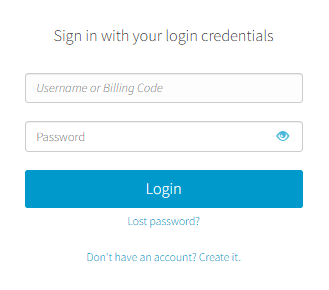
- From the dashboard, locate the product you want to manage. Click the name of the plan.
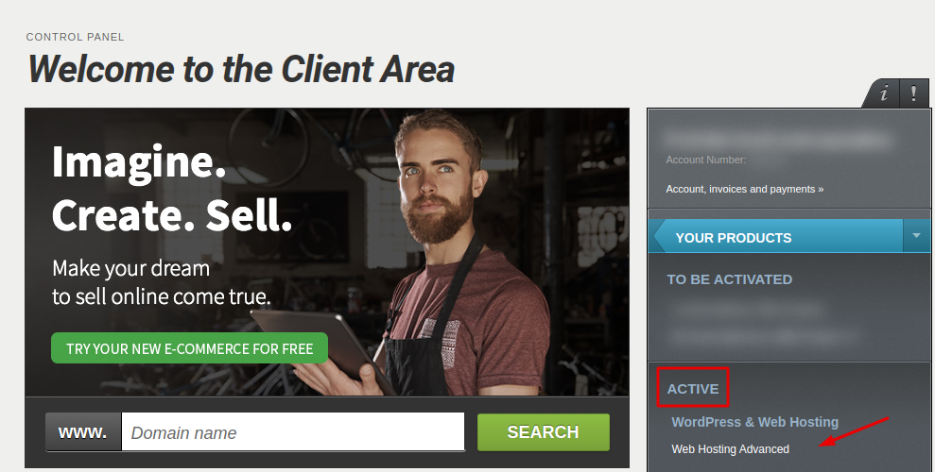
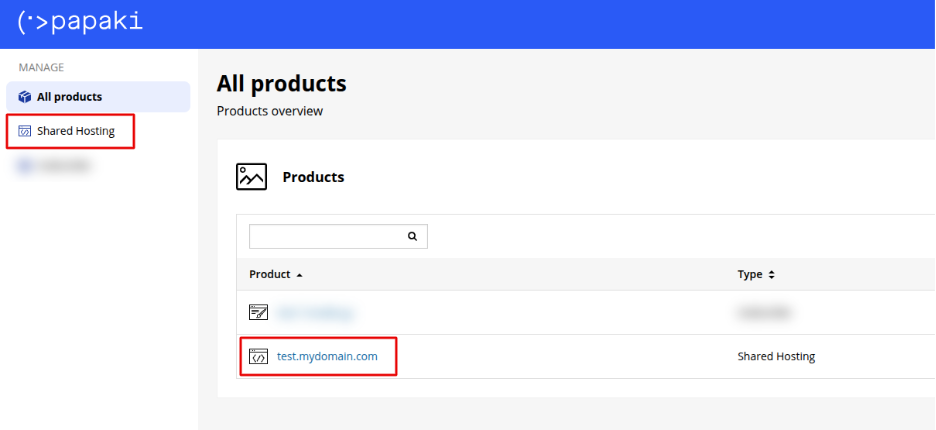
You will be redirected to the hosting management area. Here you can view, by category, all services linked to your Papaki account.
- Click the hosting plan name you want to manage.
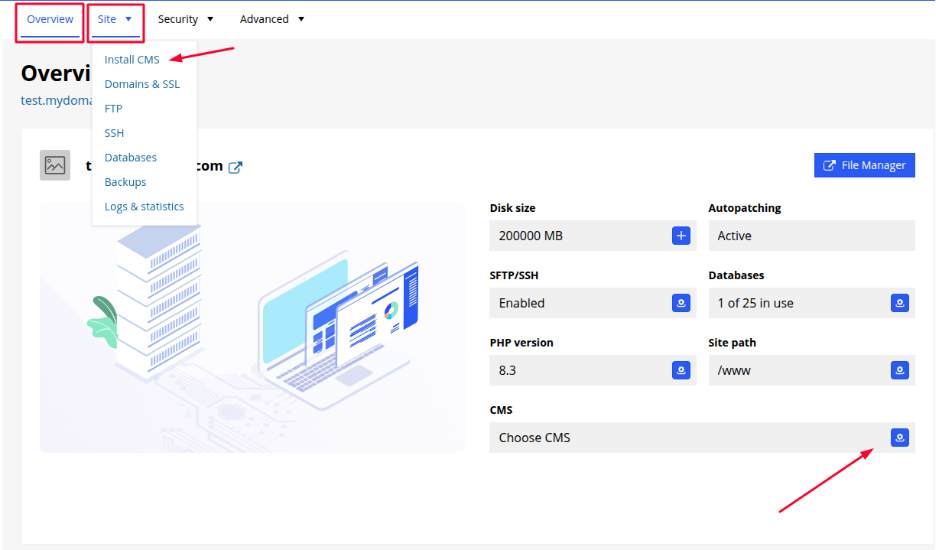
- You can proceed with the installation either from the CMS option in Overview or from the Install CMS option in Site tab.
- The installation consists of two main steps:
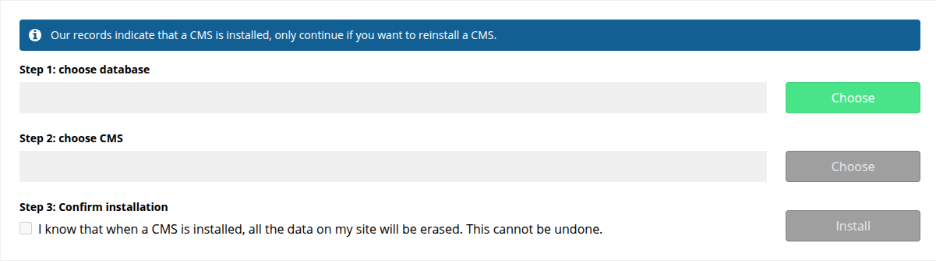
a. Choose a Database
You’ll be asked to choose whether to:
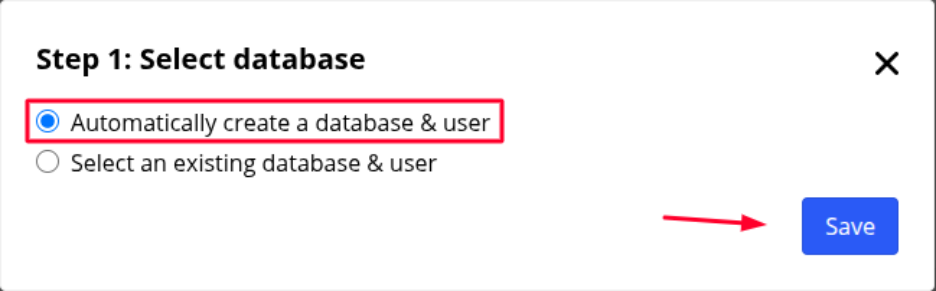
- Automatically create a new database and user
Select “Automatically create database & user” and click Save.
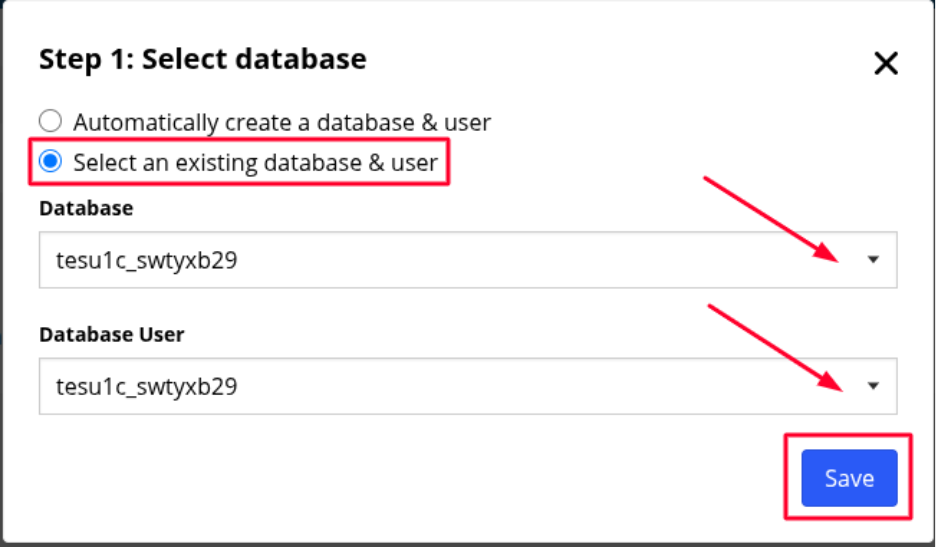
- Use an existing database
Select “Select an existing database & user”, then choose the relevant database and user from the dropdown list and click Save.
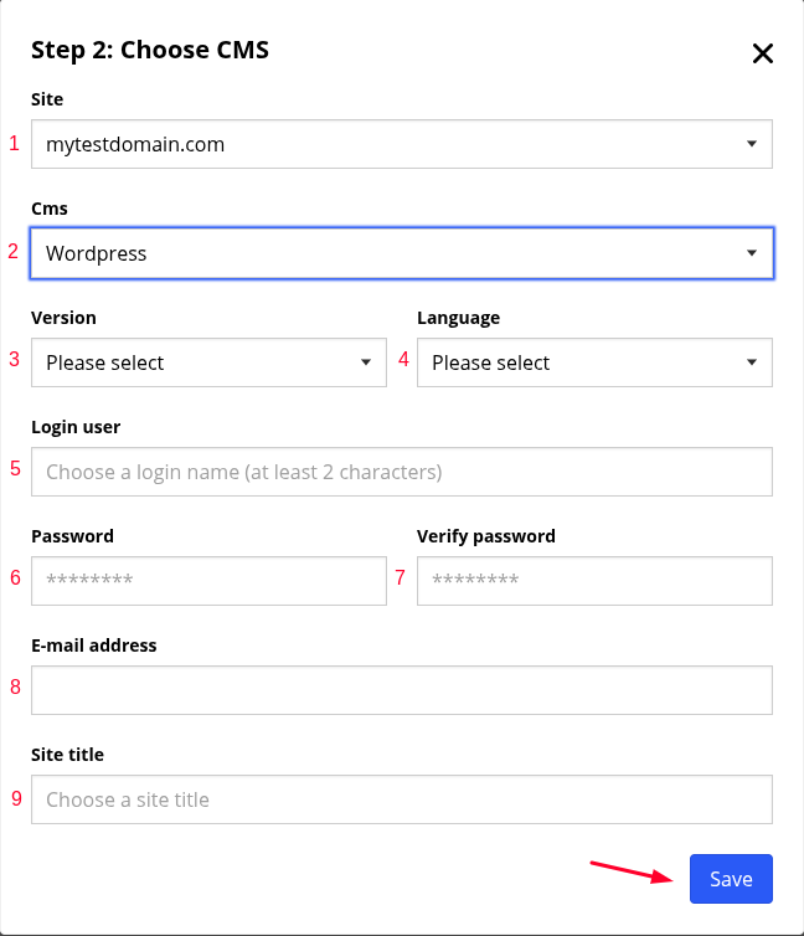
b. Configure WordPress Settings
Fill in the following fields:
- Domain: Select the domain where you want WordPress installed.
- Platform: Choose WordPress.
- Version: Select the desired version (we recommend the latest for security and performance).
- Language: Choose the installation language.
- Admin username: Enter your preferred username for logging in to WordPress.
- Password: Set a strong admin password.
- Confirm password: Re-enter the password for confirmation.
- Admin email: Provide an email address for receiving WordPress notifications.
- Site title: Enter the title of your website.
Once all fields are completed, click Save.
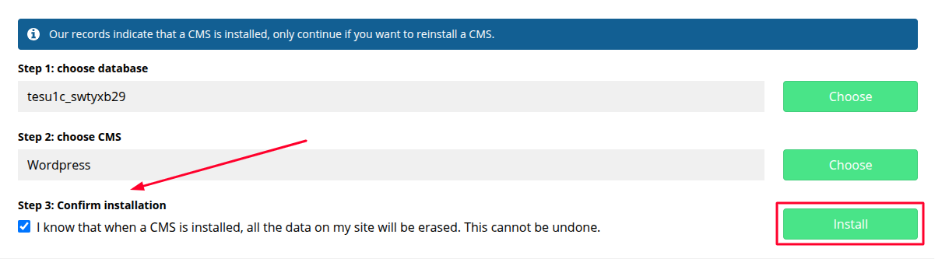
- Before proceeding, you’ll be prompted to confirm that:
Installing a CMS will overwrite any existing files in the installation folder and they cannot be recovered.
Check the confirmation box and click Install.
After a few minutes, the WordPress installation will be complete. You can now begin customizing your website through the WordPress admin dashboard.
You haven't found what you are looking for?
Contact our experts, they will be happy to help!
Contact us