
Customer Support
How do I set payment methods in Website Builder?
If you’ve created an online store (e‑shop) with the Website Builder, you’ll need to configure the payment methods available to your customers so you can accept payments for their orders.
Available Payment Methods
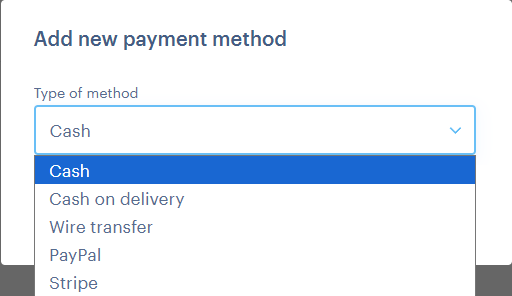
You can enable one or more of the following payment methods:
- Cash on Delivery:
The customer pays upon receipt of the order. - Bank Transfer:
The customer pays via bank transfer. - PayPal:
The customer uses their PayPal account. - Card via Stripe:
The customer pays with a credit or debit card through Stripe.
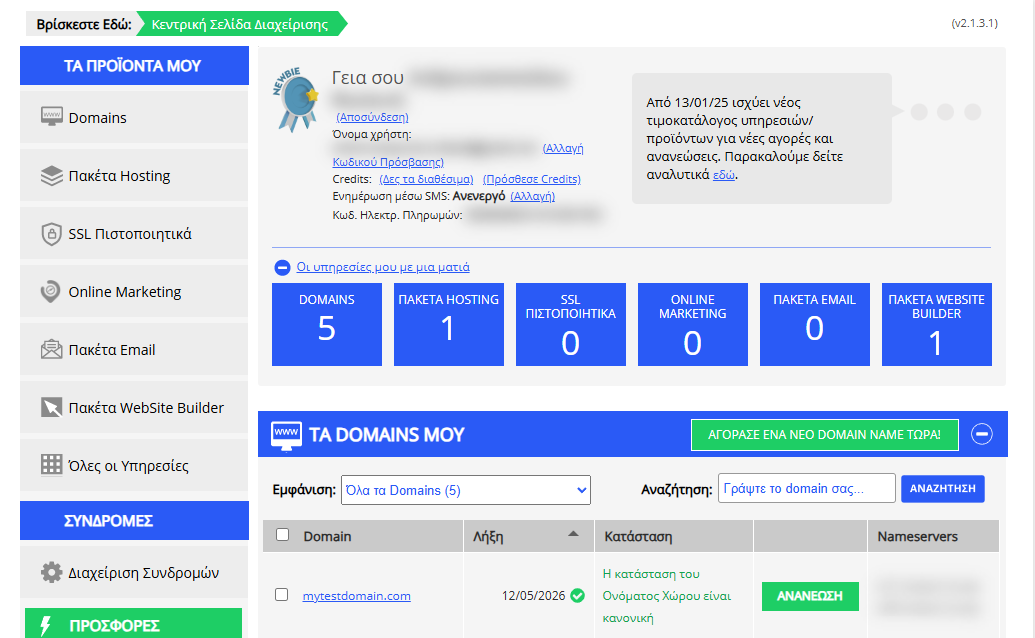
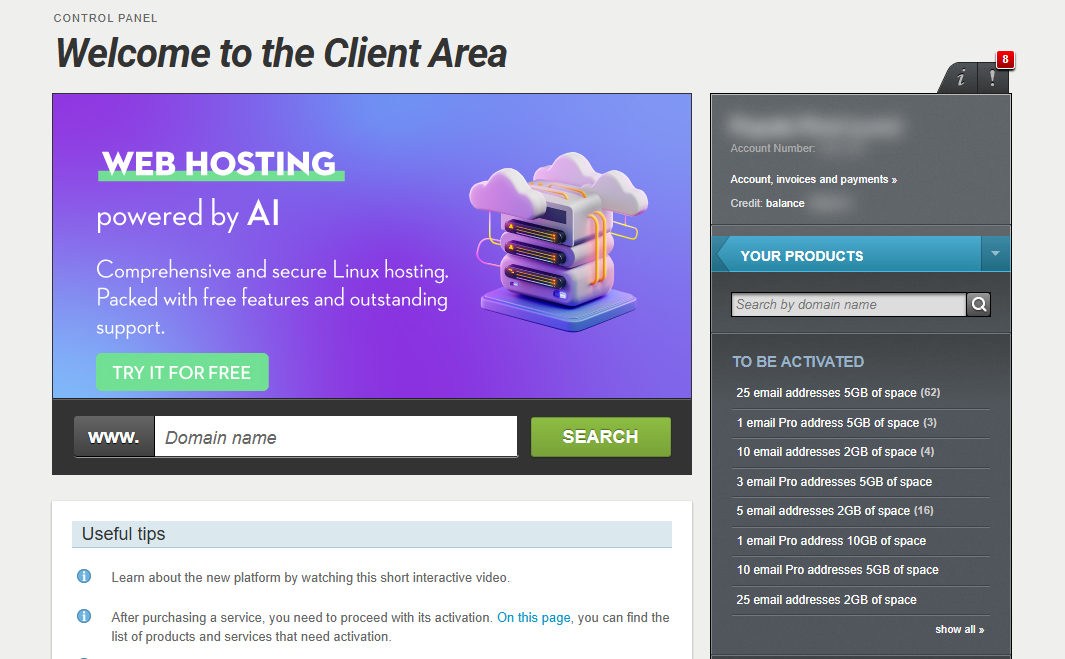
[Papaki 2.0]
Accessing your management dashboard
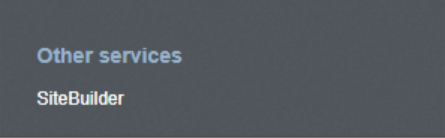
- From the right side menu, click on Other services > SiteBuilder
- Locate the hosting pack you want to edit and click on the domain
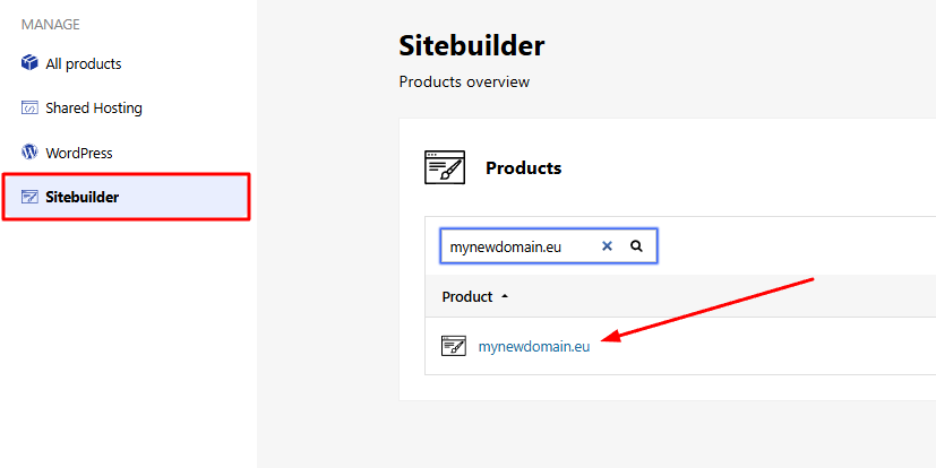
From the Website Builder dashboard
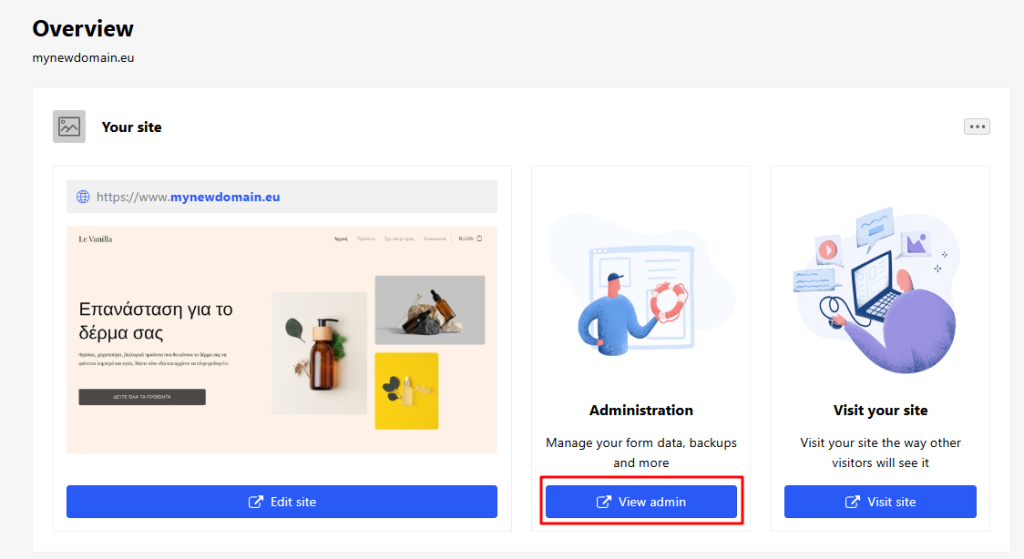
- From your account dashboard, click View Admin.
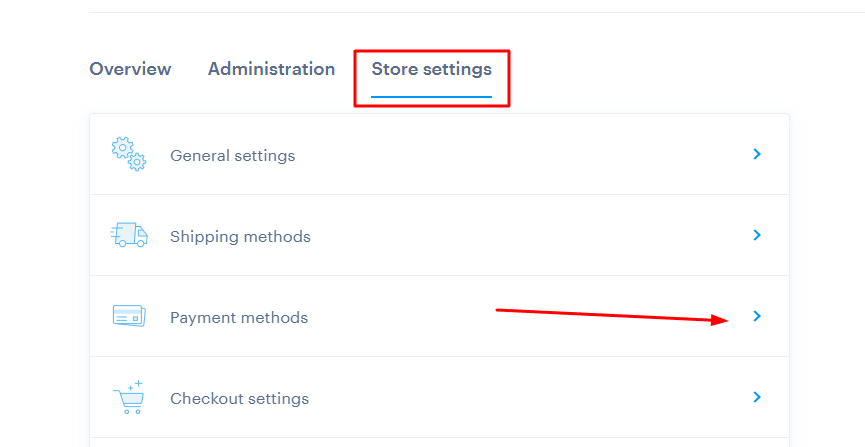
- Go to Store Settings > Payment Methods.
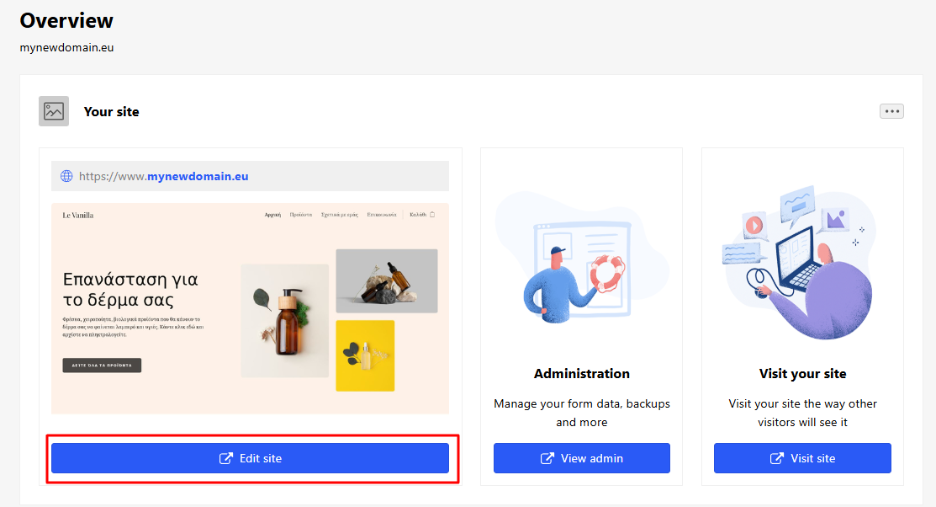
From the website editor environment
- Click Edit site to open the editor.
- Go to Settings > Online Store > Payment Methods.
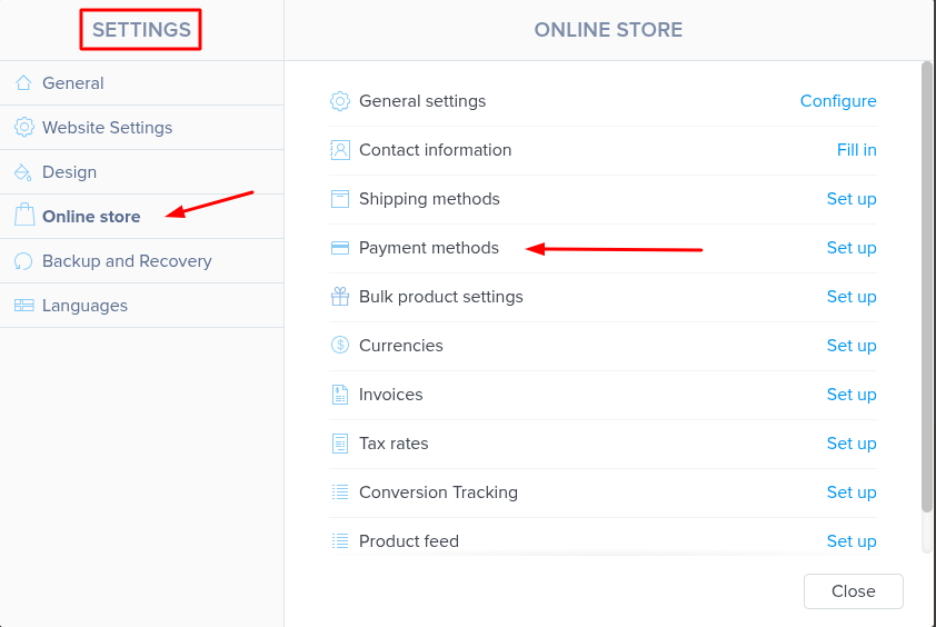
Regardless of the route you choose, you’ll be redirected to the same menu where you can configure your payment options.
What You Can Configure
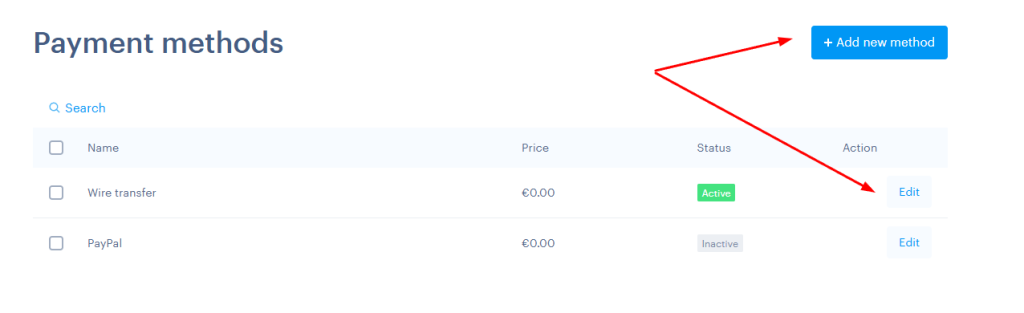
- Add new payment methods
- Enable or disable each payment method
- Set the parameters for each method
- Customize the text/labels displayed on your checkout page
Important
To use PayPal or Stripe as payment methods:
- You must have a business account with the respective platform.
- Integration is done using the API credentials provided by your account.
- The connection must be completed for these methods to be activated.
[Papaki 1.0]
To set up your payment methods, follow the steps below:
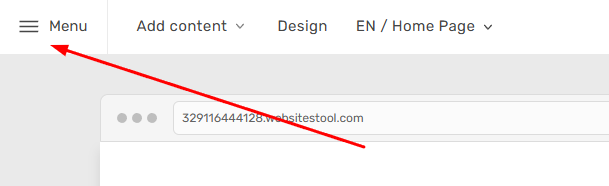
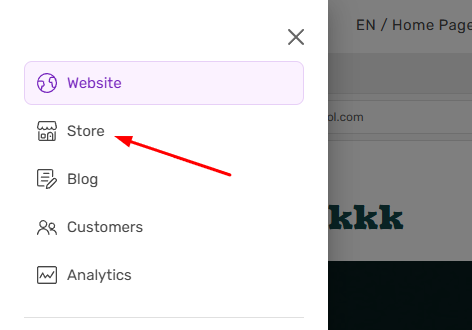
- From the Website Builder management page, at the top left, click Menu.
- Select Store.
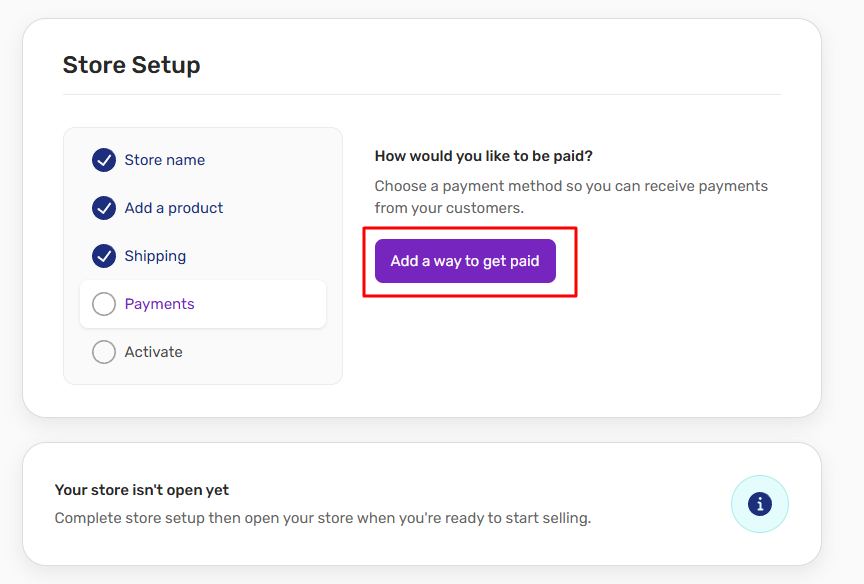
- After setting up the first 3 options related to your e-shop, proceed by selecting Add payment method.
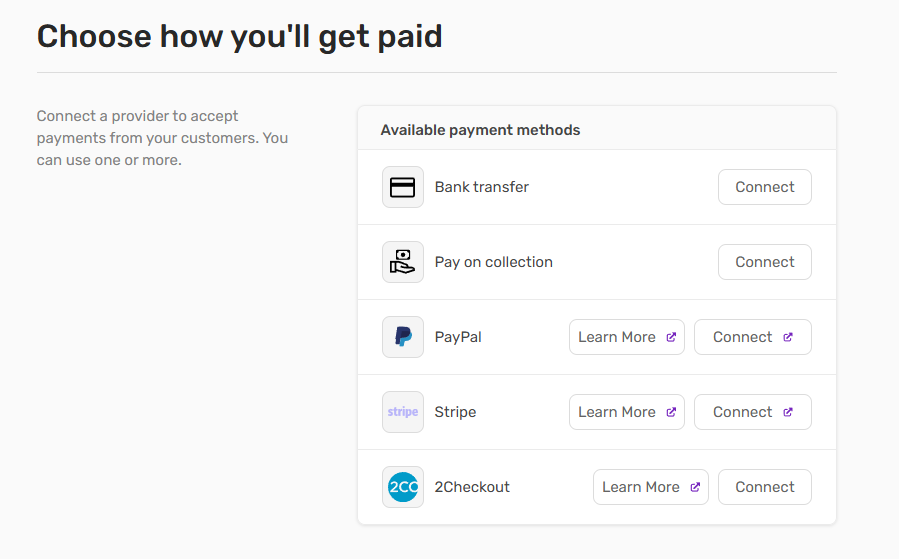
- Configure the available payment methods according to your preferences, and enable payment via PayPal or Stripe for card usage.
Important
To use PayPal or Stripe as payment methods:
- You must have a business account on the respective platforms.
- The connection is made through the API credentials provided by your account.
- The integration must be successfully completed before they can be activated as payment methods.
You haven't found what you are looking for?
Contact our experts, they will be happy to help!
Contact us