
Customer Support
How do I set shipping methods in Website Builder?
To receive orders from your e-shop and charge customers with the corresponding shipping fees, you need to configure the following:
- Available shipping methods
- Shipping cost for each method
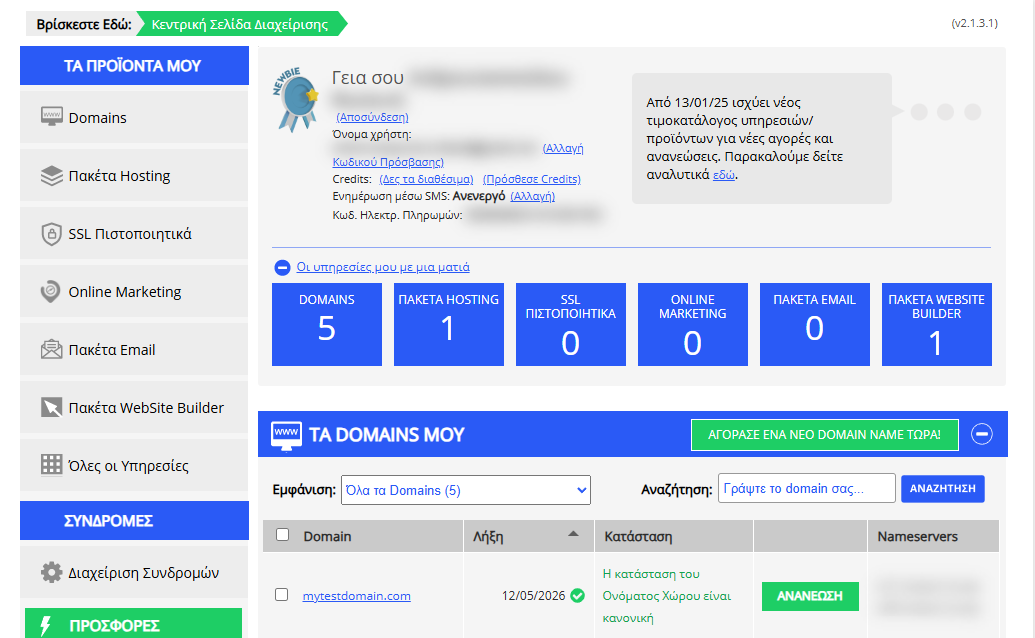
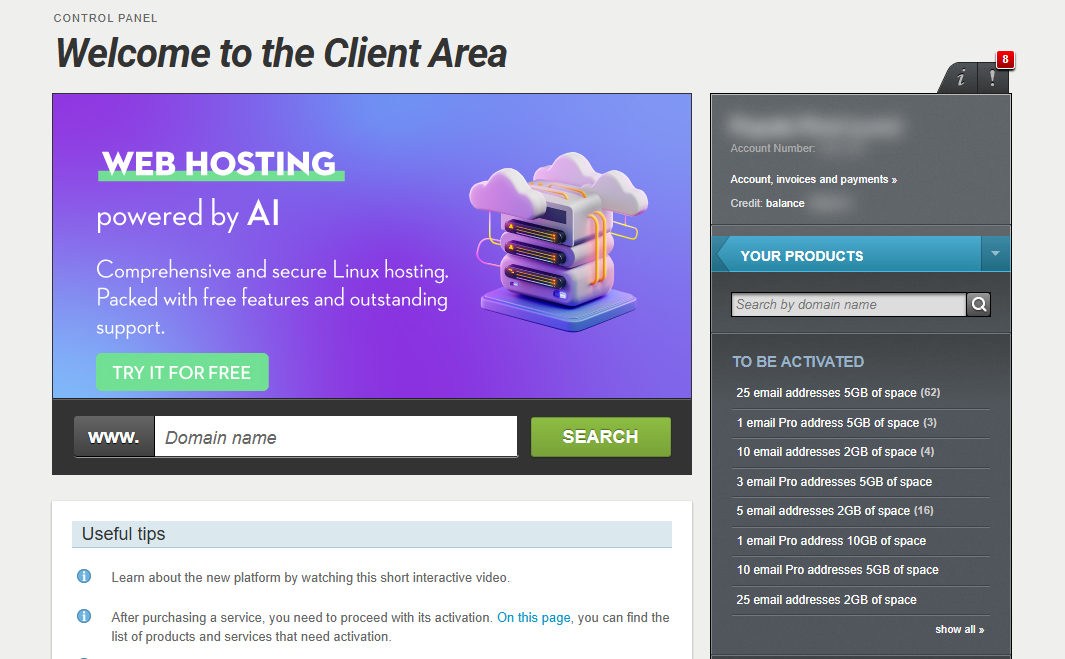
[Papaki 2.0]
Where to configure shipping methods
Shipping settings can be configured:
- From the Website Builder management dashboard, or
- From the website editor environment
Accessing your management dashboard
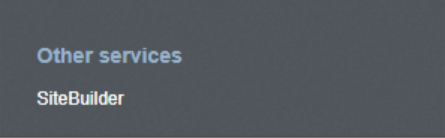
- From the right side menu, click on Other services > SiteBuilder
- Locate the hosting pack you want to edit and click on the domain
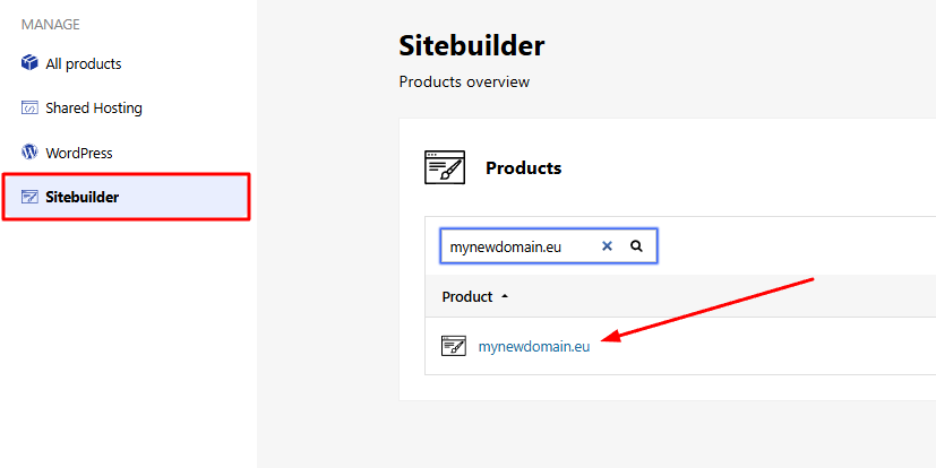
From the Website Builder dashboard
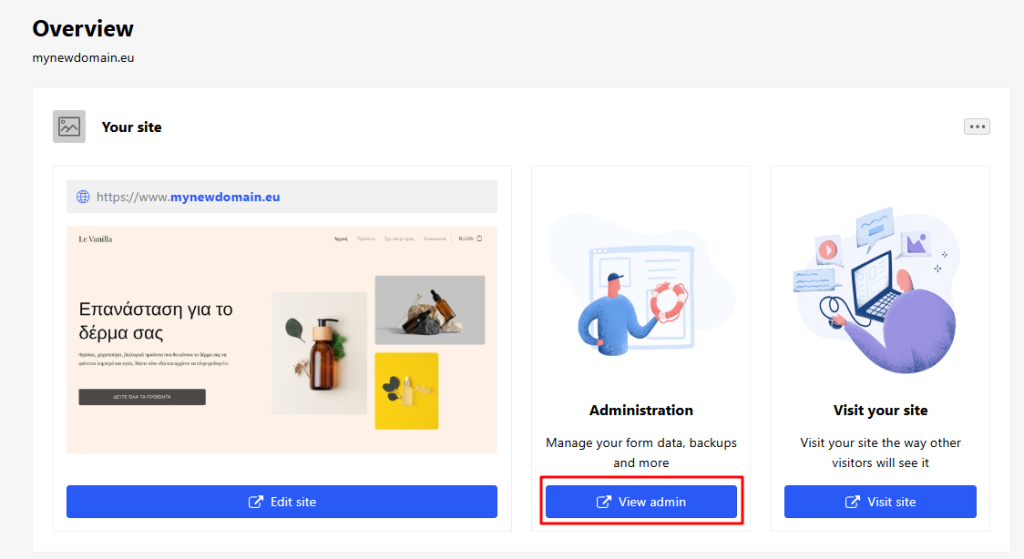
- From your account dashboard, click View Admin.
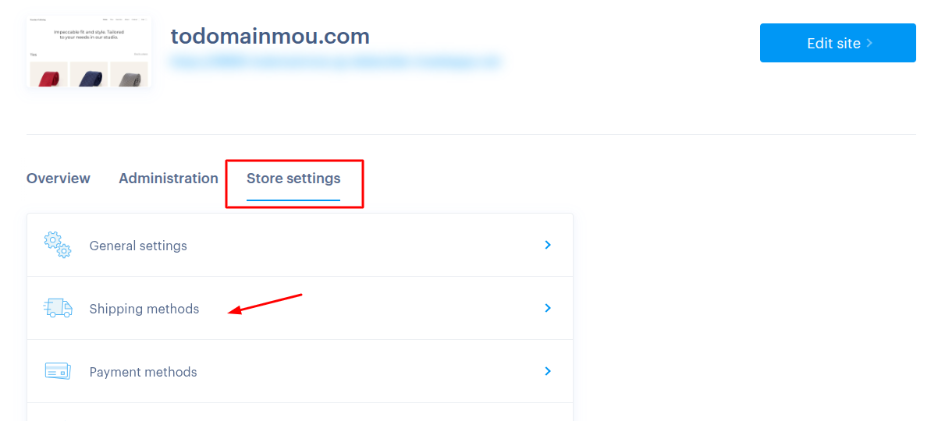
- Go to Store Settings > Shipping Methods.
From the website editor environment
- Click Edit site to open the editor.
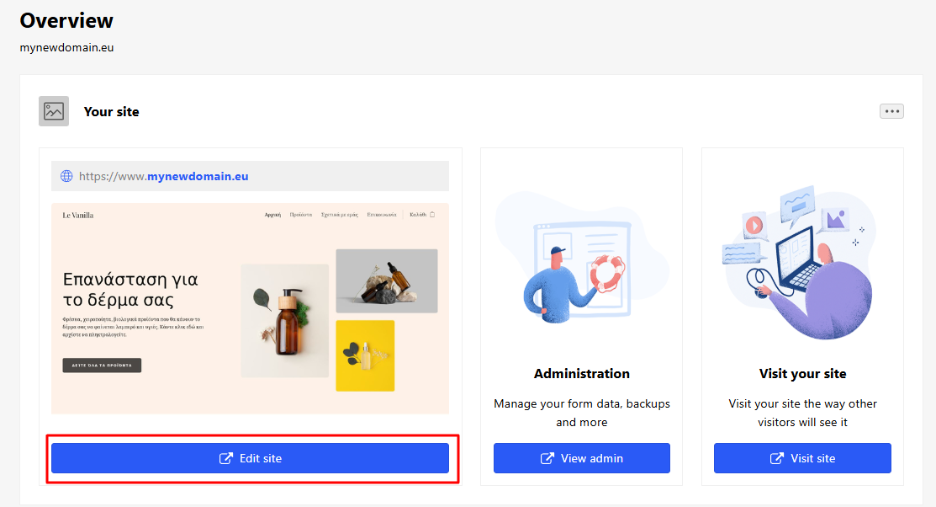
- Go to Settings > Online Store > Shipping Methods.
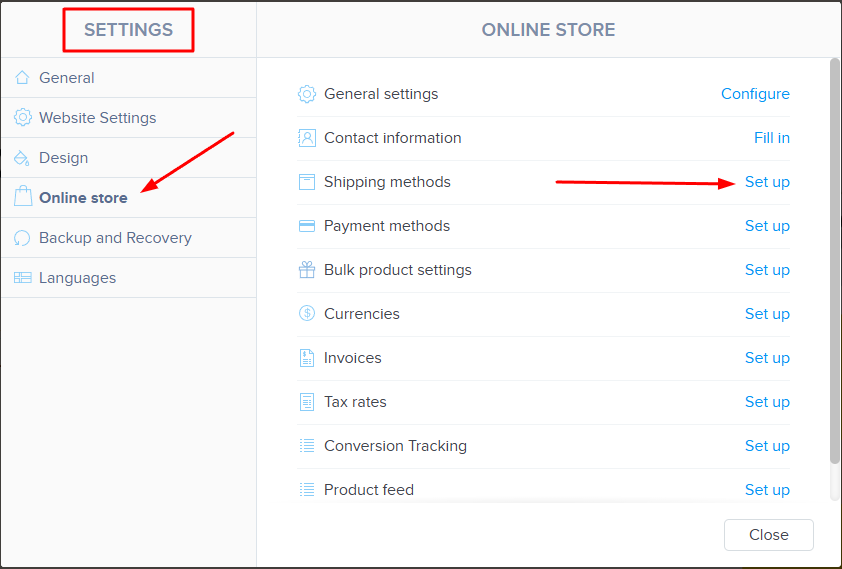
Regardless of the route you choose, you’ll be redirected to the same menu where you can configure your shipping options.
Available Shipping Method Options
You can add one or more shipping methods such as:
- Store Pickup
- Courier Delivery
- Other custom methods
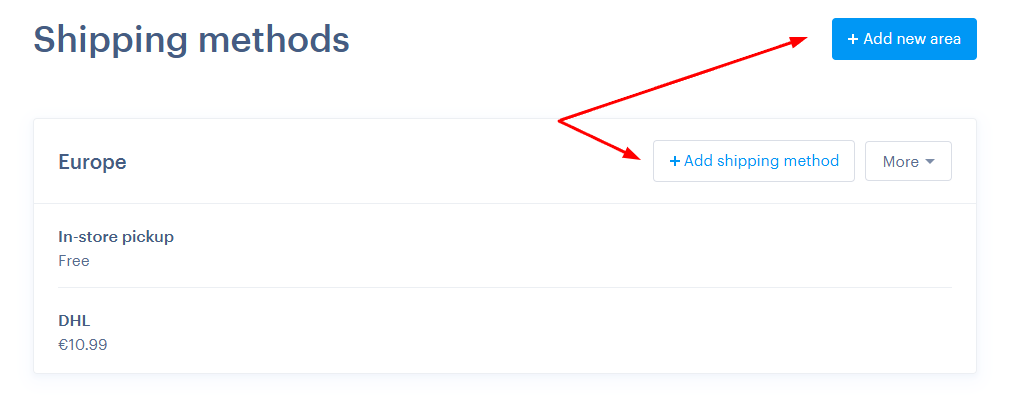
For each method, you can configure:
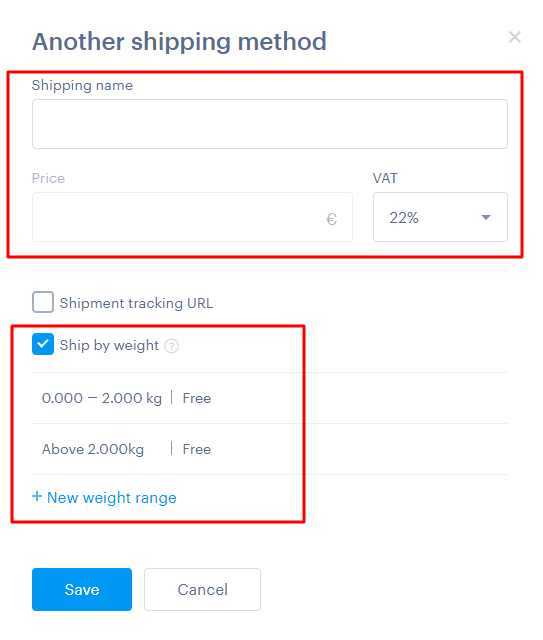
- Title – as it will appear during checkout
- Shipping Cost – which can be:
- Flat rate
- Based on product weight
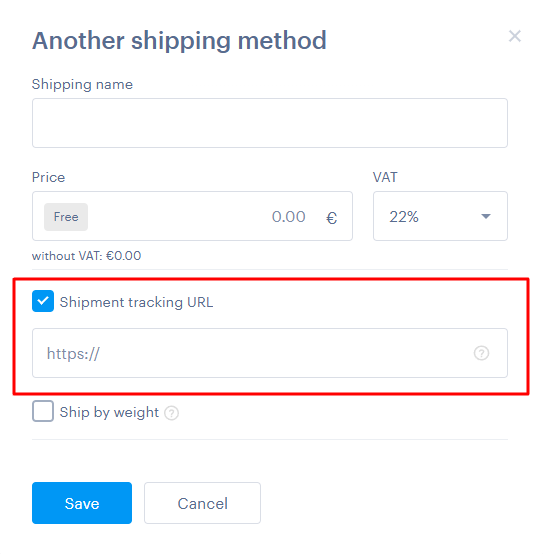
Shipment Tracking
In the Shipment Tracking URL field, you can enter the tracking link from your courier provider, allowing customers to track the status of their order.
[Papaki 1.0]
To set up your shipping methods, follow the steps below:
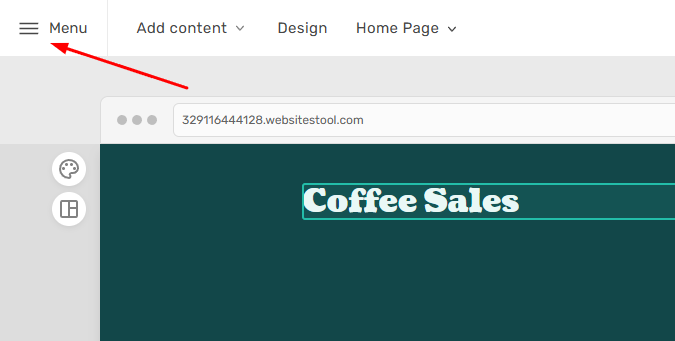
- From the Website Builder dashboard, click on the Menu button at the top left corner.
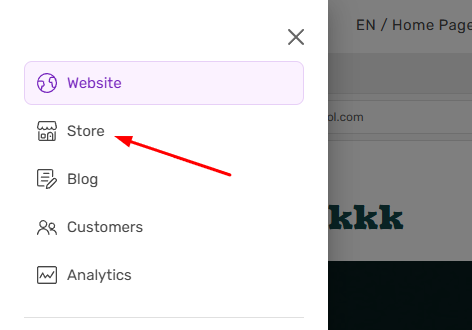
- Select Store.
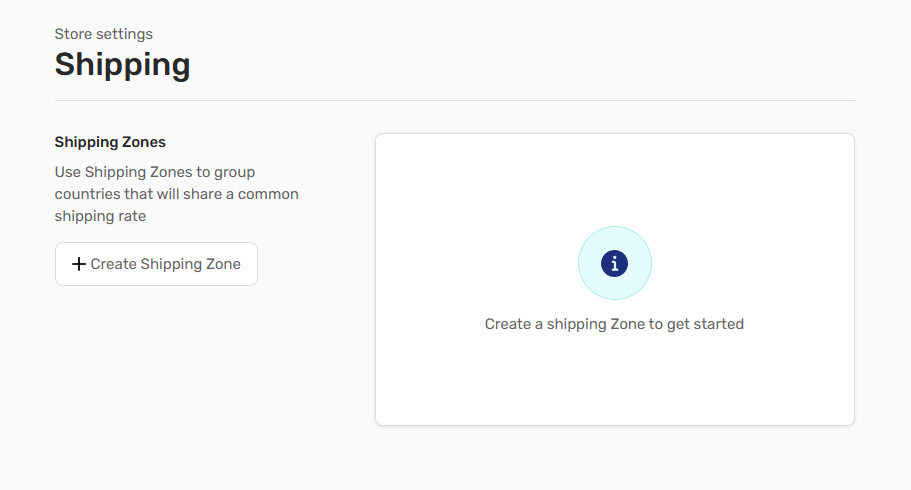
- After setting up the first two options related to your e-shop, continue by selecting Shipping.
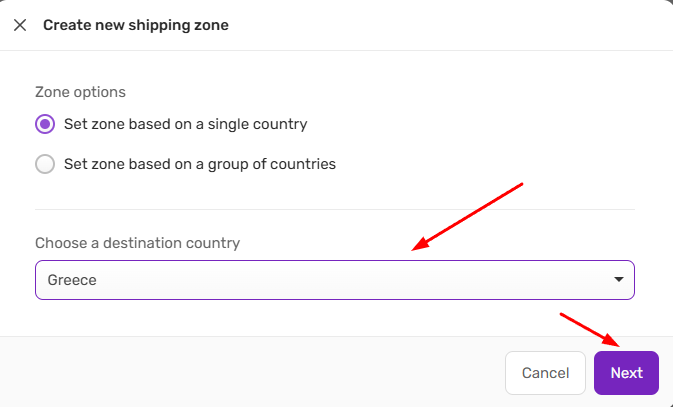
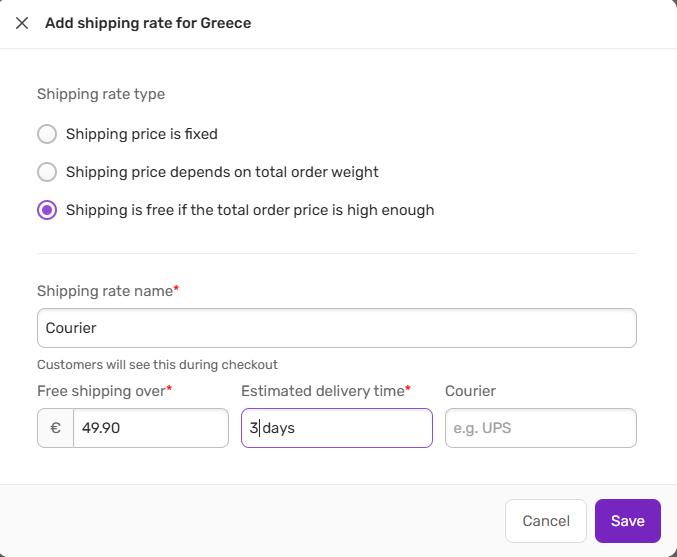
- First, define the countries where you want to offer this shipping method — for example, only within Greece.
- Set the parameters of this shipping method, such as cost, delivery time, etc., and then click Save.
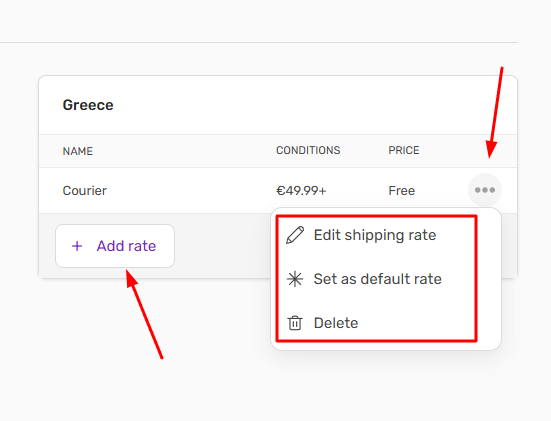
- From the three dots menu, you can further configure or delete the shipping method. You can also click Add Rate to define an alternative shipping option.
You haven't found what you are looking for?
Contact our experts, they will be happy to help!
Contact us