
Customer Support
(Shared Hosting) – How can I access my files in my hosting plan?
All your website files are stored within your hosting package at Papaki. Through your control panel, you can easily access, manage, upload, or delete these files depending on your needs.
Attention!
If you have an email hosting package hosted on a Plesk infrastructure, please refer to the guide available here.
Step-by-Step: Accessing Your Files
Steps:
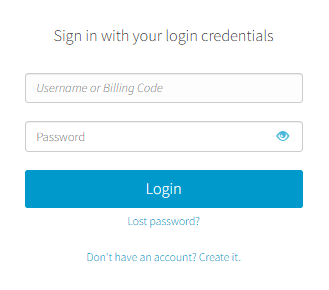
- From the dashboard, locate the product you want to manage. Click the name of the plan.
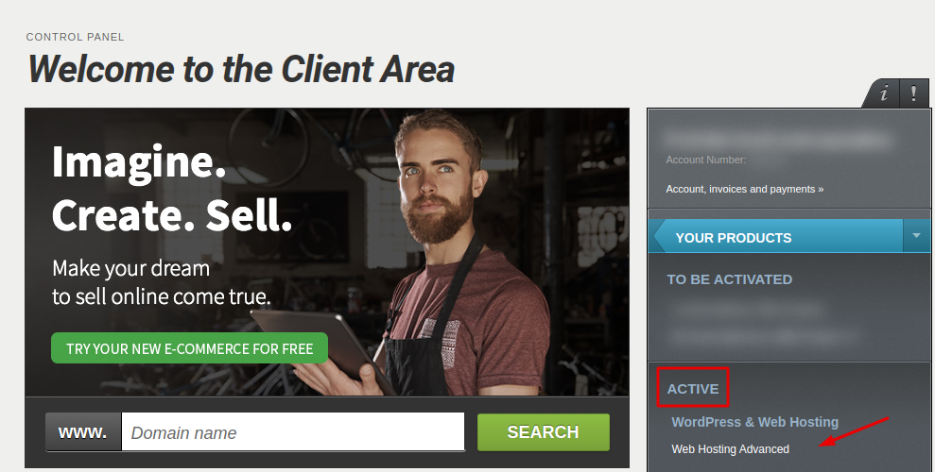
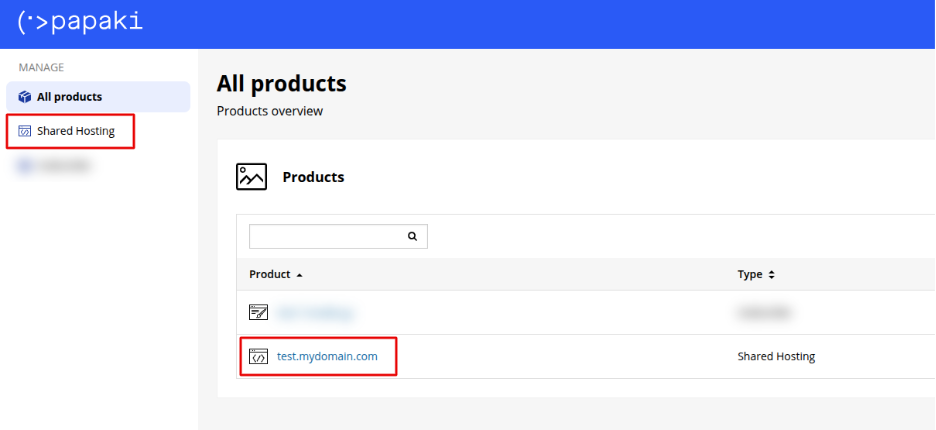
You will be redirected to the hosting management area. Here you can view, by category, all services linked to your Papaki account.
- Click the hosting plan name you want to manage.
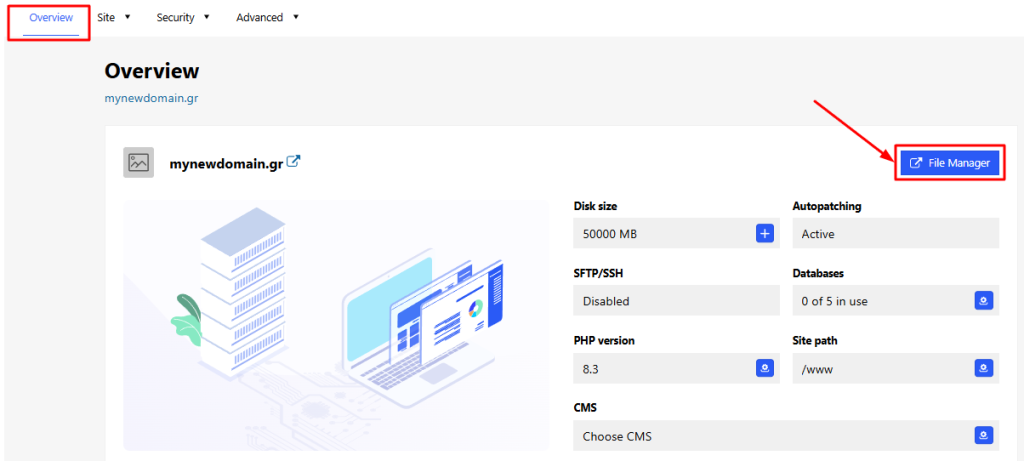
- From the Overview tab, click on File Manager
The File Manager will open in a new window where:
- All folders are displayed in a tree view structure
- Clicking on a folder reveals its contents (files and subfolders)
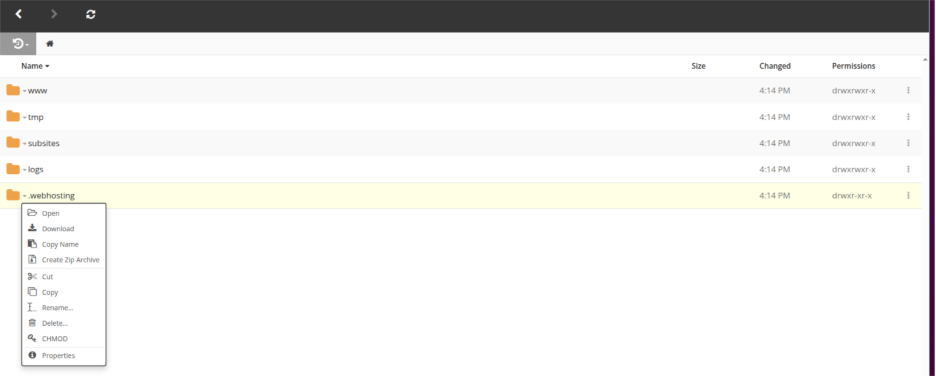
Right-clicking on any folder or file will show available actions, such as:
- View
- Rename
- Delete
- Download
- Copy/Move
- Upload new files
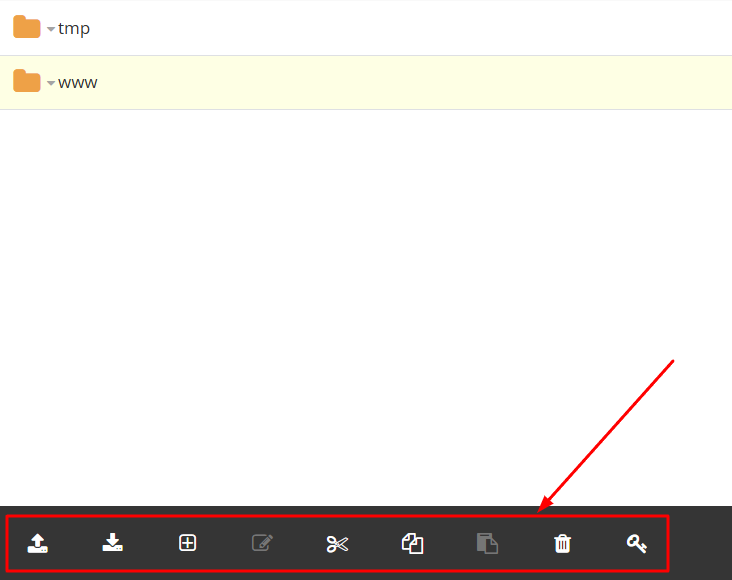
The same actions are also available at the bottom of the screen once you select a file or folder.
What Can You Do in File Manager?
- Browse and edit your website’s files (e.g. HTML, PHP, images)
- Upload new files or create folders
- Delete unused or outdated files
- Move, copy, or rename content for better organization
You haven't found what you are looking for?
Contact our experts, they will be happy to help!
Contact us