
Customer Support
What is the bank transfer payment process?
One of the available payment methods is using an electronic payment code to settle your order via bank transfer. This payment method can be used for all types of orders (new purchases or renewals) and can be completed through any participating bank.
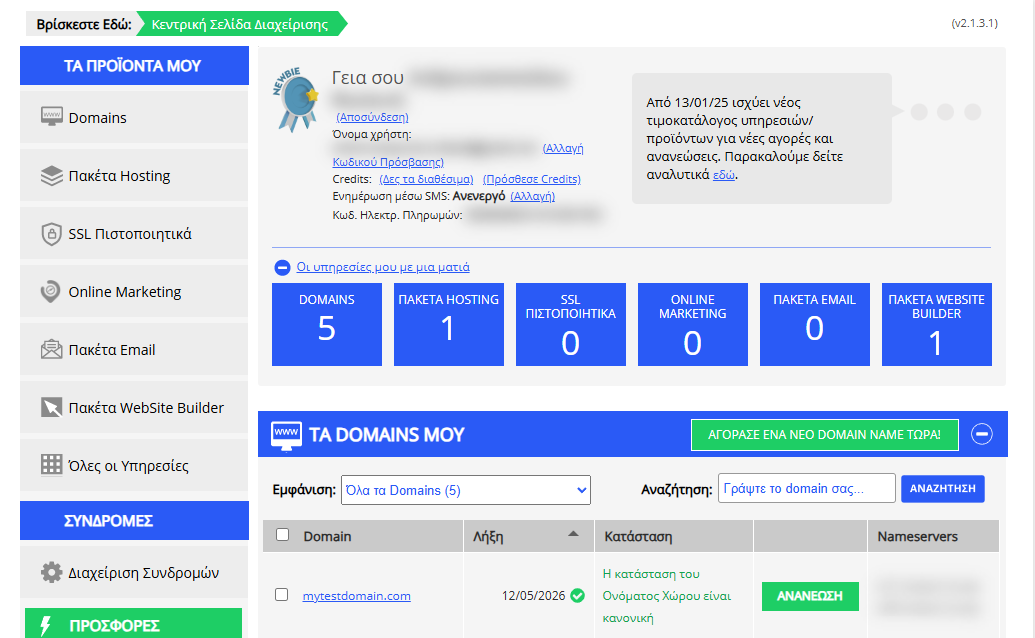
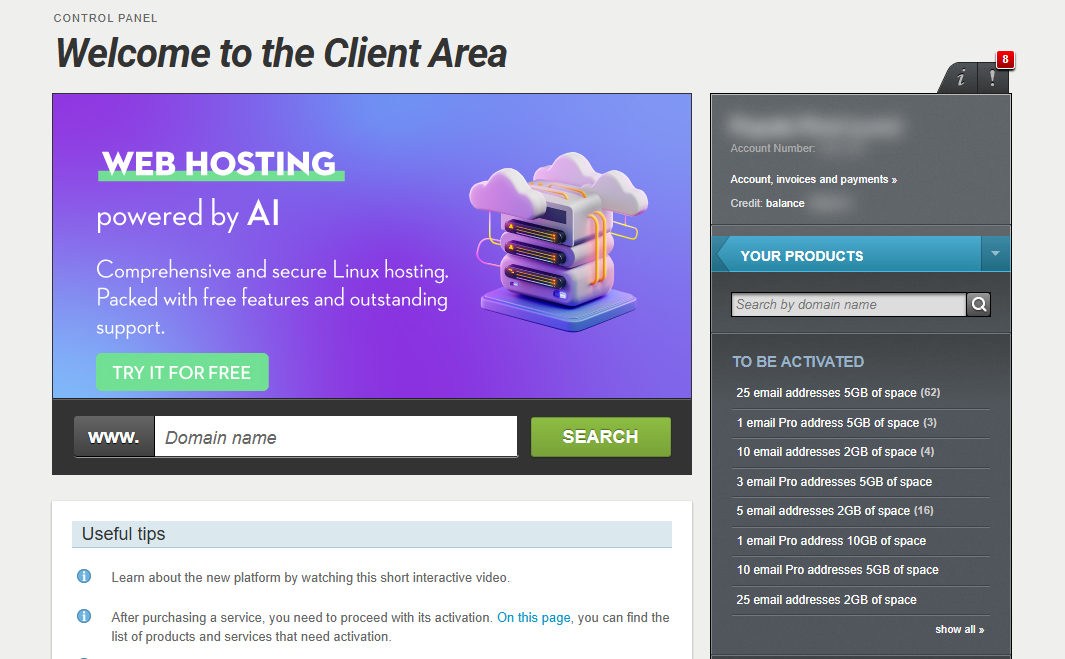
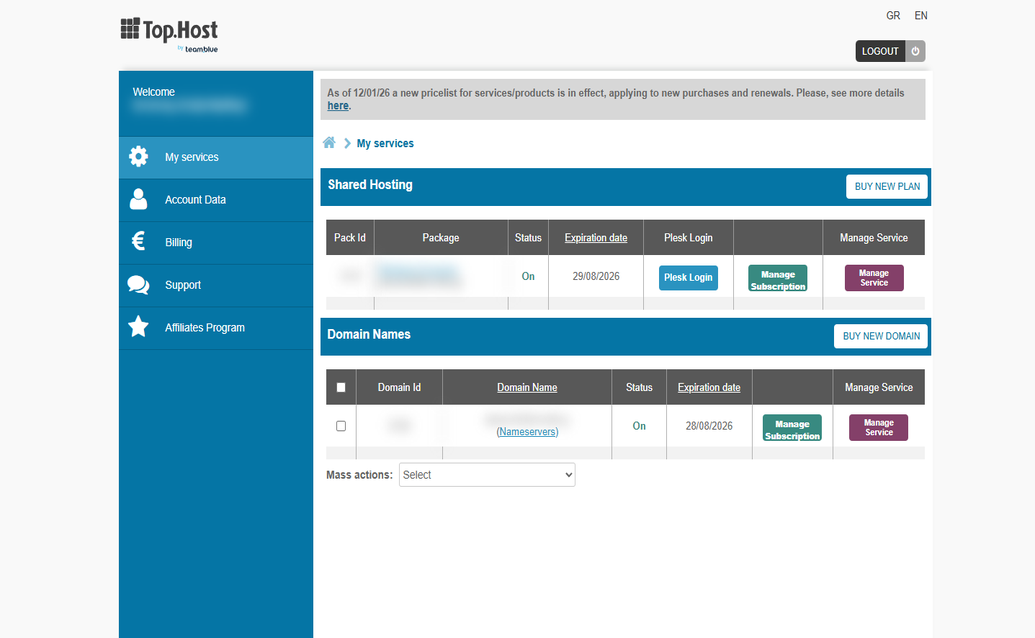
[Papaki 2.0]
Whether your order concerns the renewal of an existing service or the purchase of a new product, the process is the same.
If you are not sure how to renew your service, read more here.
- After selecting the service you want to pay for, click Purchase, Renew, or Add.
- The service will be added to your shopping cart.
- Accept the Terms of Service and click Proceed.
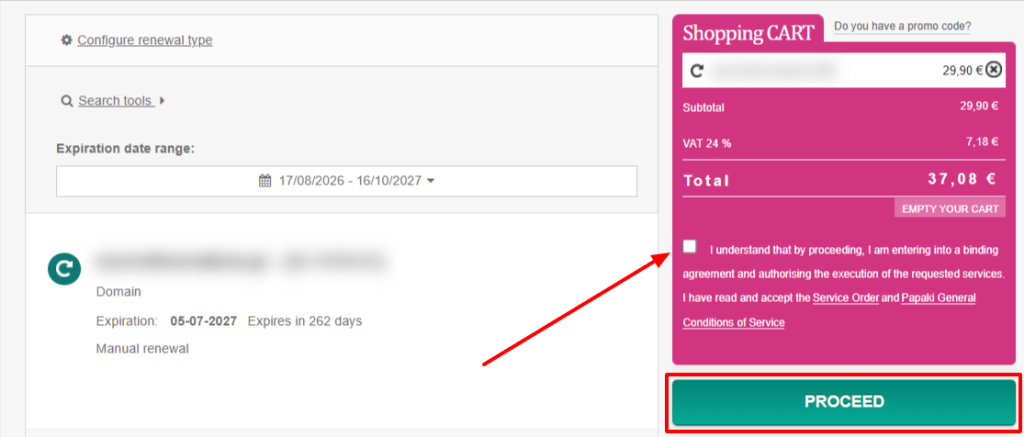
- On the next step, select Bank Deposit - DIAS as your payment method.
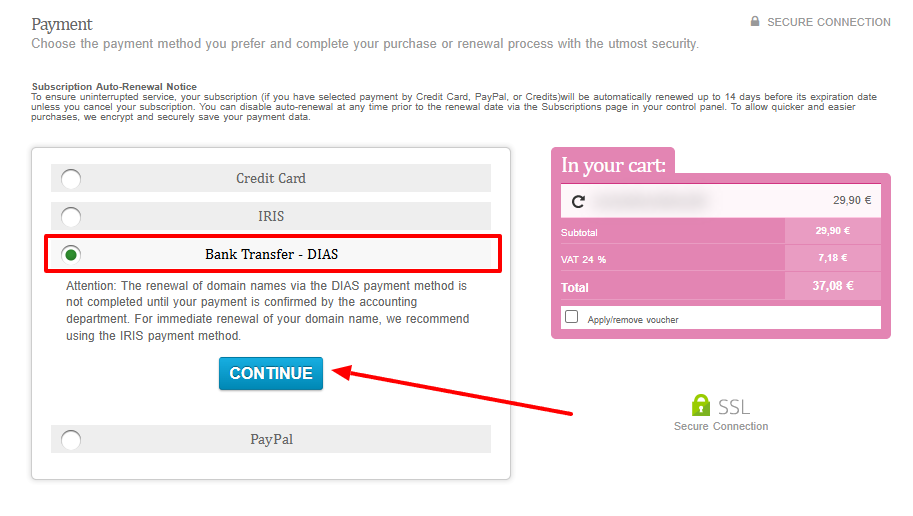
- You will then receive the payment amount and the RF payment code, which you can use to complete your payment through a participating bank.
Orders for which bank transfer is selected as the payment method remain pending for 3 months. After that period, they are automatically cancelled.
- Depending on the bank you use, complete your payment using the RF code. You can find the list of participating banks here. Detailed instructions for the major Greek banks are available through the following links:
- The service renewal is completed once the payment has been cleared. For major Greek banks, the process is usually completed within one hour, while payments from other banking institutions may take up to 3 business days.
[Papaki 1.0]
If you wish to renew your service through Papaki and pay via bank transfer, follow the steps below:
- Add the service to your cart. If you are not familiar with the renewal process, see the detailed instructions here.
- In the pop-up window that appears, select your billing details, preferred payment method, and renewal period (if applicable), then click Order.
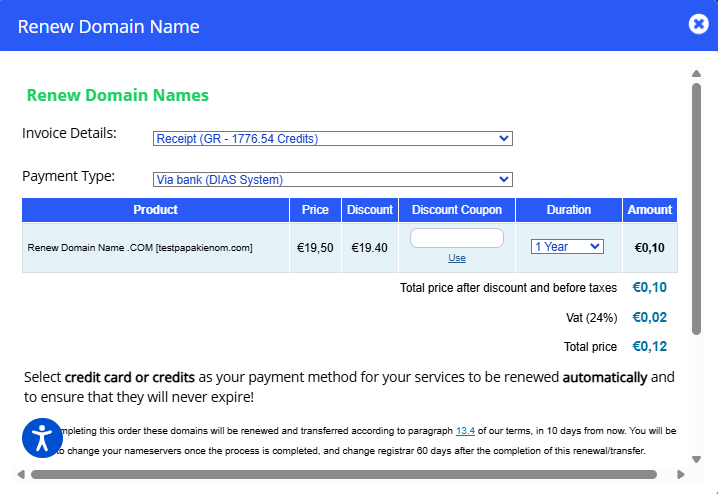
Orders for which bank transfer is selected as the payment method remain pending for 3 days and are then automatically cancelled. If the service expires during this period, the order will be cancelled earlier.
- Depending on your banking institution, use the electronic payment code you receive by email to complete your payment. You can find the participating banks here. Detailed instructions for the major Greek banks are available through the following links:
- The service renewal is completed once the payment has been cleared. For major Greek banks, the process is usually completed within one hour, while payments from other banking institutions may take up to 3 business days.
[Top.Host 1.0]
To make a service purchase by bank deposit from the Top.Host site, follow the steps below.
Step 1. Choose a service and place an order
Through the Top.Host site you can choose the service you want to buy. In our example, a hosting package has been selected. At checkout, select Bank Deposit and then Complete Order.
After placing the order, the DIAS Electronic Payment Code appears, along with some basic payment information, which we recommend you read carefully.
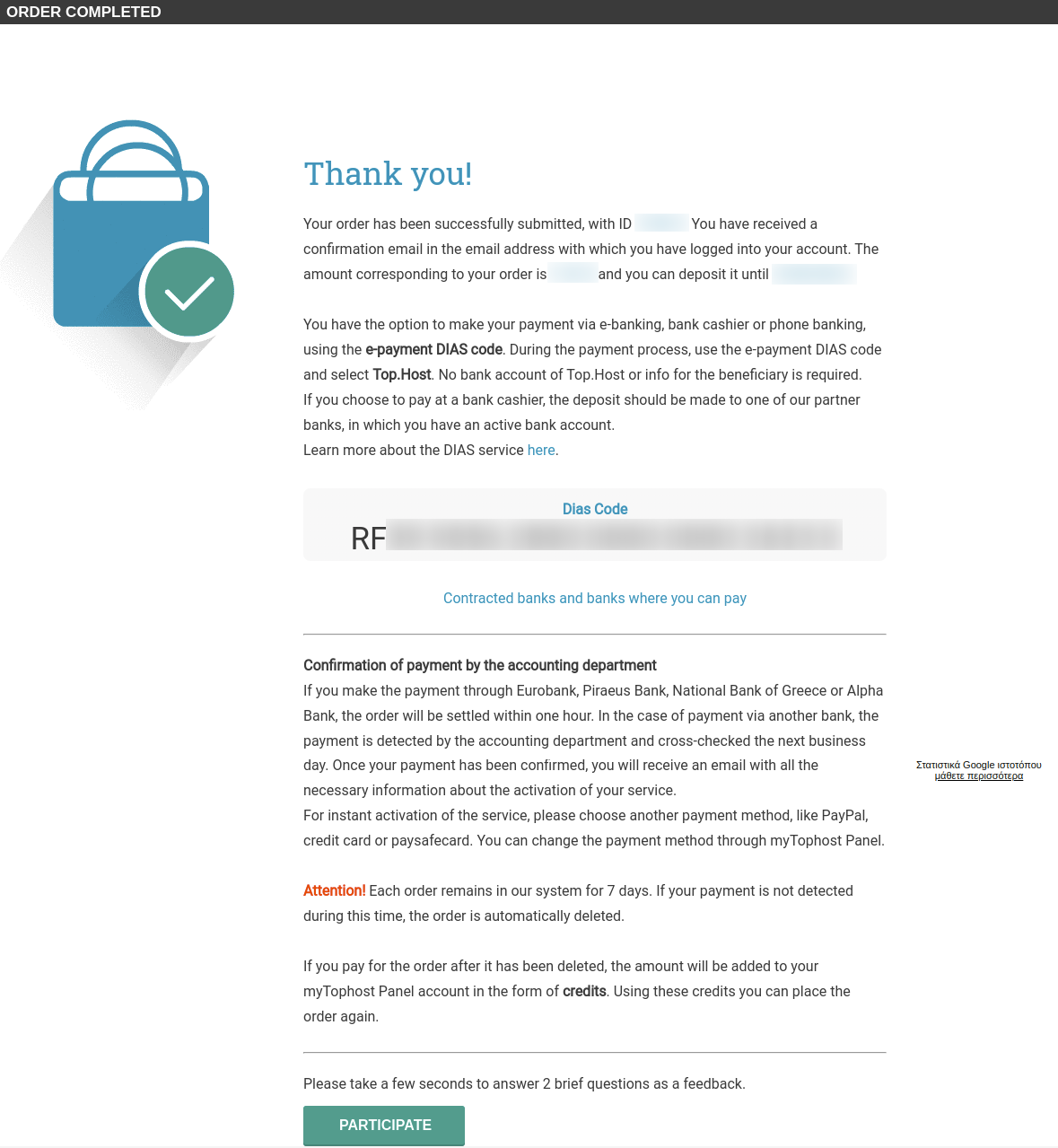
At the same time, you will also receive an email to confirm the order, in which you indicate the DIAS code and the date by which you can make the payment
For your convenience, you can enter myTophost Panel and under the Billing tab >> Order History find and save / print the payment invoice next to your order. It contains all the necessary information for payment.

Step 2. Order payment
To pay by bank deposit for your order, you now only need the DIAS Electronic Payment Code.
You can make your payment in three ways: at a cashier in a bank branch, via web banking or via phone banking.
Bank Branch
After going to a partner bank branch where you have an active account, you should inform the employee that you want to make a payment to Top.Host with the DIAS code. Now you don't need to know your Top.Host bank account. The DIAS code you received is sufficient.
Payment at checkout is not made in cash, but by transfer from your account to Top.Host.
If you have cash with you, you will first need to deposit it into your own account and then ask the employee to transfer it to Top.Host via DIAS.
Web banking
Through the panel of each cooperating bank, you can go to Payments, and choose to make your payment to Top.Host, entering the DIAS code in the corresponding field. Below, you will find detailed instructions for Piraeus, Eurobank, Ethniki and Alpha Bank.
- How to I make my payment via Piraeus Bank web banking?
- How to I make my payment via Eurobank web banking?
- How to I make my payment via NBG web banking?
- How to I make my payment via Alpha Bank web banking?
Phone Banking
Each bank has its own way of doing phone banking, so the process may vary. What you definitely need to say is that you want to make a payment to Top.Host.
You haven't found what you are looking for?
Contact our experts, they will be happy to help!
Contact us