
Customer Support
How can I forward my domain to another page (Domain Forwarding)?
Domain forwarding is a mechanism that automatically redirects visitors from one URL to another. You can easily set up domain redirection through your Papaki account with no technical knowledge required.
Why Use Domain Forwarding?
There are several common reasons to set up domain forwarding:
Domain Change or Website Migration
If you've moved your site from oldsite.gr to newsite.gr, you can set a 301 redirect to ensure users who visit the old domain are automatically taken to the new one.
Preserve SEO Rankings
A correct 301 redirect transfers SEO value from the old URL to the new one, helping you retain your rankings in search engines like Google.
Fix Broken or Outdated Links
If you've changed your website's URL structure (e.g. from /products/item1 to /shop/item1), redirects help prevent 404 errors for users and search bots.
Campaign or Promotional URLs
If you use a temporary subdomain (e.g. sales.mydomain.gr), you can redirect it to a dedicated landing page.
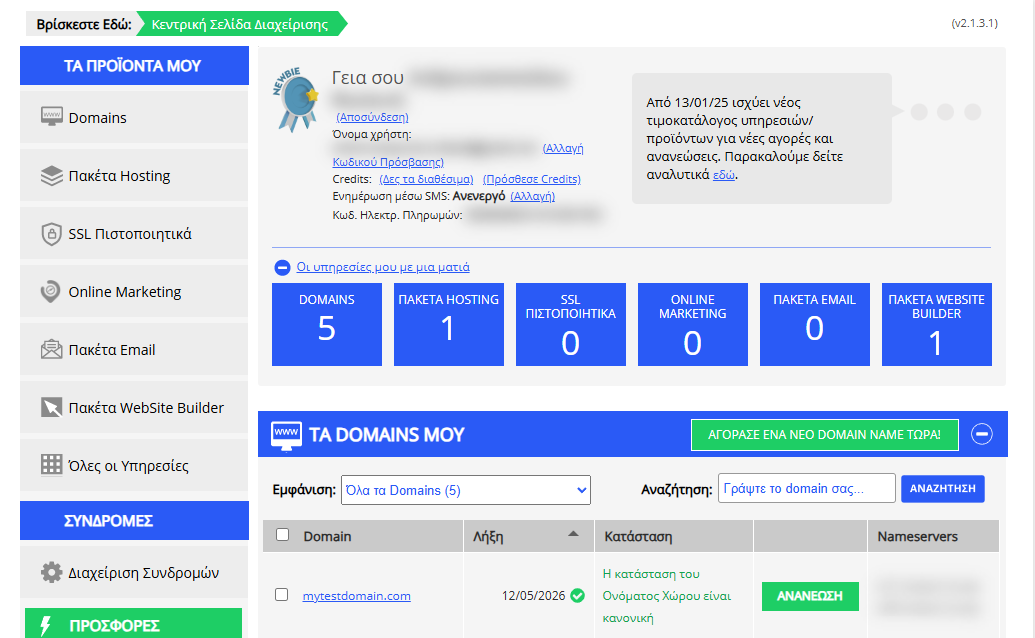
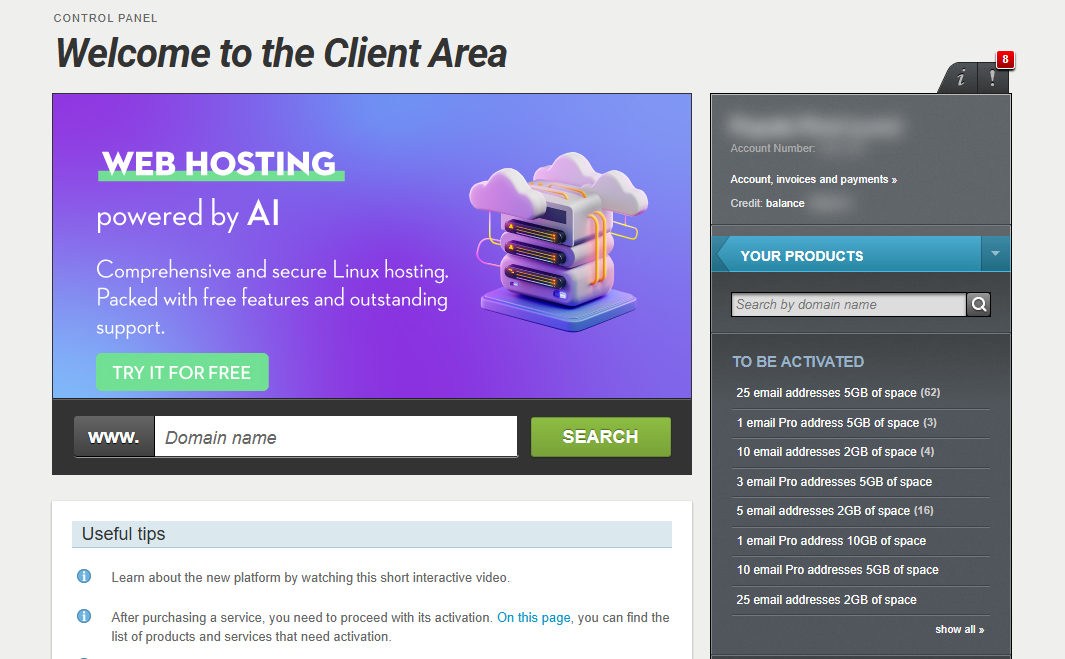
[Papaki 2.0]
How to Set Up Domain Forwarding via Papaki
Follow these steps to configure redirection:
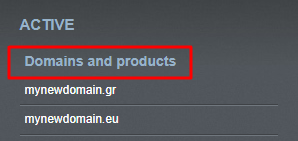
- From the right-hand menu, go to Domains and Products and select the domain you want to manage.
- Click Domain & DNS.
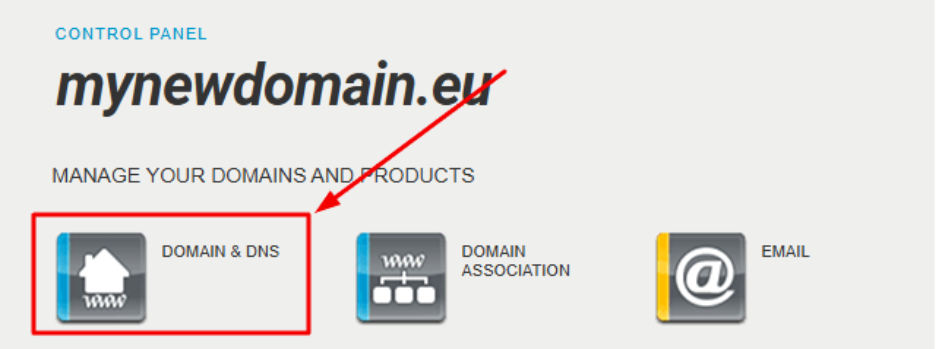
- Select the Forwarding tab and then click on Redirect.
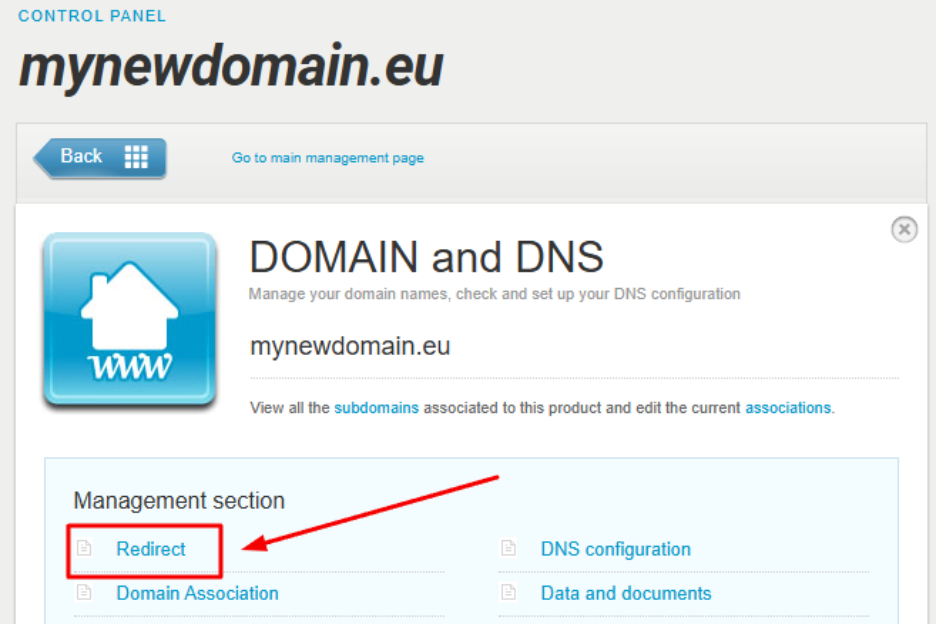
A. If No Hosting Plan Is Active for the Domain
You’ll see the option Set a redirect on your domain.
Enter the URL you want your domain to redirect to, then click Proceed to complete the process.
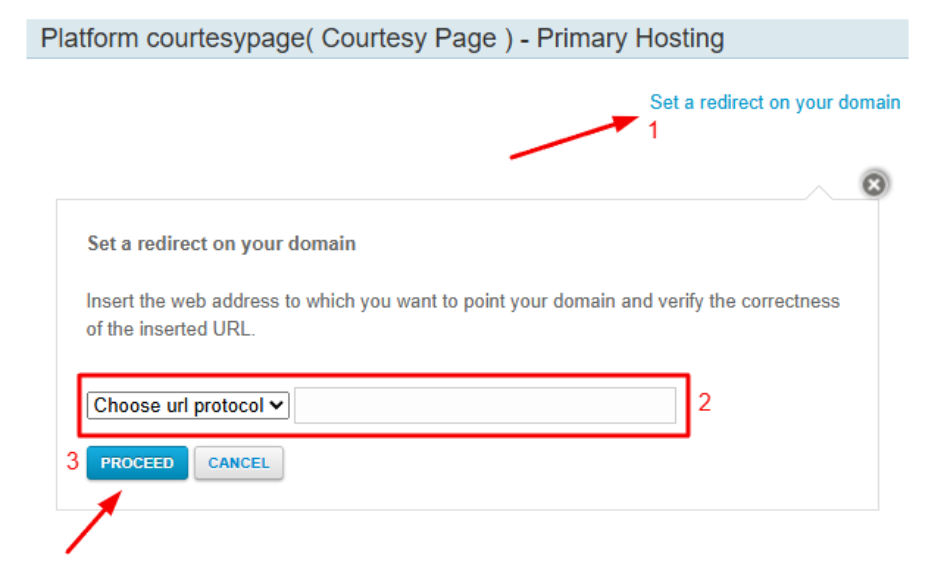
Important: Make sure to include the correct protocol (e.g. https://) before clicking Proceed.
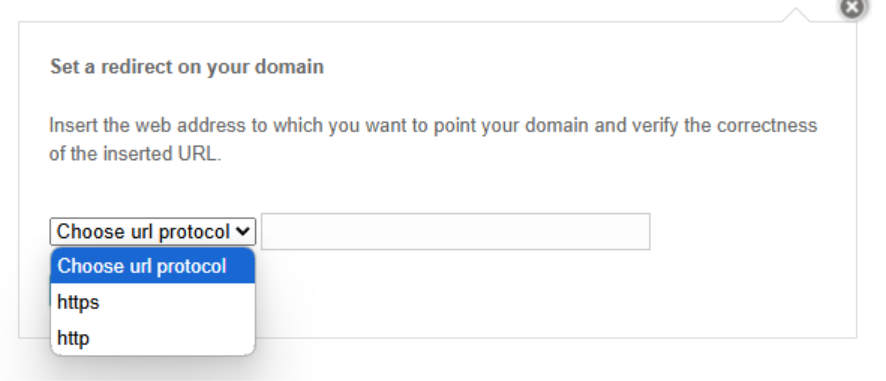
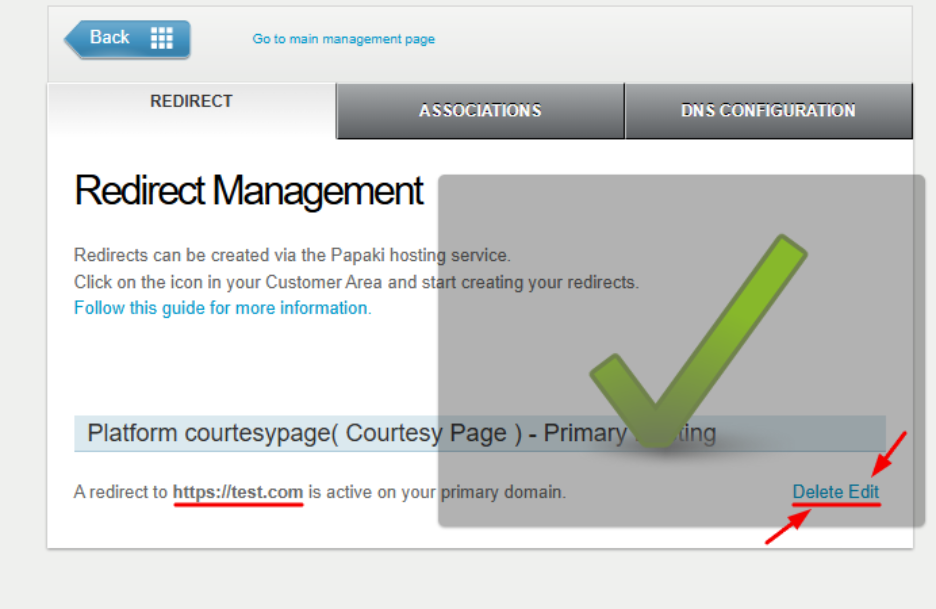
Once saved, a success message will appear, along with options to Edit or Delete the redirection.
B. If the domain is connected to a hosting plan
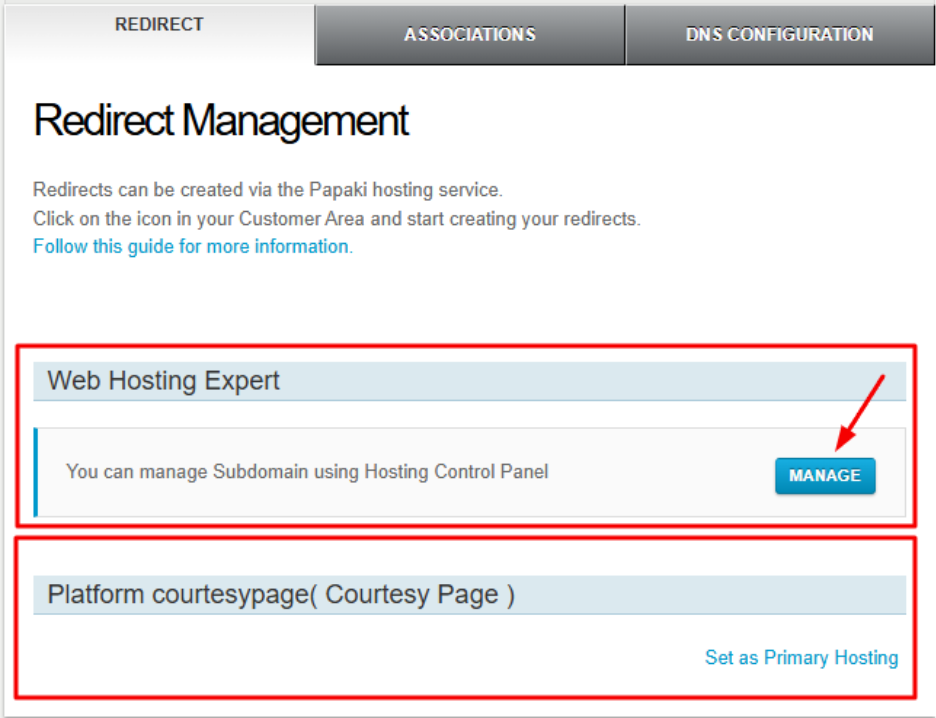
The redirection tab will show different content. Click Manage to access your hosting control panel, where you can set up redirection from there.
Domain Forwarding vs Domain Alias
| Feature | Domain Alias | Domain Forwarding |
|---|---|---|
| URL Change | No | Yes |
| SEO Impact | May cause duplicate content | Positive (especially with 301) |
| Common Use | Branding / multiple domains | Redirecting visitors to a new destination |
Frequently Asked Questions
Are there alternative ways to redirect a domain?
Yes, you can also configure redirection via your hosting package using an .htaccess file. Learn more here.
Does redirection cover both http & https?
Domain forwarding via your Papaki account does not fully support HTTPS unless an active SSL certificate is installed on the source domain (oldsite.com).
Without SSL, a redirection from http://oldsite.com to https://newsite.com may not be completed correctly.
Read more here on how to set up a fully secure redirection via the .htaccess file.
Are subdomains supported?
The redirection feature available through the Papaki interface applies only to the main domain (e.g., example.gr) and does not automatically include subdomains (e.g., blog.example.gr).
If you wish to redirect subdomains as well, this can only be achieved through a hosting package using .htaccess configuration. Read more here.
[Papaki 1.0]
If you wish to redirect your domain to another one, you can follow the steps below:
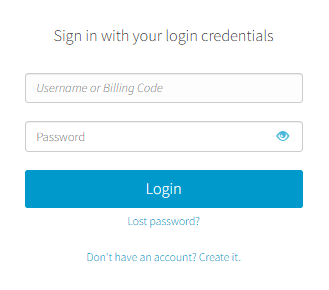
- Log in to your Papaki account.
Forgot your password? See here how to recover it. If it's your first login attempt to the new Papaki panel, please read more here.
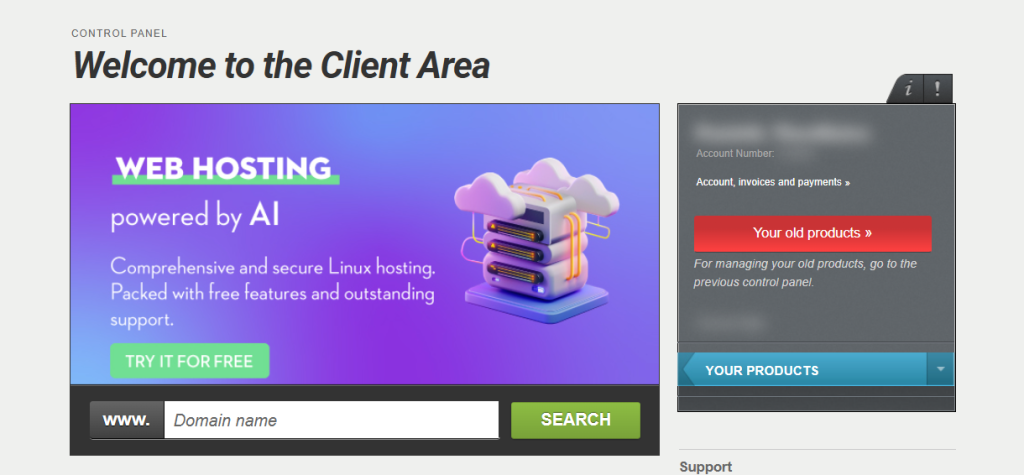
- Click the red button Your old products » on the right side of the control panel to access the old Papaki panel.
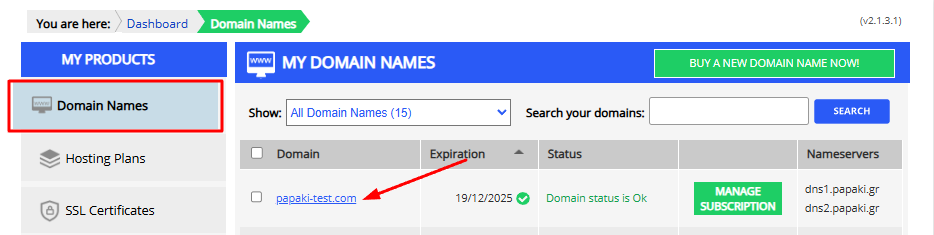
3. From the My Products list, select Domain Names and click your domain.
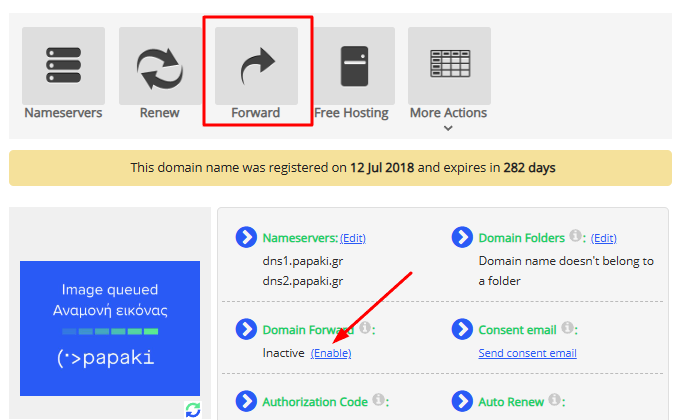
4. Then click the Forward button or, alternatively, in the Domain Forward field, click Enable.
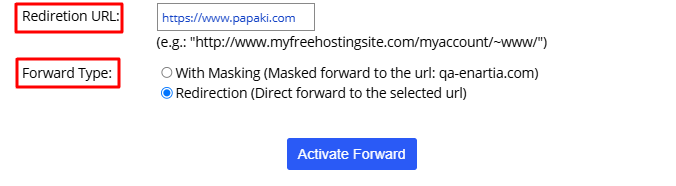
5. Next, select the Forwarding Address and choose the Forwarding Type you prefer.
The With Masking option forwards to the target address while keeping your domain in the URL. The Redirection option directly redirects to the target address.
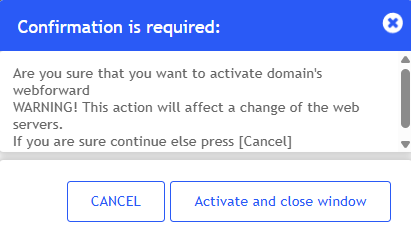
6. By clicking Activate Forward, you will be asked to confirm before proceeding, as this action will insert Papaki’s DNS Nameservers. If you had already set custom Nameservers, this action will overwrite them and disconnect the previous configuration.
Watch the video for step-by-step instructions on activating domain forward/masking.
Tip: Please note that Internet providers may take up to 48 hours to update their databases.
You haven't found what you are looking for?
Contact our experts, they will be happy to help!
Contact us