
Customer Support
How do I connect my domain to website-building platforms?
If you have created your website using a third-party platform such as Wix, Shopify, Squarespace, WordPress.com, Webnode, or Google Sites, you can use your own domain name by adding the DNS records provided by the platform.
Most website builders require you to add or modify A, CNAME, or TXT records in order to verify domain ownership and connect your domain to your website.
Before you begin
Within your website builder's administration panel, you will find the exact DNS records required for your domain.
Depending on the provider, you may be asked to add:
- A Records
- CNAME Records
- TXT Records
- AAAA Records
Before making any changes:
- Make sure you are following the latest instructions provided by your website builder.
- Keep a backup of your existing DNS records.
- Verify whether your domain is already using email services to avoid accidentally modifying email-related DNS records.
Popular platforms that support custom domains
- Wix
- Shopify
- Squarespace
- Webnode
- WordPress.com
- Google Sites
- Weebly
- Carrd
- HubSpot
The process is similar across all of these platforms:
- Sign in to your account.
- Go to the Domain or Custom Domain settings section.
- Enter the domain you want to use.
- Copy the DNS records provided by the platform.
- Add these records to your domain's active DNS zone.
- Wait for DNS propagation to complete.
- Complete the verification process within the platform's interface.
Common DNS Record Examples
A Record
Used to point a domain name to a specific IP address.
Example:
- Name: @ or leave it blank
- Value: 192.0.2.1
CNAME Record
Typically used to point the www subdomain to the website platform.
Example:
- Name: www
- Value: example.platform.com
TXT Record
Commonly used to verify domain ownership.
Example:
- Name: @ or leave it blank
- Value: google-site-verification=XXXXXXXX
Important Information
- DNS changes are not always applied immediately and may take several hours to propagate worldwide.
- If your provider's instructions display the @ symbol as the record name, you do not need to enter it in Papaki.
- Deleting or modifying the wrong DNS records may affect your website or email services.
- If you use a professional email service such as Google Workspace, Microsoft 365, or another provider, make sure that MX records are not modified unless specifically required.
Follow the appropriate procedure depending on the Control Panel where your domain is hosted.
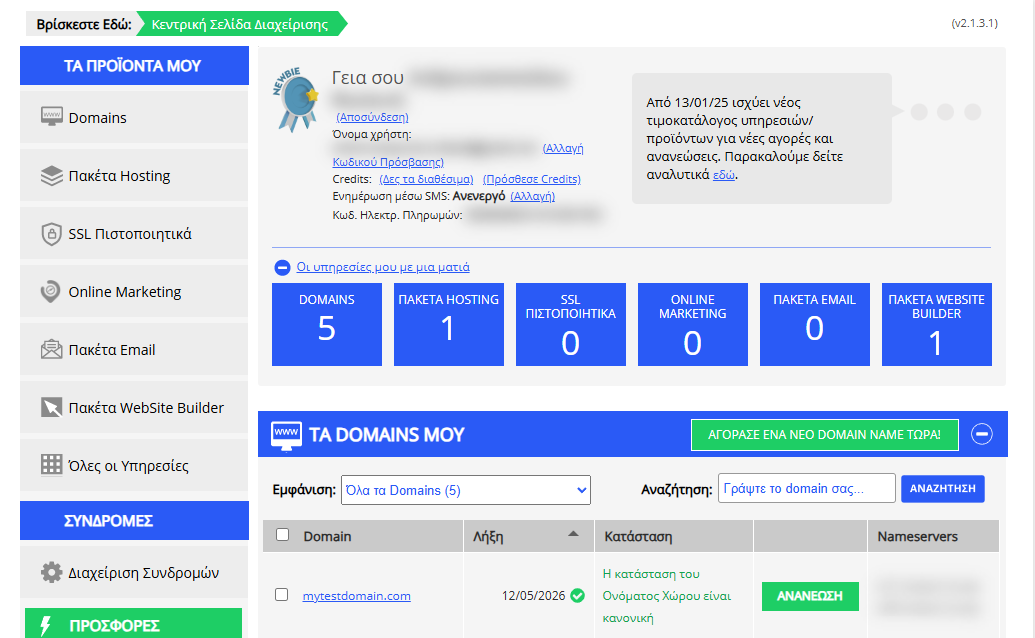
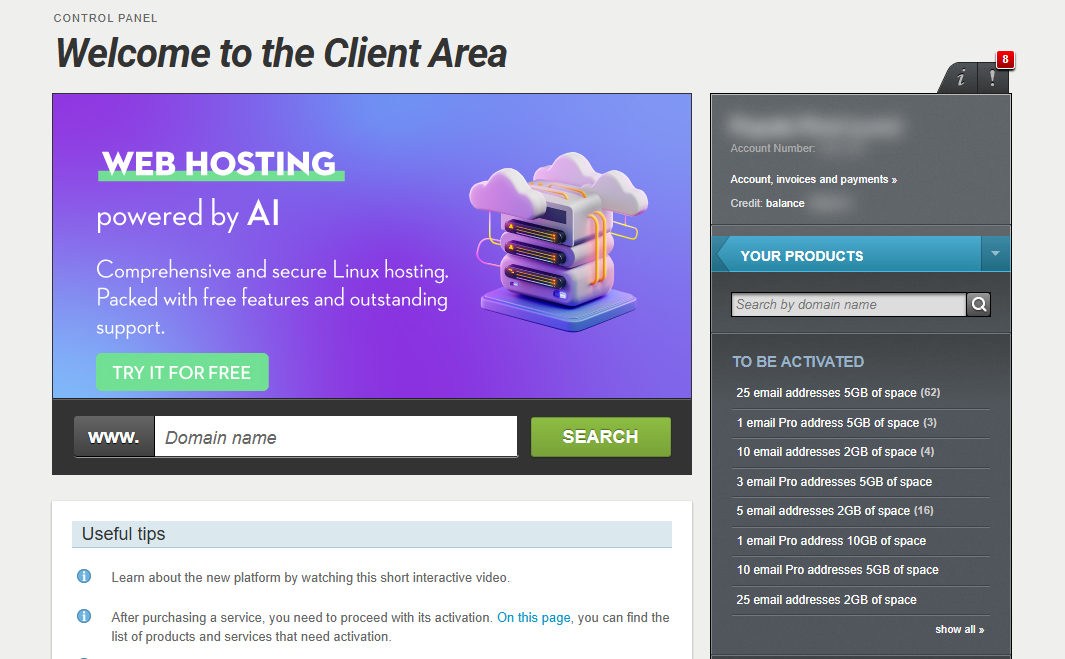
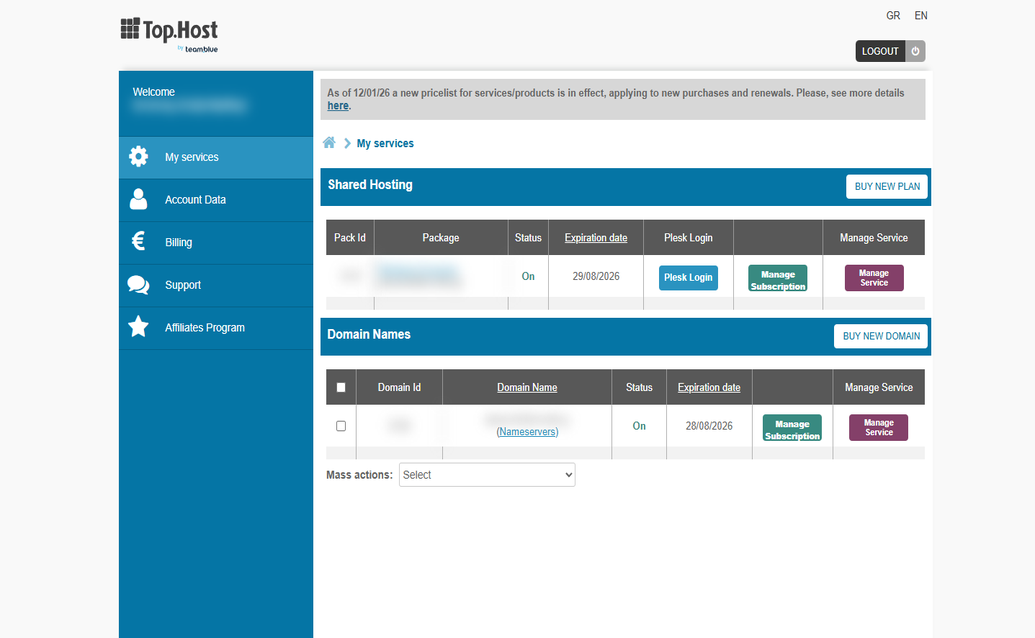
[Papaki / TopHost 2.0]
Upgrade process
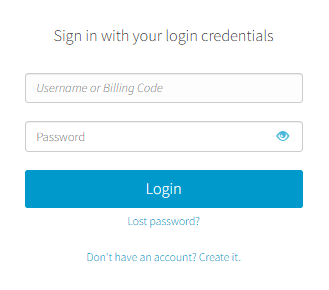
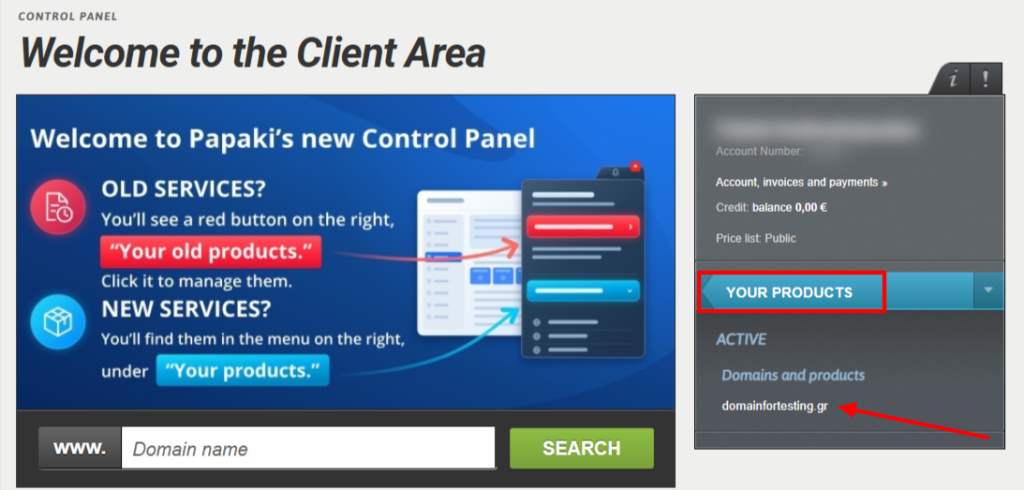
- Select Domains & Products and locate the domain you want to manage.
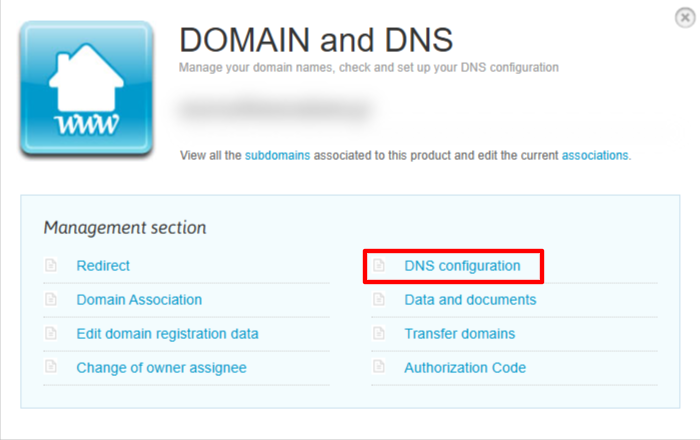
- Go to Domain & DNS → DNS Configuration.
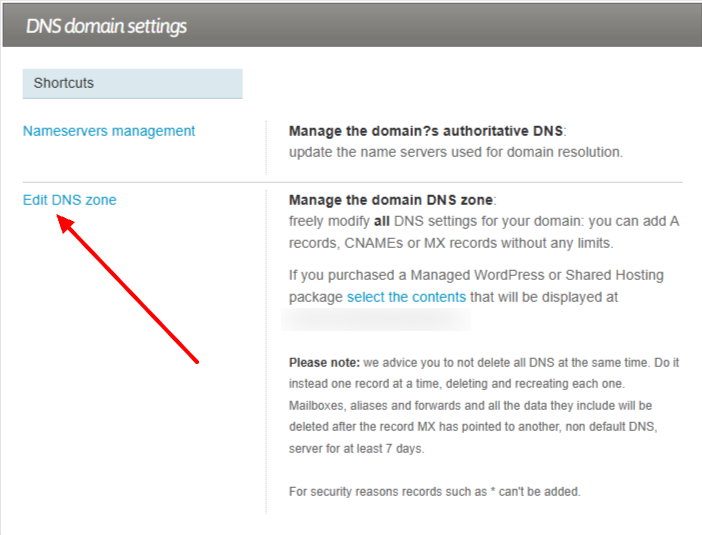
- Select Edit DNS Zone.
- Add or modify the records provided by your hosting provider following the guides below:
[Papaki 1.0]
- Log in to your Papaki account.
Forgot your password? See here how to recover it. If it's your first login attempt to the new Papaki panel, please read more here.
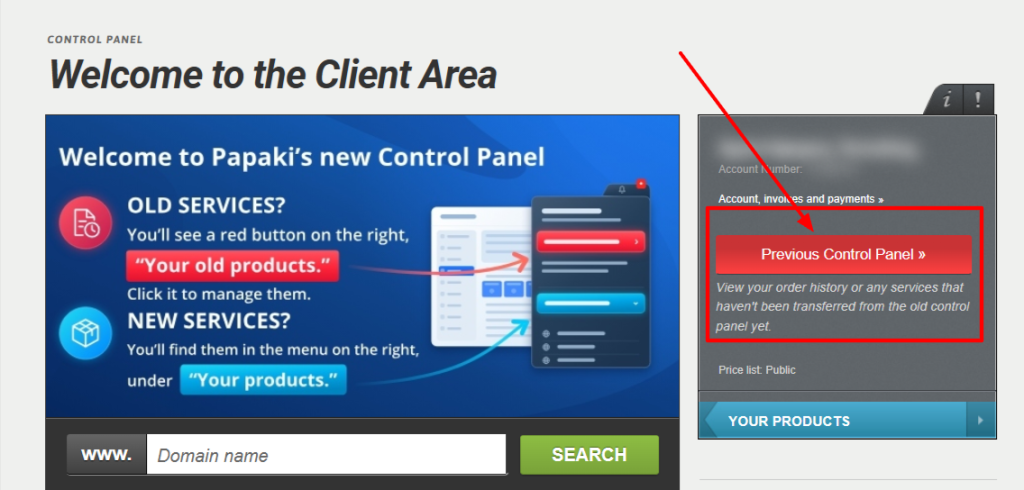
- Click the red button Previous Control Panel » on the right side of the control panel to access the old Papaki panel.
- If your domain's active DNS zone is hosted within a hosting package, follow the instructions in the guide below:
- If you are using Papaki's free DNS service, follow the instructions in the guide below:
- Add or modify the records required by your hosting provider.
[Top.Host 1.0]
DNS records are managed through the server management environment, specifically through Plesk.
- Log in to myTophost Panel and from there select Plesk Login to log in to the Plesk of the package you are interested in.

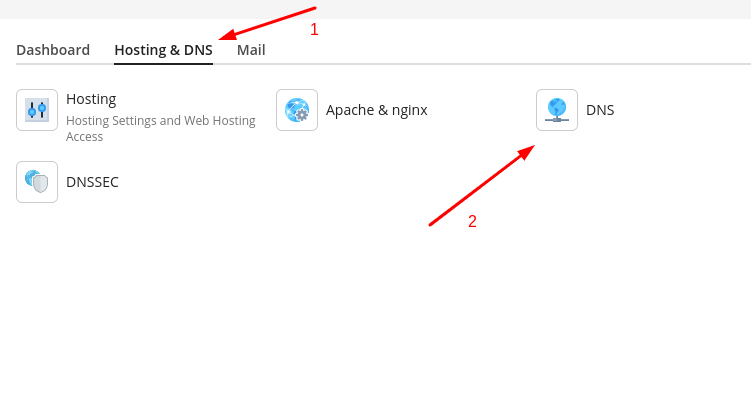
- On the Websites & Domains tab, select DNS Settings
- Select Add Record

- Add a record according to your need. The types of records you can set are NS, A, AAAA, CNAME, MX, PTR, TXT, SRV, DS, CAA.
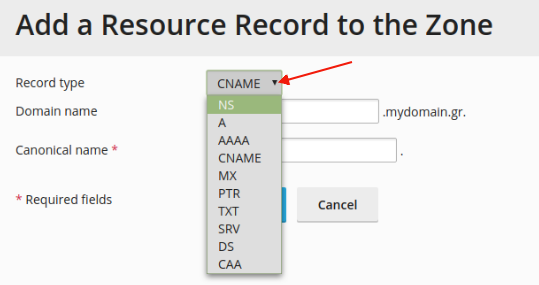
Below you can see some of the most common cases of adding a new record.
- A record
Record Type, select the A type
Domain name, leave blank if it's for the domain and if it's for a subdomain, just state it.
IP address, state the IP to which you wish to redirect your domain / subdomain
OK
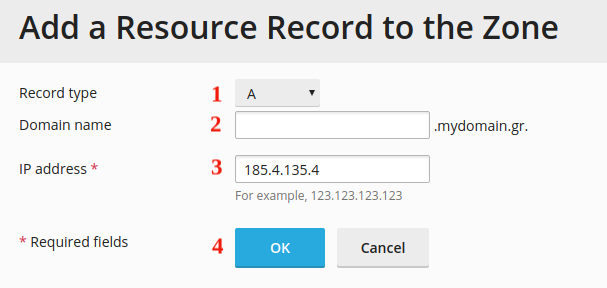
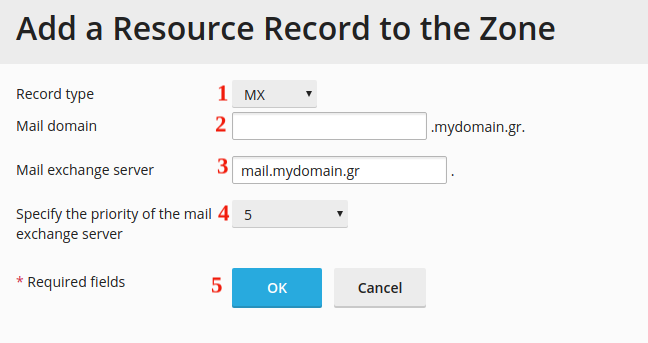
- MX records
Record Type, Select MX
Mail Domain, leave blank if it's for the domain and if it's a subdomain, just state it.
Mail exchange server, state the name of the mail server (for example, mail.mydomain.gr)
Specify the priority of the mail exchange server, state the priority that the mail exchange server will have. In case the priority is not given, you can declare "very high(0)" which is the highest.
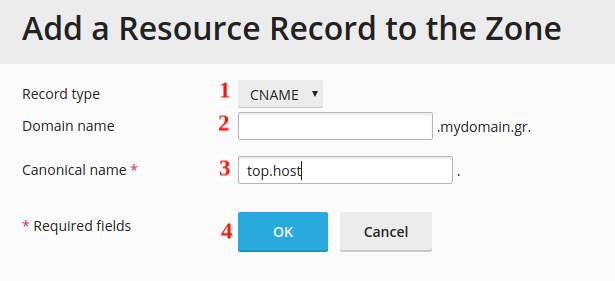
- CNAME record
Record Type, select the CNAME type
Domain name, leave blank if it's for the domain and if it's for a subdomain, just state it.
Canonical Name, state a name to which you wish to redirect your domain / subdomain
OK
- To complete the change and see it online within a few hours, select Update

You haven't found what you are looking for?
Contact our experts, they will be happy to help!
Contact us