
Customer Support
How can I transfer my .GR, .EU & .COM domain to Papaki, and what is the cost?
Transferring your domain to Papaki from another registrar is a simple process that doesn’t require technical knowledge. You can start the process easily from your Papaki account.
Why transfer your domain to Papaki?
Because we offer high-quality services and 24/7/365 support.
With every domain you get:
- Free DNS service
- A free email account
- A starter hosting package for your website setup
- Competitive prices and flexible promotional bundles
What’s the cost?
The cost depends on your domain’s extension. When you change registrars, your domain is automatically renewed for one additional year from its current expiration date—so the transfer fee includes a 1-year renewal.
See detailed pricing here.
Before you begin
Make sure:
- You have the Authorization Code (if required by the extension)
- The domain is active (expired domains cannot be transferred)
- The owner’s email address is active and accessible
- The owner’s contact details are accurate and up to date
Step-by-step transfer process
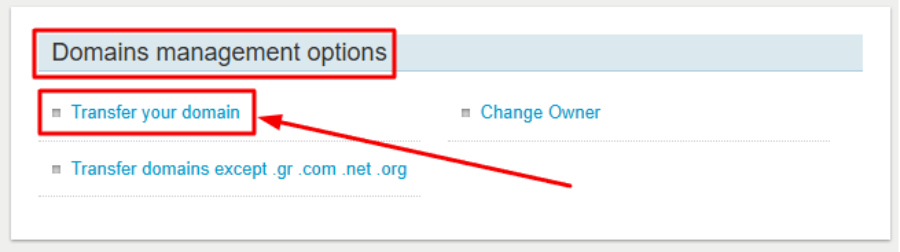
- From your dashboard, go to Domain management options → Transfer your domain. Or go directly here.
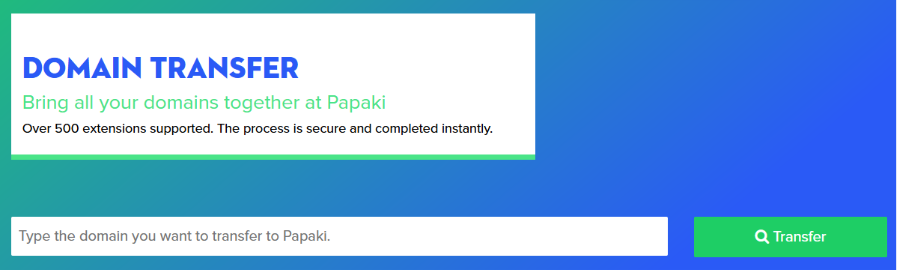
- Enter the domain you wish to transfer and click Transfer
- Set the nameservers:
- Use Papaki’s free nameservers
- Use Papaki’s free nameservers
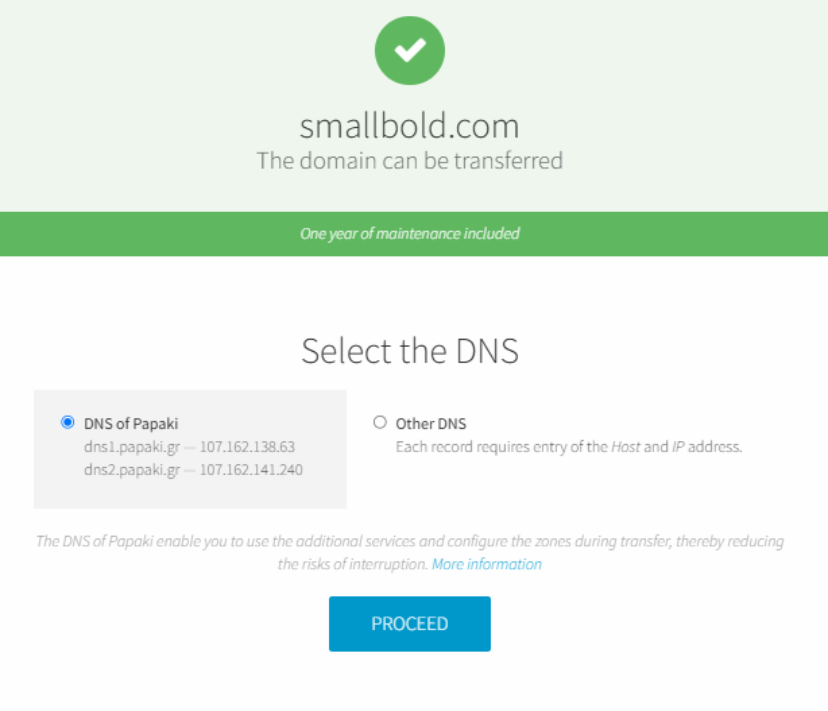
- Or add custom nameservers and IPs (If you don’t know the IPs, you may use placeholder values like 107.162.138.63 and 107.162.141.240)
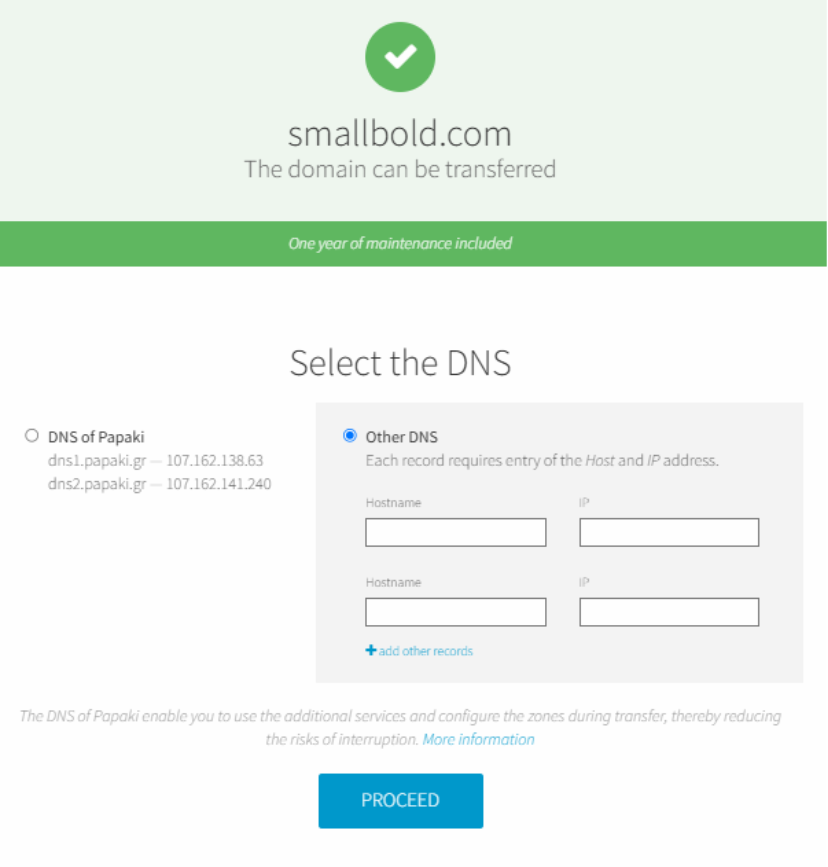
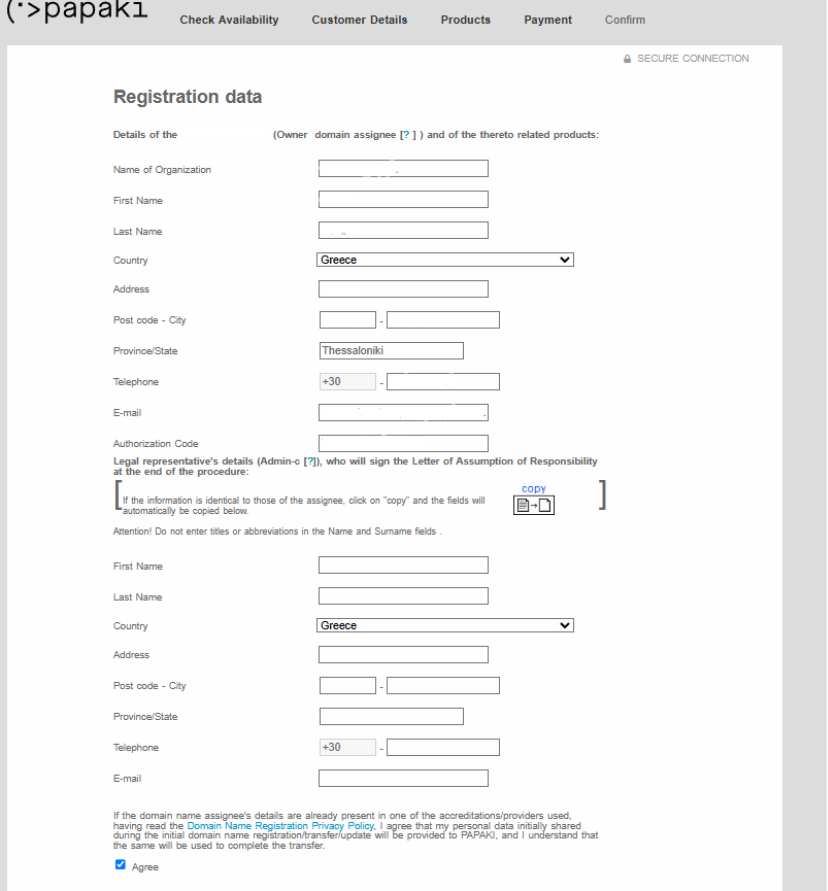
- Fill in the required details:
- Owner information: Use Latin characters for .COM and .EU domains. Greek characters are accepted for .GR and related domains.
- Legal representative (for company ownership): Use "Copy" if identical to the owner.
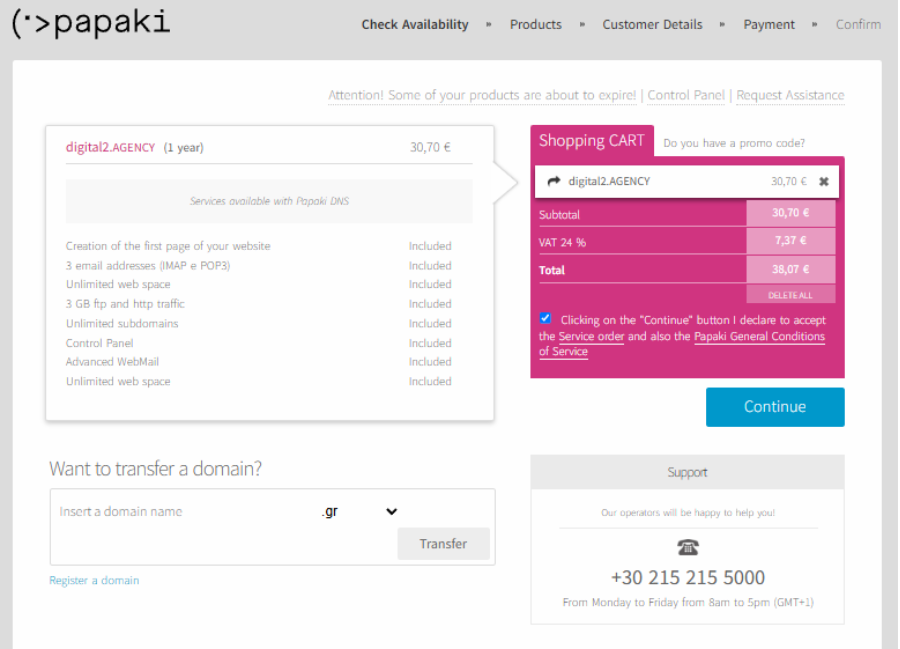
- Accept the terms of use and privacy policy and Add to cart
- Complete the payment with your preferred method
- Owner approval: An email will be sent to the domain owner for confirmation. If required, the Authorization Code will be entered at this step.
Transfer completion may vary from a few minutes to up to 8 days depending on the extension.
Special notes for .GR domains
- Transfer is free if completed before the domain’s expiration date.
- If the domain is in the “quarantine” period (after expiration), transfer costs apply and it will be renewed for 2 years.
- If you enter different owner details during the transfer, they are not automatically updated in the registry. [Learn how to update ownership details properly here.]
Extension-specific cases
- .uk / .co.uk: Use a tag instead of an Authorization Code. Papaki’s tag is: REGISTER-IT
- .es: Confirmation is done via the domain owner’s email or through the new registrar
- .eu: Transfer must be initiated at least 10 days before the domain's expiration date
Common reasons a domain transfer may fail
- Invalid or expired Authorization Code
- Domain is locked (Registrar Lock must be disabled). Click here for more.
- Domain is newly registered or was recently transferred (ICANN does not allow transfers within 60 days)
- Domain has expired or is in the redemption period
- The domain owner did not complete the email confirmation
- WHOIS data mismatches or recent changes may temporarily block the transfer
You haven't found what you are looking for?
Contact our experts, they will be happy to help!
Contact us