
Customer Support
Hosting for WordPress (Managed & Unmanaged) – How can I access my WordPress admin panel?
After you activate your WordPress Hosting plan and complete the WordPress installation, you need to set the correct IP address in the active DNS zone of the domain you used.
If you need help with these steps, check the guides below:
- How do I activate my WordPress hosting plan?
- How do I connect my domain name to the Managed WordPress Hosting plan?
[Papaki 2.0]
Log in to your WordPress site (Step-by-step)
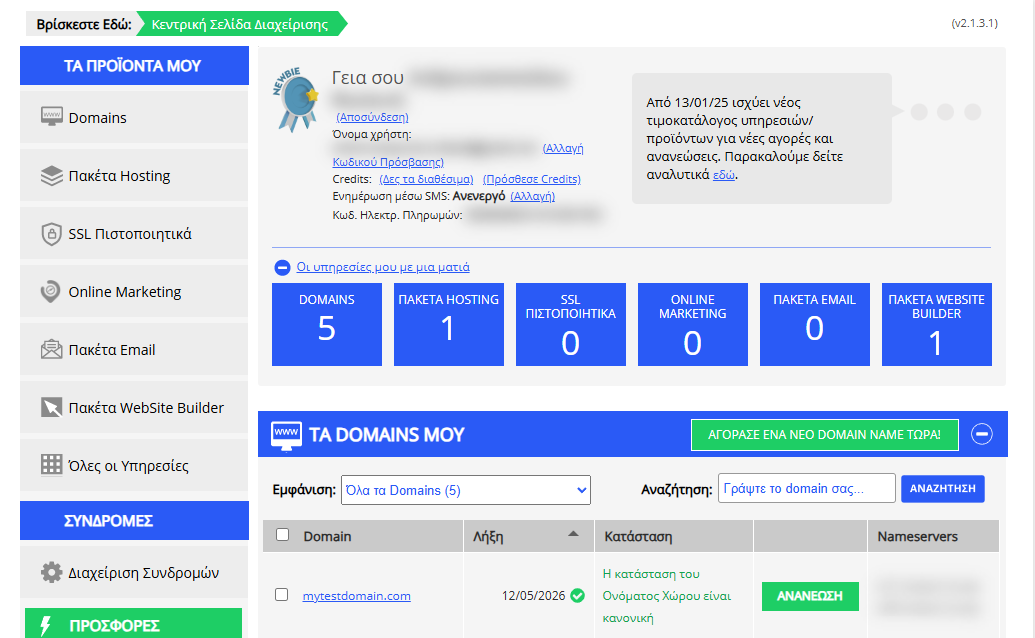
- From the dashboard, locate the product you want to manage. Click the name of the plan.
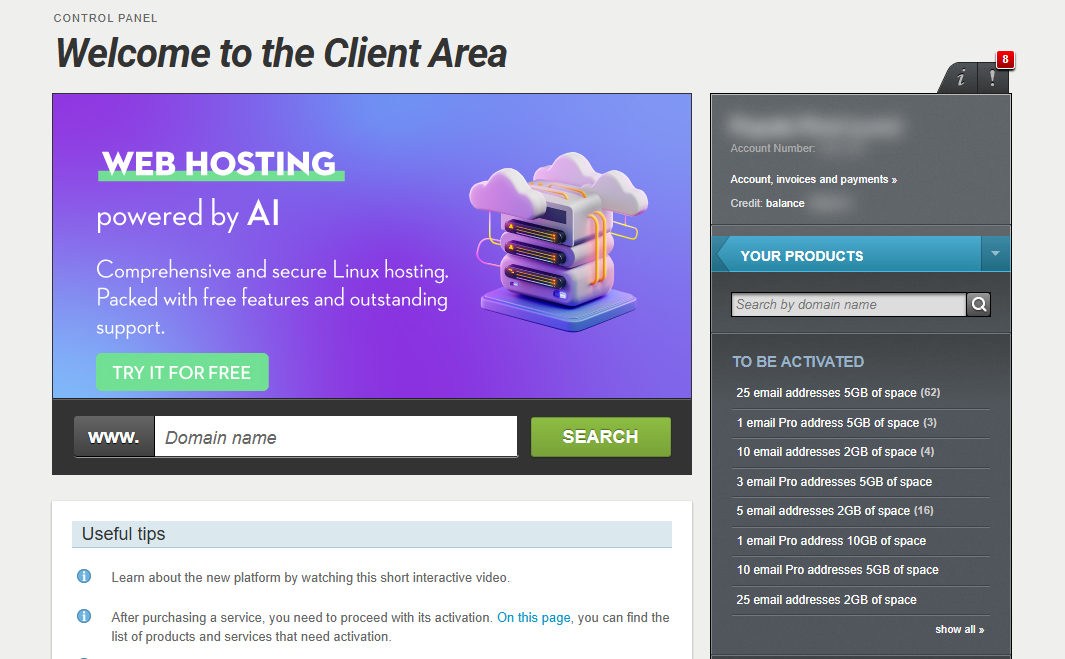
You will be automatically redirected to your hosting management area. Here you can see, by category, all services related to your Papaki account.
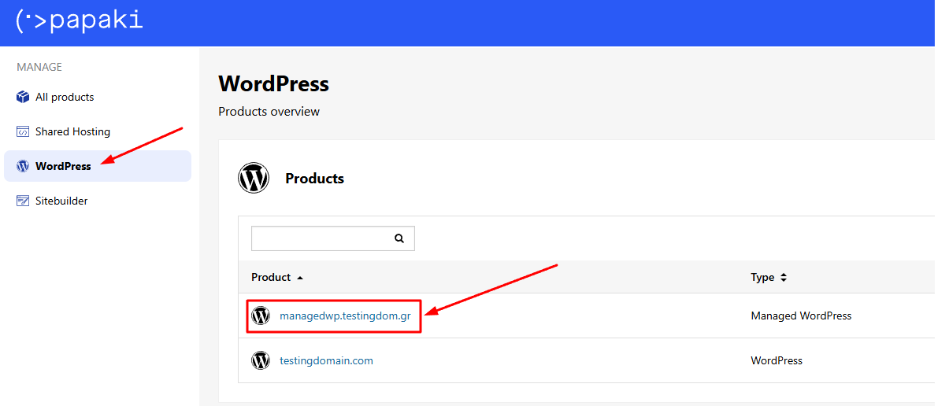
- From the left menu, go to Hosting Packages and select WordPress. Then locate your package.
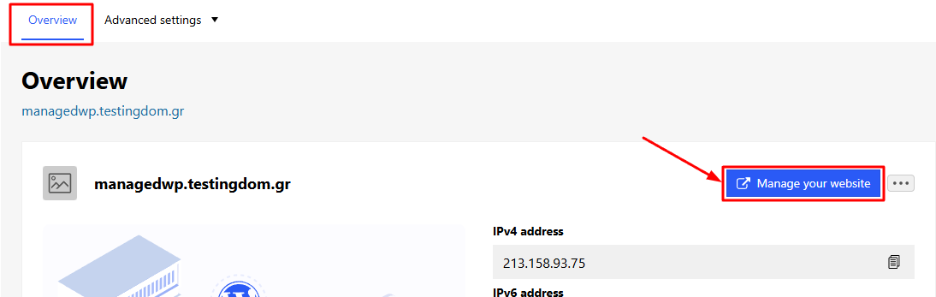
- From the Overview tab, click Manage your website. You’ll be logged in to the WordPress admin automatically, without using a password.
Frequently Asked Questions (FAQs)
Can I log in using another method?
Yes. While Papaki provides one-click login, you can also access your WordPress admin using the credentials (username/password) set during installation or reset them via email. The login page is mydomain.com/wp-login/
I can't access the WordPress admin. What should I do?
- Make sure the correct IP address is set in the active DNS zone of your domain.
- If using an external DNS service, confirm that DNS propagation has been completed.
- Try clearing your browser cache or switching to another network.
Can I change the domain connected to my hosting package?
Yes, but this will reset your package to its initial state and erase all content. Contact our support team if you'd like to proceed with this.
How long does it take for my site to become accessible?
Usually within 10–30 minutes after DNS settings are updated. In some cases, DNS propagation may take up to 24 hours.
Can I host more than one website on the same package?
No. Each Managed WordPress Hosting package supports one WordPress installation. To host multiple websites, you’ll need additional packages.
Can I install plugins and themes on WordPress?
Yes. You have full access to your WordPress admin panel and can install and manage plugins, themes, and all available features.
[Papaki 1.0]
If you manage your WordPress Hosting through the old Papaki Control Panel, you can access your website from your account by following the steps below:
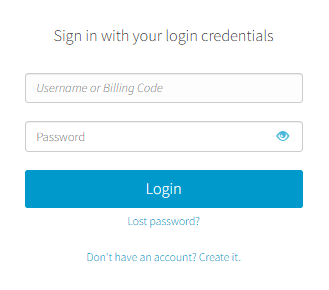
- Log in to your Papaki account.
Forgot your password? See here how to recover it. If it's your first login attempt to the new Papaki panel, please read more here.
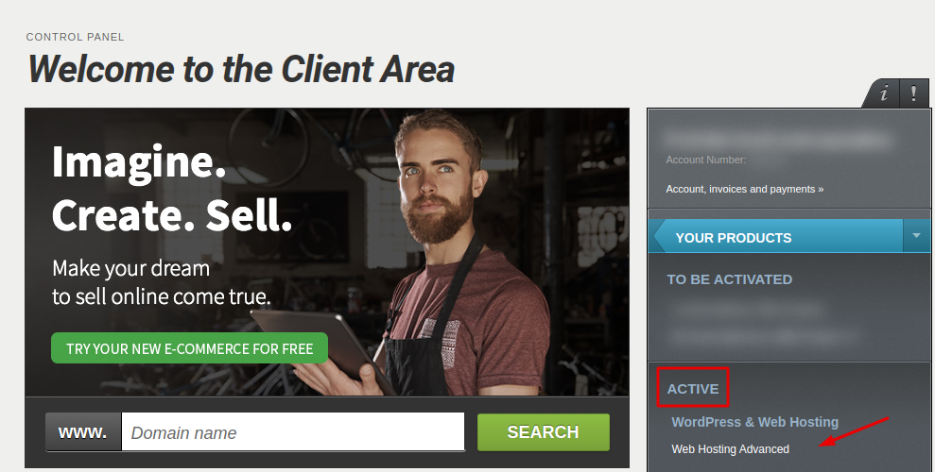
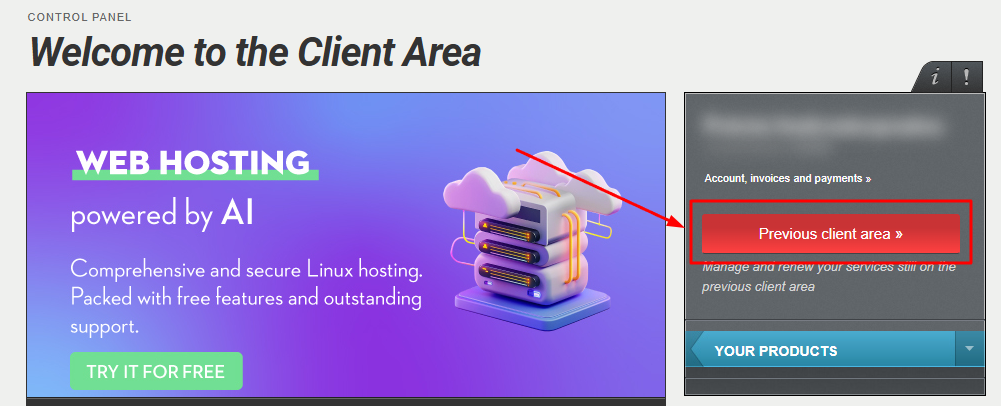
- Click the red button Previous client area » on the right side of the control panel to access the old Papaki panel.
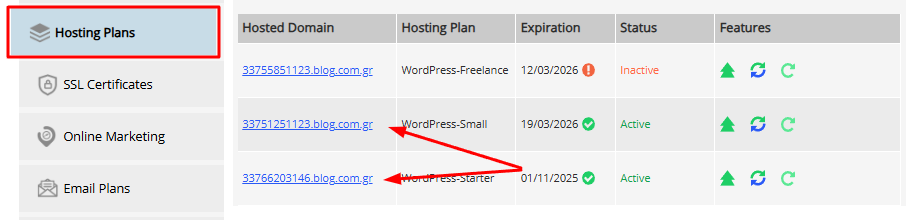
- From the left sidebar, select Hosting Packages
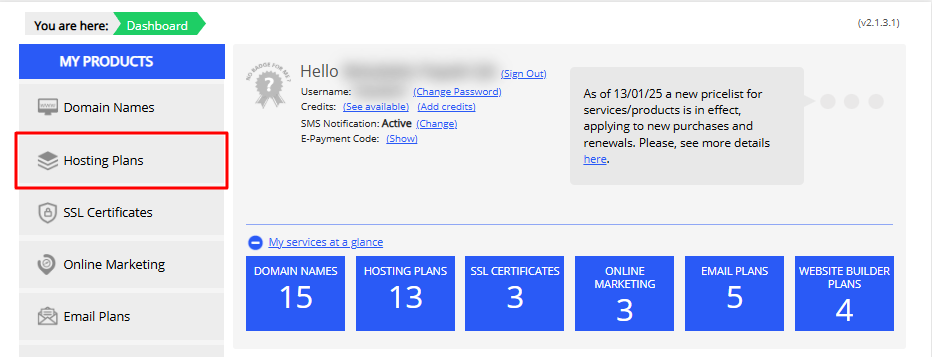
- Find the package that hosts your WordPress site
- In the menu that opens, click Manage WordPress (wp-admin)
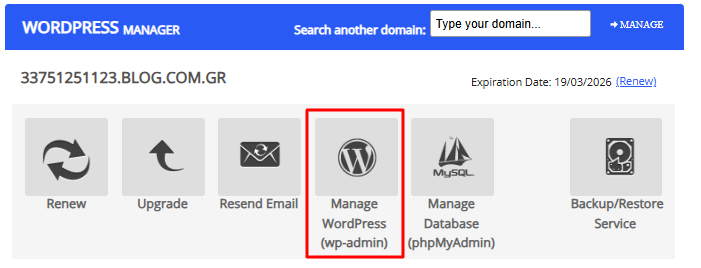
You will be logged in to your website’s admin area immediately, without using credentials.
Can I log in to the WordPress admin another way?
Yes. Although the primary login is passwordless via Papaki, you can also log in directly using the username/password you received during installation, or reset them via email. The login URL is usually yourdomain.gr/wp-admin/
You haven't found what you are looking for?
Contact our experts, they will be happy to help!
Contact us